WebSite-Watcher HELP
Welcome to WebSite-Watcher
WebSite-Watcher allows you to monitor your favorite websites for updates and changes with minimal time and effort. You no longer need to visit each page manually to check for changes.
When a change is detected, WebSite-Watcher saves the two most recent versions of the page on your hard disk. All changes in the text are automatically highlighted, so you can immediately see what has been modified.
Many features give you precise control over how and when a page is monitored. For example, you can configure WebSite-Watcher to notify you only if a specific keyword appears in the changed content.
WebSite-Watcher runs as a client application on your computer, similar to an email client. All Bookmarks and settings are stored locally on your hard disk. WebSite-Watcher does not require access to our servers to check pages for updates or changes.
Main Features
- Monitor web pages
- Monitor password-protected pages
- Monitor forums for new posts and replies
- Monitor RSS feeds
- Monitor local files
- Monitor PDF, Word, and Excel documents
- Monitor Facebook, Instagram, and X pages
- Highlight changes within a page
- Powerful filter system to ignore unwanted content
- Many additional features to help you stay up to date
Overview
Main Window
The main window of WebSite-Watcher is divided into three areas.
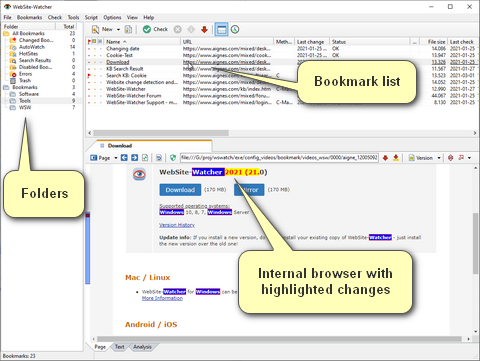
- Folder Tree
The folder tree on the left side contains several predefined folders, such as AutoWatch, HotSites, and Trash, as well as user-defined folders that you can create to organize your Bookmarks. - Bookmark List
The bookmark list displays all Bookmarks in the selected folder. Each Bookmark has its own configuration, which you can open from the context menu. - Internal Browser
Double-click a Bookmark to open the web page with highlighted changes in the internal browser. When WebSite-Watcher starts, the internal browser is closed. It opens automatically when you open a Bookmark. You can position the internal browser at the bottom or on the right side of the bookmark list.
Main Menu
File
The File menu contains all commands for creating, opening, and maintaining Bookmark databases.
A Bookmark database uses the file extension *.wsw and contains all folders, Bookmarks, and configuration settings. Cache files are stored in the related *_WSW folder.
The menu item Database contains commands to maintain, optimize, or repair a database. Run these commands only if you experience problems with your database, such as crashes or performance issues.
If your database is damaged, running the command Repair database attempts to restore as much data as possible. If you have a working and up-to-date backup file, restore that backup instead.
As an additional option to repair a damaged database, you can use Re-create database from cache folder. This command rebuilds the entire database from the files available in the Cache folder. Use this command only as a last resort if the command "Repair database" fails and no working, up-to-date backup file is available.
Bookmarks
The Bookmarks menu contains all commands for managing Bookmarks.
The commands "Find" and "Find next" allow you to search for text in all Bookmark configurations within the selected folder. To search for text in checked web pages, use the Advanced Search feature.
The command "Replace" allows you to modify text within selected Bookmark configurations.
Check
The Check menu contains all commands to check web pages.
The command Check HotSites selects and checks all Bookmarks in the "HotSites" folder.
The command Check selected bookmarks (extended) provides additional options to define which Bookmarks are checked. For example, you can ignore configured time settings.
Tools
The Tools menu contains several helper tools. For example, you can import or export Bookmarks in various formats, synchronize databases via Cloud-Sync, and search for text in monitored web pages.
Script
WebSite-Watcher includes a simple internal scripting language that allows you to automate tasks and user interactions.
For example, you can check Bookmarks, send a generated Report by email, and repeat the entire procedure after a specified time interval.
Options
The Options menu contains all WebSite-Watcher settings and configuration options.
View
The View menu contains commands to show or hide main window elements, Bookmark statistics, log files, and other interface components.
Help
The Help menu provides access to help topics and the About dialog.
Toolbar Symbols
Main Toolbar
 Open a Bookmark database. Bookmark lists are stored in files with the extension *.wsw. Monitored web pages are stored in the related *_WSW Cache folder.
 Start the assistant to add new Bookmarks
 Add a new Bookmark
 Check all Bookmarks in the selected folder
 Abort the current check
 Show the InfoWin, for example the current check status
 Go to the previous Bookmark
 Go to the next Bookmark
 Go to the next changed or unread Bookmark. Changed Bookmarks are displayed in bold and red.
 Open or close the internal browser
 Open the Advanced Search
 Turn AutoWatch on or off
 Minimize WebSite-Watcher to the system tray
 Exit WebSite-Watcher
Internal Browser
 Navigate back
 Navigate forward
 Stop loading the current page
 Reload the page in the internal browser
 Find text in the internal browser
 Open additional page commands and features
 Edit Bookmark properties
 Automatically create filters to ignore highlighted changes
 Restore the previous version
 Open the next changed Bookmark. Changed Bookmarks are displayed in bold and red.
 Go to the next change within the open page
 Open the online version of the Bookmark
 Open the new version of the Bookmark
 Open the previous version of the Bookmark
 Open the version with highlighted changes
 Open both the version with highlighted changes and the old version
 Maximize the internal browser
 Open the current page in the external browser
Symbols in Bookmark List
Each Bookmark can display one or more of the following icons.
 A Bookmark can be assigned a small flag. The main purpose is to provide a simple visual marker, so you can quickly identify important Bookmarks. Additional functions are based on these flags, for example "Don't auto-delete bookmarks with flags" in the folder properties. You can assign a flag by double-clicking the first column of the Bookmark, or by using the context menu, which provides additional flag colors.
 This icon appears when notes have been entered in the Bookmark properties. Double-click this icon to open the separate Notes dialog without opening the Bookmark properties.
 The Bookmark is marked as a HotSite. All Bookmarks with this flag are listed in the "HotSites" folder.
 The Bookmark is a Master-Bookmark. This means that the Follow-Links feature is enabled in the Bookmark properties.
 The Bookmark is a child of a Master-Bookmark and was added automatically by the Follow-Links feature.
 The Bookmark is queued for checking. is queued for checking.
 An error occurred during the Bookmark check, and the Bookmark was queued for a second check.
 The Bookmark is currently being checked.
 An error occurred during the Bookmark check, and the Bookmark is currently being checked a second time.
Sidebar for Changes
When you open a Bookmark in the Internal Browser of WebSite-Watcher, a changes bar appears on the left side. This bar indicates where changes and keywords are located and allows you to quickly navigate to these positions.
Areas that contain changes are displayed in yellow. The areas before and after the yellow section are displayed in white.
Highlighted changes are located only within the yellow area and are displayed in red.
Highlighted keywords within highlighted changes are displayed in blue. The changes bar does not display keywords that are located outside of highlighted changes.
If a page contains highlighted changes that are hidden or cannot be displayed due to CSS definitions, WebSite-Watcher shows them as small lilac markers. In this case, switch to the Text tab of the internal browser. This view always displays all highlighted changes.
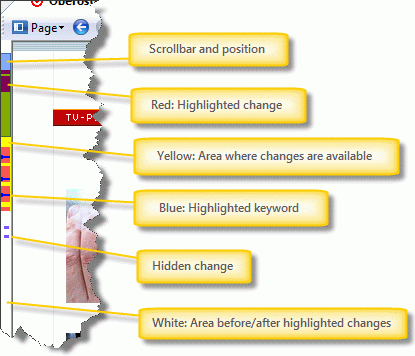
If the changes bar displays "xxx" instead of change markers, WebSite-Watcher cannot determine the exact position of the changes. WebSite-Watcher depends on certain Chromium functions, which may sometimes report incorrect positions.
This behavior also occurs when you use the Check by screenshot method, because in this mode the exact position of changes cannot be determined.
Supported Page and File Types
WebSite-Watcher can monitor many different file types and page types.
- Web pages with text content
WebSite-Watcher supports both static web pages, such as pages with the file extension .htm or .html, and dynamic web pages, such as pages with the file extension .php. - RSS/Atom feeds
RSS and Atom feeds are converted into a readable web page format, so they can be monitored like normal web pages. - Pages behind a Login
For password-protected pages, you can record a Check-Macro. This Check-Macro is executed automatically when the page is checked for updates. - Discussion forums
Forums are handled as normal web pages with additional optimizations, for example a specialized method to highlight changes. - Pages with JavaScript content
For pages where the content is generated or displayed using JavaScript, WebSite-Watcher uses a separate and more advanced technology to convert the dynamically generated content into static content for comparison. - PDF files
An integrated Plugin automatically converts PDF documents into web pages. PDF files can then be monitored like normal web pages, and WebSite-Watcher can highlight changes in the text. - Microsoft Word files
An integrated Plugin automatically converts Microsoft Word documents into web pages. Word files can then be monitored like normal web pages, and WebSite-Watcher can highlight changes in the text. - Microsoft Excel files
An integrated Plugin automatically converts Microsoft Excel documents into web pages. Excel files can then be monitored like normal web pages, and WebSite-Watcher can highlight changes in the text. - Images
If you monitor an image file directly, WebSite-Watcher can detect and highlight changes within the image. - Binary files
WebSite-Watcher can detect updates of binary files, for example ZIP or EXE files, by comparing the file date, file size, or parts of the content. Binary files are not downloaded completely when they are checked for updates. - FTP files and directories
WebSite-Watcher supports monitoring of FTP files and directories. FTP files can be checked by file date, file size, or by content. - Locally saved files
WebSite-Watcher can monitor files stored on your local hard disk.
Useful Shortcuts
Navigate Through Changed Bookmarks
Useful keyboard shortcuts for opening and working with changed Bookmarks.
|
Key |
Action |
|
F12 |
Open the next changed Bookmark |
|
Ctrl+F12 |
Jump to the next change within the current page |
|
Enter |
Open the selected Bookmark, if the bookmark list is focused |
|
Shift+Enter |
Open the selected Bookmark and maximize the internal browser, if the bookmark list is focused |
|
Ctrl+Enter |
Set the focus to the bookmark list |
|
Ctrl+Alt+Enter |
Open the selected Bookmark in the external browser |
Internal Browser
Useful keyboard and mouse shortcuts for working with the internal browser.
|
Key |
Action |
|
F11 |
Maximize the internal browser |
|
Space |
Scroll down in the internal browser |
|
Ctrl+Tab |
Select the next browser tab |
|
Ctrl+W |
Close the selected browser tab |
|
Ctrl+Shift+W |
Close all read browser tabs |
|
Shift+Click on Ctrl+Click on |
Open the page in a new browser tab in the foreground |
|
Shift+Click on a link or Ctrl+Click on a link |
Open the link in a new browser tab in the background |
|
Shift+Ctrl+Click on a link |
Open the link in a new browser tab in the foreground |
|
Ctrl+Alt+Click on |
Open the selected version in the external browser |
|
Ctrl+Alt+Click on a link |
Open the link in the external browser |


Add new bookmarks
Using the Assistant
Click the Assistant button  in the main toolbar to add a new Bookmark using the assistant. In a few steps, the assistant helps you select the appropriate configuration based on the page type.
In the first step, decide whether the web page can be accessed directly or whether it is located behind a web-based Login.
- Page can be accessed directly
A page can be accessed directly if you can open it in your web browser by entering the URL without performing additional actions, such as clicking a button or submitting a form. In this case, enter the page address in the URL field. - Page is password protected
If the page is password protected and requires a web-based Login, you must record a Check-Macro. A Check-Macro contains all required Login steps and is executed automatically when the Bookmark is checked for updates. - Page is the result of a search query
If the page is displayed only after submitting a form, for example after performing a search query, you must record a Check-Macro. WebSite-Watcher records all required steps, such as filling out form fields and clicking buttons. These steps are executed automatically each time the Bookmark is checked for changes.
After you click the "Next" button, WebSite-Watcher checks the page and initializes the Bookmark.
In the next step, select the page type. The selected page type is used as a reference for the remaining assistant steps, so that the assistant can apply the most suitable options and configurations for the Bookmark.
Steps:
1. Click the Assistant button  in the main toolbar.
2. Enter the URL you want to monitor, or record a Check-Macro for password-protected pages.
3. Click "Next" to initialize the page.
4. Select the page type, if it is not detected automatically.
5. Follow the remaining steps of the assistant.
Add Bookmarks Directly
As an alternative to the assistant, you can add a Bookmark directly by clicking the Add button  in the main toolbar, or by pressing the "Ins" key.
Enter the page address in the URL field and click the "Check" button to initialize the Bookmark. All other settings use default values.
If you leave the Bookmark name empty, WebSite-Watcher automatically assigns the page title as the Bookmark name.
Steps:
1. Click the Add button  in the main toolbar, or press the "Ins" key.
2. Enter the page address in the URL field.
3. Click the "Check" button.
Add bookmarks from Browser
WebSite-Watcher provides browser integration, which allows you to add new Bookmarks directly from your web browser.
Add from Web Browser
WebSite-Watcher can display a button in the title bar of major browsers, such as Chrome, Firefox, and Microsoft Edge.
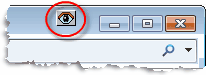
If WebSite-Watcher is running, a small button appears in the title bar of your browser.
Click this button to open a menu that allows you to add the currently open page to WebSite-Watcher or Local Website Archive.
Add from Internal Browser
You can also add new Bookmarks by dragging and dropping a tab from the internal browser to a folder in the folder tree.
Import Bookmarks
Bookmarks can be imported from different sources using the Tools menu.
- Import bookmarks from Excel or CSV
See the chapter Import from Excel / CSV. - Import bookmarks from a text file
WebSite-Watcher can import URLs from a text file. A description of the supported formats is available in the chapter Import from Text file. - Import RSS feeds from an OPML file
RSS and Atom feeds can be imported from an OPML file. The OPML file can be stored locally on your disk or available on a website.
Steps:
1. Click "Tools" in the main menu.
2. Select "Import / Export".
3. Select the source from which you want to import Bookmarks.
Import URLs from Text File
WebSite-Watcher can import URLs from text files in one of the following formats.
One URL per Line
Each URL must be placed on a separate line, for example:
https://www.website-watcher.com
https://www.aignes.com/support.htm
https://www.aignes.com/videos.htm
One Name + URL per Line
Each line contains a name and a URL, separated by a tab character, for example:
WebSite-Watcher{tab}https://www.website-watcher.com
WSW Support{tab}https://www.aignes.com/support.htm
Videos{tab}https://www.aignes.com/videos.htm
The text file must be stored in ASCII or UTF8 format.
Steps:
1. Click "Tools" in the main menu.
2. Select "Import / Export".
3. Select "Import all/new bookmarks from Text file".
4. Select the location and the format of the text file.
5. Click OK.
Import from Excel and CSV
Bookmarks, including bookmark properties, can be imported from the first sheet of an Excel workbook or from a CSV file. Supported file extensions are xls, xlsx, and csv.
The first row must contain the field names to be imported. Each subsequent row must contain the values for one Bookmark, with one Bookmark per row.
The following screenshot shows a typical Excel sheet:
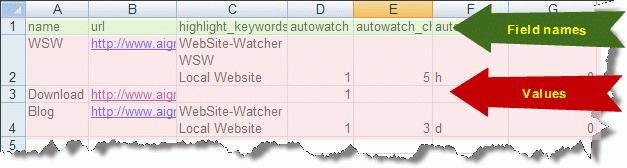
You only need to include the fields that you want to import. The smallest possible sheet contains a single column with the URL field.
Supported fields:
|
General |
|
|
Field |
Description |
|
wswid |
Unique WebSite-Watcher Bookmark ID written during export. |
|
name |
Bookmark name |
|
url |
URL of the Bookmark. If no wswid is available, this field is required, otherwise the row is not imported. |
|
url2 |
Alternative check URL |
|
check_macro |
Source code of a Check-Macro |
|
postdata |
PostData if the Bookmark is checked using the POST command |
|
Filter |
|
|
ignore_filter |
Manual ignore filter definitions, one filter per line |
|
watch_filter |
Manual watch filter definitions, one filter per line |
|
ignore_removed_elements |
Special filter: Ignore removed elements. Valid values: 0 or 1 |
|
ignore_html_tags |
Special filter: Ignore all HTML tags. Valid values: 0 or 1 |
|
ignore_upper_lower |
Special filter: Ignore upper/lowercase. Valid values: 0 or 1 |
|
ignore_dropdown |
Special filter: Ignore entries in dropdown and list boxes. Valid values: 0 or 1 |
|
filter_sort_content |
Special filter: Sort page content. Valid values: 0 = no sorting 1 = sort page content by words 2 = sort page content by sentences |
|
Keywords |
|
|
highlight_keywords |
Highlight keywords. One keyword per line. |
|
same_keywords_as_above |
Use same keywords as above. Valid values: 0 or 1 |
|
update_on_keywords |
Updates on keywords. One keyword per line. |
|
AutoWatch |
|
|
autowatch |
Enable AutoWatch. Valid values: 0 or 1 |
|
autowatch_check_every_value |
Value of the "Check interval" setting |
|
autowatch_check_every_unit |
Unit of the "Check interval" setting Valid values: s = seconds m = minutes h = hours d = days |
|
autowatch_check_every_time |
Time value for "Check every X days" |
|
autowatch_max_one_update_per_day |
Option "Max one update per day". Valid values: 0 or 1 |
|
autowatch_only_check_between |
Only check within a specified time frame. Format: HH:MM-HH:MM If the cell syntax is invalid, the value is ignored. |
|
autowatch_dont_check_between |
Do not check within a specified time frame. Format: HH:MM-HH:MM If the cell syntax is invalid, the value is ignored. |
|
autowatch_check_on_days |
Check only on specific days. Valid values: x = do not check, 1=check Format: 7 characters using x or 1, starting with Monday Example: xxxxx11 checks only on Saturday and Sunday |
|
autowatch_automatic |
Automatic check interval |
|
Check |
|
|
alert_on_initialization |
Notifications/Actions on initialization. Valid values: 0 or 1 |
|
alert_on_update |
Notifications/Actions on update. Valid values: 0 or 1 |
|
alert_on_error |
Notifications/Actions on error. Valid values: 0 or 1 |
|
alert_on_error_count |
Notification after X errors in a row. Valid values: 1-99 |
|
check_technology |
Technology used to check web pages. Valid values: 1=Internal 2=Browser: Internet Explorer 3=Screenshot: Chromium 4=Browser: Chromium 5=Browser: Edge 6=Screenshot: Edge |
|
delay_after_page_loaded |
Number of seconds for the option "Delay after page has loaded". Only in combination with check technology Browser or Screenshot |
|
scroll_pages_down |
Number of pages to scroll down during a check. Only in combination with check technology Browser or Screenshot |
|
Actions |
|
|
action_sendmail |
Enable bookmark action Send email. Valid values: 0 or 1 |
|
action_sendmail_type |
Valid values: 0 = Send full page 1 = Send simple version 2 = Send only changes |
|
action_sendmail_attach_screenshot |
Attach screenshot with highlighted changes. Valid values: 0 or 1 |
|
action_sendmail_emails |
Alternative email addresses, separated by a comma or space |
|
action_sendmail_queue_with_priority |
Send before other emails. Valid values: 0 or 1 |
|
action_sendmail_subject |
Alternative subject. Supports the same variables as in the program configuration. |
|
action_sendmail_template |
Optional email template |
|
action_mark_as_read |
Enable bookmark action Mark as read. If you do not open Bookmarks in WebSite-Watcher, enable this option. |
|
action_export |
Enable bookmark action Export. Valid values: 0 or 1 |
|
action_export_filename |
Export filename. Supported variables are described in the Actions topic. |
|
action_export_pageversion |
Valid values: 0 = Version with highlighted changes 1 = New version |
|
action_export_format |
Valid values: 0 = HTML format 1 = Text format 2 = Complete web page |
|
Options |
|
|
jump_to_first_change |
Jump to the first highlighted change. Valid values: 0 or 1 |
|
jump_to_first_keyword |
Jump to the first keyword within highlighted changes. Valid values: 0 or 1 |
|
prevent_horizontal_scrolling |
Prevent horizontal scrolling. Valid values: 0 or 1 |
|
offset_before_change |
Offset in pixels before the first highlighted change. |
|
show_removed_content |
Show removed elements at the bottom of the page. Valid values: 0 or 1 |
|
show_last_change_marker |
Show the last change marker. Valid values: 0 or 1 |
|
dont_check |
Enable the option "Do not check". Valid values: 0 or 1 |
|
Ignore updates |
|
|
ignore_updates_is_blacklist |
Defines whether the words or phrases are treated as a blacklist (1) or whitelist (0). |
|
ignore_updates_words |
Words or phrases |
|
ignore_updates_min_char_count |
Required number of characters. A value greater than zero activates this option. |
|
Workarounds |
|
|
troubleshooting_ignore_css |
Ignore CSS definitions. Valid values: 0 or 1 |
|
troubleshooting_ignore_text_color |
Ignore text colors. Valid values: 0 or 1 |
|
troubleshooting_ignore_background_color |
Ignore background colors. Valid values: 0 or 1 |
|
troubleshooting_dont_ignore_noscript |
Do not ignore NOSCRIPT sections. Valid values: 0 or 1 |
|
troubleshooting_dont_optimize_offlinebrowsing |
Do not optimize for offline browsing. Valid values: 0 or 1 |
|
Notes |
|
|
note |
Bookmark note. Multiple lines are supported. |
|
infofield1 |
Additional info field 1 |
|
infofield2 |
Additional info field 2 |
|
infofield3 |
Additional info field 3 |
Export to Excel / CSV
WebSite-Watcher can export Bookmarks to an Excel or CSV file using the same fields described above. This allows you to export Bookmarks to Excel, modify them there, and re-import them into WebSite-Watcher.
Some additional fields are available only during export, for example last_check_date or last_change_date.
Check bookmarks
Check pages manually
Bookmarks can be checked in several ways:
1. Manually, using menu commands or keyboard shortcuts
2. Automatically, using the AutoWatch feature
3. Using the integrated scripting language
4. Using command line parameters
When you start a check, the Bookmarks are added to a check queue, and a gray globe  icon appears in the first column of the Bookmark list. While a Bookmark is being checked, a blue globe
 icon is displayed. When the check is finished, the globe icon is removed.
The following methods describe how to check Bookmarks manually.
Check All Bookmarks in the Selected Folder
1. Select the folder that you want to check.
2. Click the "Check" button  or press F9.
You can also press Ctrl+Shift and click a folder to start the check immediately.
Check All Bookmarks
1. Select the folder "All Bookmarks".
2. Click the "Check" button  or press F9.
Check Selected Bookmarks
1. Select the Bookmarks that you want to check.
2. Right-click the selection
3. Choose "Check Bookmarks", or press Ctrl+K.
Check All HotSites
Press Ctrl+Shift+H to select the folder "HotSites" and check all Bookmarks in that folder.
Check pages automatically (AutoWatch)
As an alternative to manual checks, WebSite-Watcher provides an automated checking method called AutoWatch. AutoWatch monitors Bookmarks automatically based on predefined time settings.
How to Use AutoWatch
1. Enable AutoWatch for the desired Bookmarks.
2. Start AutoWatch mode.
Enable AutoWatch for a Bookmark
- Bookmark Properties
Open the Bookmark properties by right-clicking a Bookmark and selecting "Properties". Select the AutoWatch tab. In this section, you can enable AutoWatch and optionally define additional time restrictions that control when and how often the Bookmark is checked. To apply these settings to multiple Bookmarks, select the desired Bookmarks, right-click the selection, and choose "Set properties in all selected bookmarks...". - Drag and Drop
Drag and drop Bookmarks into the AutoWatch folder to enable AutoWatch using the predefined time settings. This action does not move the Bookmarks into the AutoWatch folder. It only enables the AutoWatch feature. - Predefined Configuration
You can define a default AutoWatch configuration for new Bookmarks in the program configuration using the button "Assign bookmark properties". This can also be configured per folder in the folder properties.
All Bookmarks with AutoWatch enabled are listed in the AutoWatch folder.
Start AutoWatch Mode
Click the AutoWatch button  in the main toolbar to start AutoWatch mode.
Bookmarks are only monitored automatically when this button is enabled.
Check disabled Bookmarks
A Bookmark can be disabled in the Bookmark properties. A disabled Bookmark is not checked during a normal check run. A Bookmark check can also be skipped if time restrictions are configured, for example the setting "Check every 7 days".
The feature "Check selected bookmarks (extended)" allows you to bypass these restrictions and force a check.
Steps:
1. Select the Bookmarks that you want to check.
2. Click "Check + Check selected bookmarks (extended)", or press Ctrl+F9.
3. Click OK.
Status and Error Messages
The status column in the Bookmark list shows the result of the last check. If an error occurred, the status is displayed in blue.
Successful Check
- OK
If "OK" is displayed, the check was successful. "OK" can also appear in combination with additional information.
Successful Check with Additional Information
If "OK" is displayed together with one or more of the following messages, the page was checked successfully.
- Initialized
When a Bookmark is checked for the first time, it is initialized. WebSite-Watcher downloads the page and collects all data required to detect updates during future checks. - Warning: Frameset
The checked page contains a Frameset. WebSite-Watcher must download all Frame(s) defined in that Frameset. This is only a warning. It indicates that checking only the relevant Frame, if possible, would be more efficient. This warning can be disabled in the Bookmark properties. - Redirection
A redirection occurs when a URL automatically forwards to another address. The URL displayed in the browser changes accordingly. If such a redirection occurs during a check, this message is displayed. - Warning download size
Typical web pages range from 10 KB to 100 KB, sometimes more. If WebSite-Watcher downloads a page with a very large size, for example 1 MB or more, the page may actually redirect to a binary file that is processed as a normal web page. If the downloaded data exceeds a predefined size configured in the program settings, this warning is displayed. This is only a warning and does not abort the check. - Skipped
The Bookmark was not checked due to time restrictions defined in the Bookmark properties. You can use "Check Bookmarks (extended)" to check such Bookmarks. - Disabled
The Bookmark has been disabled in the Bookmark properties. You can use "Check Bookmarks (extended)" to check disabled Bookmarks.
Check with Errors
If one or more of the following messages are displayed in the status column, the page could not be checked successfully.
- Warning: whole content filtered (please verify your filter settings)
WebSite-Watcher compares the filtered text content of the new version with the filtered text content of the previous version. If the entire content is filtered out, there is nothing to compare, and updates cannot be detected. In this case, this message is displayed. Open the Bookmark properties and review or adjust your filter settings. Use the "Test filter" feature to view the filtered content used for comparison. Related topic: What are filter settings (Overview) - Redirection via HTML commands not followed
HTML redirections are supported but are not enabled by default. If this message is displayed, you can change the Bookmark URL to the redirected address or enable HTML redirections in the Bookmark properties. In some cases, HTML redirections are required, for example when a permanent URL redirects to a URL containing a daily date or session ID. - Page not available?
The page was not available at the time of the check. The question mark indicates that it is unclear whether the error is temporary. You must verify whether the page is temporarily unavailable or permanently removed. - Access forbidden?
This message usually indicates that the page is protected by server authentication and requires a username and password. Enter the credentials in the Bookmark properties. See also the chapter Server Authentication. - Timeout
The page could not be checked within the defined Timeout period. This may occur if the page is temporarily unavailable or if it is very large and cannot be transferred within the configured time limit. The Timeout value can be changed in the program configuration or individually in the Bookmark properties. - Error downloading page
The page is available but could not be downloaded completely, or the download was interrupted. This is usually a temporary server issue and may be resolved by checking the Bookmark again later. - Error: Page or file not found
The page was not available for an unknown reason, for example due to server issues or problems with your internet service provider.
Exclude Bookmarks from checking
Exclude Bookmarks from Checking
Bookmarks can be "disabled". Disabled Bookmarks remain in the Bookmark list but are not checked.
- Exclude from checking permanently
To disable Bookmarks and exclude them permanently from checking, open the Advanced section in the Bookmark properties and enable the option "Disable bookmark (Don't check)" under Options. - Exclude from checking temporarily
To exclude Bookmarks temporarily from checking, for example for the next 7 days, right-click a Bookmark selection, then choose "Extras" and "Disable check". Enter the period during which the Bookmark should not be checked.
Re-Enable Disabled Bookmarks
- Permanently excluded Bookmarks
Permanently excluded Bookmarks can be re-enabled in the Bookmark properties by clearing the option "Disable bookmark (Don't check)". - Temporarily excluded Bookmarks
Temporarily excluded Bookmarks can be re-enabled in the same way they were disabled. Right-click a Bookmark selection, choose "Extras" and "Disable check", enter "0 minutes", and click OK.
Open changed bookmarks
How are changed bookmarks displayed
Changed Bookmarks are displayed in red and bold. They can optionally be sorted automatically to the top of the Bookmark list. When you open a changed Bookmark, its status is set to "read". The Bookmark is then displayed in black using the normal font style.
Folders that contain changed Bookmarks are also displayed in red and bold. The number of changed Bookmarks is shown in parentheses after the folder name.
How to open (changed) bookmarks
Open the Next Changed Bookmark
- Press F12 to open the next unread Bookmark.
- Click the button
 to open the next unread Bookmark.
- Double-click a Bookmark to open the selected Bookmark.
Navigation Within an Opened Bookmark
- Press Ctrl+F12 to jump to the next highlighted change.
- Click the button
 to jump to the next highlighted change.
- Press the Space key to scroll down in the opened page.
- You can also use standard navigation keys, for example Page Up, Page Down, and the arrow keys.
Internal Browser
When you start WebSite-Watcher, the internal browser is closed by default. It opens automatically as soon as you open a Bookmark.
The internal browser is an embedded Chromium browser. You can open checked Bookmarks as well as online web pages.
WebSite-Watcher always uses the first browser tab to display changed Bookmarks. Links can be opened in additional browser tabs.
Open Pages in New Browser Tabs
Pages are opened in new browser tabs in the following cases:
- Hold the Shift key while clicking a link.
- Use the context menu by right-clicking a link.
- Hold the Shift key while clicking one of the following buttons:


- Press Ctrl+T to open a new empty browser tab.
New browser tabs can optionally be opened in the foreground or in the background. This behavior can be configured in the program configuration on the "Internal Browser" tab. It can also be changed quickly by right-clicking a browser tab.
If you press Ctrl+Shift while clicking a link, the new tab opens in the foreground when the option "Open new tabs in background" is enabled, and in the background when the option is disabled.
Close Opened Browser Tabs
Opened browser tabs can be closed in the following ways:
- Right-click a browser tab.
- Press Ctrl+W.
- Press Ctrl+Shift+W to close all read browser tabs.
Open in External Web Browser
Click the button  to open the currently displayed page in your default web browser.
If you hold Ctrl+Alt while clicking a link or one of the following buttons, the page is also opened in your default external web browser: 


Filter: Ignore or Watch specific parts of a page
What are filter settings (Overview)
What Are Filter Settings (Overview)
To detect updates, WebSite-Watcher compares the text content of the new version of a page with the text content of the old version. If the content differs, WebSite-Watcher reports an update.
If a page contains frequently changing elements, for example a daily date or advertisements, an update would be reported with each check. Filters can ignore specific parts of a page to prevent false update notifications.
If a filter is defined, WebSite-Watcher compares the filtered text content of the new version with the filtered text content of the old version to detect updates.
Filter definitions are stored in the Bookmark properties. The button "Test filter" is available in various places and opens a dialog that displays the filtered text content of the new version and the filtered text content of the old version.
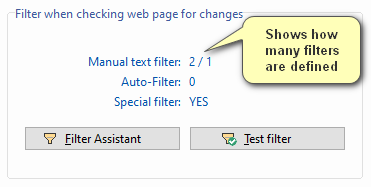
Filter Types
WebSite-Watcher includes different types of filters that can be used to ignore or watch page content.
- Automatic Filters

The Automatic Filters feature is a self-learning filter system. It provides an easy way to automatically create Ignore filters based on highlighted changes. Use this feature only when you receive a false positive, for example one caused by a changing date or a visitor counter. Do not use it when the page contains other relevant highlighted changes. - Ignore Filters

Ignore filters are created manually. They ignore specified parts of a page, for example text with changing numbers, a daily date, or everything from the beginning of the page up to a defined text. - Watch Filters

Watch filters are created manually. They monitor only specified parts of a page and ignore all other content. For example, a Watch filter can be used to monitor only the software version number on a download page. - Special Filters
WebSite-Watcher also provides built-in filter options that can be enabled or disabled. For example, you can sort all words on a page before comparison.
In most cases, it is recommended to define a set of Ignore filters, either by using the Automatic Filter system or by creating them manually, for example with the Filter-Assistant.
How to Create Ignore or Watch Filters
Filters can be created automatically, by using an Assistant, or manually.
- Using the Automatic Filters System
Automatic Filters can be created directly in the internal browser by clicking the toolbar button. This button is also available in the "Page" submenu of the browser toolbar.
- Using the Filter-Assistant
The Filter-Assistant can be started directly in the internal browser by holding the Alt key while selecting the text that you want to filter. It can also be started in the Bookmark properties by clicking the "Filter-Assistant" button. The Filter-Assistant lets you create Ignore or Watch filters interactively. The main steps are to select the text that you want to filter and then classify the selected text, for example as permanent text or as text with changing numbers. - Create Filters Manually
As an alternative to the Automatic Filters system and the Filter-Assistant, you can create Ignore or Watch filters manually using simple wildcard definitions or regular expressions.
Cosmetic Filter
Cosmetic Filters provide another way to simplify a page before WebSite-Watcher applies Ignore or Watch filters.
Cosmetic Filters completely remove unwanted content from a page and generate a modified page, which is then processed by WebSite-Watcher.
Automatic Filters
The Automatic Filters feature is a self-learning filter system. It provides an easy way to automatically create Ignore filters based on highlighted changes.
When to use the Automatic Filters System
Use the Automatic Filters system only when you receive a false positive, for example caused by:
- A changing date or time
- A changing visitor counter
- Automatically updated comment or trackback counters
Examples of suitable changes:
Today is May 29th, 2026 - 13:41:56 am
You are visitor number 8,736
Comments (7), Trackback (3)
Do not use the Automatic Filters system when the page contains relevant highlighted content, for example:
02-May-2026: WebSite-Watcher 26.1 has been released.
This is a major update and includes 15 new features,
many improvements to the user interface, and many performance optimizations.
How to create Automatic Filters
Automatic Filters can be created directly in the internal browser by clicking the Automatic Filters button. This button is available in the "Page" submenu of the browser toolbar, or directly in the toolbar if configured.
Alternatively, open the Filter-Assistant in the Bookmark properties, select the Automatic Filters tab, and click the button "Create Automatic Filters".
The Learning Process
After clicking the Automatic Filters button, WebSite-Watcher displays a dialog showing:
- The number of learned changes
- The number of learned filters
In some cases, a filter is created immediately after activating the Automatic Filters feature. In other cases, changes are only learned first, and a filter is created after several learning processes.
Whether and when a filter can be created depends on the type of change. In certain situations, WebSite-Watcher cannot create Automatic Filters automatically.
When Automatic Filters cannot be created
If WebSite-Watcher cannot create a filter automatically, you must use the Filter-Assistant to define a filter manually.
Manually defined filters have higher priority and are executed before Automatic Filters.
Automatically created filters are deleted automatically when they are no longer needed. There is no need to maintain these filters manually.
Filter-Assistant
Filter-Assistant
The Filter-Assistant lets you create Ignore and Watch filters interactively. The main steps are to select the text that you want to filter and then classify the selected text, for example as permanent text or as text with changing numbers.
The Filter-Assistant can be started in the Bookmark properties by clicking the "Filter-Assistant" button.
It can also be started directly in the internal browser. Select the text that you want to filter, open the context menu, and choose "Create new filter".
Filter Types
Two types of filters can be created with the Filter-Assistant:
- Ignore Filters
An Ignore filter ignores specified parts of a page, for example text with changing numbers, a daily date, or everything from the beginning of the page up to a defined text. - Watch Filters
A Watch filter monitors specified parts of a page and ignores all other content. For example, it can be used to monitor only the software version number on a download page.
Creating a Filter in the Internal Browser
Step 1: Select the Text to Filter
Example: "Downloads today: 3,333"
The selected text should be as unique as possible. Unique text can be identified more reliably by the filter system.
If you select only "3,333", WebSite-Watcher may find and filter all numbers with separators. The combination of the text "Downloads today:" and the number makes the selection unique and allows it to be identified and filtered precisely.
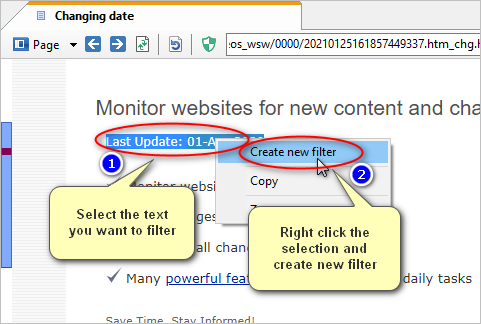
After selecting the text, click the "Page" button and then click "Create new filter" to start the Filter-Assistant. If you hold the Alt key while selecting the text, the Filter-Assistant starts automatically.
Step 2: Select the Filter Type
Example: Ignore selected text with changing numbers.
After the Filter-Assistant opens, select the filter type that you want to create. You can switch between the Ignore and Watch filter views and choose the filter type by clicking one of the buttons.
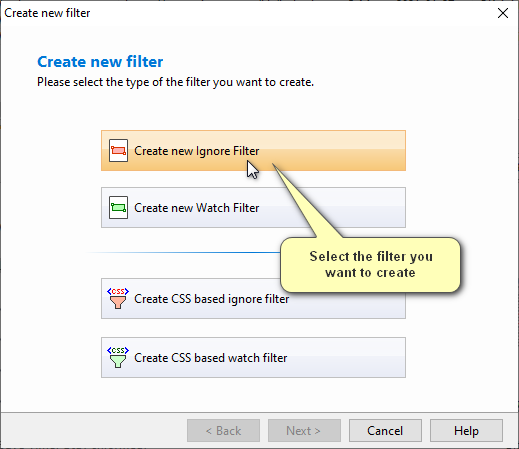
Based on the selected filter type, the assistant guides you through the remaining steps.
Step 3: Classify the selected text
The next step is to classify the selected text, in this example as text with changing numbers.
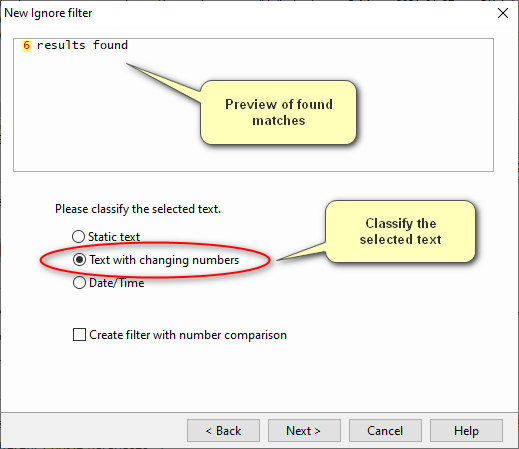
After classification, WebSite-Watcher displays all matching results for verification before the filter is created.
There may be:
- No results, if WebSite-Watcher cannot find the selected text
- One result, if the selection is unique
- Multiple results, if WebSite-Watcher finds additional compatible matches
If no result is found, select a more unique text.
The Order of Filters Is Important
Filters are executed from top to bottom. The filter in the first line is executed before the filter in the second line.
Content removed by a filter is no longer available for subsequent filters.
Example:
You have defined the following Ignore filters:
Watcher
WebSite-Watcher
The first filter removes all occurrences of "Watcher". The second filter cannot find a match because "Watcher" has already been removed.
The correct order is:
WebSite-Watcher
Watcher
In this order, the first filter removes "WebSite-Watcher". The second filter then removes any remaining occurrences of "Watcher".
Options
- Convert Links to Text
If this option is enabled, WebSite-Watcher converts all links to plain text. This may slightly change the layout, but it makes it easier to select text within links.
Outdated Filters
Outdated Ignore filters are detected and deleted automatically after some time if they no longer match any content. There is no need to delete outdated Ignore filters manually. This behavior can be disabled in the Tweaks section, although this is not recommended.
Outdated Watch filters are not deleted automatically and must be maintained manually.
Test Filter Settings
Use the "Test filter" feature to verify your filter definitions. It compares the filtered text content of the new page with the filtered text content of the old page.
Create filters manually
Create Filters Manually
As an alternative to the Automatic Filters system and the Filter-Assistant, you can create Ignore and Watch filters manually.
Enter one filter expression per line. All filter definitions are case-insensitive and are internally converted to lowercase.
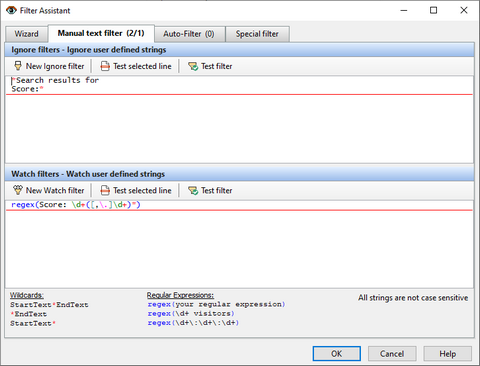
The button New Ignore Filter or New Watch Filter opens a dialog where you can enter and validate a new filter expression. The button Test selected line validates the filter expression in the active line. The button Test filter tests all filter definitions by comparing the filtered text content of the new page with the filtered text content of the old page.
Each line can contain one of the following elements:
- Static text phrase
Use this type to ignore specific phrases on a page. - Text with a wildcard
A wildcard filter is typically used to ignore areas of a page with a defined start and end text. - Regular expression
Regular expressions allow you to define complex filter expressions. They must be placed in special function names, for example "regex(...)".
Wildcard Filter
WebSite-Watcher supports three types of wildcard filters. Only one wildcard is allowed per filter expression.
- *EndText
Filters everything from the beginning of the page to the first occurrence of "EndText".
Example: *Daily News - StartText*EndText
Filters all text areas that begin with "StartText" and end with "EndText".
Example: Downloads:*Publisher - StartText*
Filters everything from the last occurrence of "StartText" to the end of the page.
Example: Users online*
Regular Expressions
WebSite-Watcher supports PERL5-compatible regular expressions for complex filter definitions. Regular expressions must be placed in one of the following functions:
- regex( ... )
Filters all matches of the defined regular expression.
Example: regex(\d+ downloads) - FirstRegex( ... )
Filters only the first occurrence of the defined regular expression.
Example: FirstRegex(\d+ downloads) - StartToRegex( ... )
Filters everything from the beginning of the page to the first occurrence of the defined regular expression.
Example: StartToRegex(\d+ visitors) - RegexToRegex( ... , ... )
Filters everything between two regular expressions.
Example: RegexToRegex(Downloads\: \d+,License\:) - RegexToEnd( ... )
Filters everything from the last occurrence of the defined regular expression to the end of the page.
Example: RegexToEnd(\d+ users online) - RegexCmp( ... )
Finds a defined regular expression, extracts all digits from the result, and compares them with a predefined number. This can be used, for example, to extract and compare prices, and trigger a match only if a value is higher than a specified threshold.
Example: RegexCmp(\d+(\[,\.\]\d+)* Euro;,; > 1000)
CSS-Based Filters
Page content can also be ignored or watched by CSS class names or IDs.
- css( ... )
Ignores or watches all text content formatted with the defined CSS class or ID. The concrete syntax and behavior are described below.
Syntax of CSS Filters
WebSite-Watcher supports different types of CSS filters. The main syntax is css(NAME). This type is also created and used by the Filter-Assistant.
|
Syntax |
Description |
|
css(name) |
Matches all elements with id="name" or class="name". This is the default filter type used by the Filter-Assistant and is sufficient for most use cases. Example: css(header-menu) Matches: <div id="header-menu"> or <h1 class="header-menu">. |
|
css(#name) |
Matches all elements with id="name". Example: css(#header-menu) Matches: <div id="header-menu">...</div>. |
|
css(.name) |
Matches all elements with class="name". Example: css(.top-bar) Matches: <div class="top-bar">...</div>. |
|
css(.name*) |
Matches all elements with a class attribute that contains "name", for example class="name name2". Please note that you can use either the asterisk (*) or the question mark (?), but not both together. Example: css(.dropdown*) Matches: <div class="left dropdown">...</div>. |
|
css(abc?xyz) css(#abc?xyz) css(.abc?xyz) |
In class attributes and ID attributes, the question mark (?) can be used as a wildcard. Please note that you can use either the asterisk (*) or the question mark (?), but not both together. Example: css(.menu?t) |
The Order of Filters Is Important
Filters are executed from top to bottom. The filter in the first line is executed before the filter in the second line.
Content removed by a filter is no longer available for subsequent filters.
Example:
You have defined the following Ignore filters:
Watcher
WebSite-Watcher
The first filter removes all occurrences of "Watcher". The second filter cannot find a match because "Watcher" has already been removed.
The correct order is:
WebSite-Watcher
Watcher
In this order, the first filter removes "WebSite-Watcher". The second filter then removes any remaining occurrences of "Watcher".
Outdated Filters
Outdated Ignore filters are detected and deleted automatically after some time if they no longer match any content. There is no need to delete Ignore filters manually. This behavior can be disabled in the Tweaks section, although this is not recommended.
Outdated Watch filters are not deleted automatically and must be maintained manually.
Test Your Filter Settings
Use the "Test filter" feature to verify your filter definitions.
- Open the Bookmark properties.
- Click the "Filter-Assistant" button or the text "Manual text filter".
- Enter the filter definitions.
See also:
Special Filters
Special Filters
WebSite-Watcher provides built-in filter options that can be enabled or disabled. These filters apply to the entire page, not only to specific parts like Ignore or Watch filters.
- Ignore All HTML Tags
This filter is enabled by default. It returns only the readable text content of a page and ignores all HTML tags. Disable this filter only in special cases, for example if you want to monitor changes in the page source code. - Ignore Upper/Lowercase
This filter is enabled by default and ignores changes in capitalization. Disable this filter if you want to be notified about changes in uppercase or lowercase letters. - Ignore Entries in Dropdown and List Boxes
If this filter is enabled, WebSite-Watcher ignores all entries in dropdown boxes and list boxes. Disable this filter if you want to monitor these entries. New or changed entries cannot be highlighted. Technical detail: All content between the HTML tags <option> and </option> is ignored. - Sort Page Content
This filter sorts all words or sentences on a page. It is intended for special situations. For example, if you monitor search results where the order of items changes frequently, WebSite-Watcher would normally report an update on each check. With this filter enabled, the content is sorted before comparison, and no update is reported if only the order of items has changed. - Ignore Removed Elements (notification only for new/changed content)
If this option is enabled, you are notified only when content has been added or modified. Removed content does not trigger an update notification. - Watch All Changes in Link Addresses
Use this filter if you want to detect changes in link addresses. Link addresses are normally ignored by the filter "Ignore All HTML Tags". When this filter is enabled, extracted link addresses are automatically inserted at the end of the page for comparison. - Watch All Changes in Image Addresses
Use this filter if you want to detect changes in image addresses. Image addresses are normally ignored by the filter "Ignore All HTML Tags". When this filter is enabled, extracted image addresses are automatically inserted at the end of the page for comparison. - Minimum Number of New or Changed Words
By default, WebSite-Watcher reports an update if at least one change is detected. With this option, you can define the minimum number of new or changed words required to trigger an update notification. The window "Test filter versions" displays the number of new or changed words. If this option is configured, removed content is ignored and only new or changed words are considered when detecting updates.
Cosmetic Filters
Cosmetic Filters allow you to completely remove unwanted content from a page. They are applied before the page is processed by WebSite-Watcher. The result can be a much smaller page that contains only the content you want to monitor.
This feature can also be used to remove floating elements that hide other content, for example cookie banners or login panels.
Include and Remove Filters
To modify page content, you must create Include filters and Remove filters.
- Remove filters remove all matched elements.
- Include filters keep only the matched elements and remove everything else.
These filters are based on the CSS definitions used on the page. WebSite-Watcher provides a simple 3-step assistant to simplify the creation process:
- Select text
Search for and click an item for which you want to create a filter. WebSite-Watcher identifies the related CSS definitions. - Select CSS definition
Select and test the detected CSS definitions. The selected definition should include the complete content that you want to remove or include. - Create the filter
Choose whether to create a Remove filter or an Include filter. Test the filter carefully, then click "Add filter" to create it.
This feature removes content from the page. Always test the selected CSS filters carefully to ensure that no important content is removed.
2-Step Execution
Cosmetic Filters are executed in two steps:
1. WebSite-Watcher executes all Include filters.
2. WebSite-Watcher executes all Remove filters.
This allows you to define the parts of the page that you want to monitor and then remove unwanted content from those parts.
Syntax of Cosmetic Filters
Remove filters can be entered directly. Include filters must be placed in parentheses.
There are three main types of rules:
- #name
Matches all elements with id="name".
Example: #header-menu
Matches: <div id="header-menu">...</div> - .name
Matches all elements with class="name".
Example: .top-bar
Matches: <div class="top-bar">...</div> - .name*
Matches all elements with a class attribute that contains "name", for example class="name name2". Please note that you can use either the asterisk (*) or the question mark (?), but not both together.
Example: .dropdown*
Matches: <div class="left dropdown">...</div> - #abc?xyz
.abc?xyz
In class attributes and ID attributes, the question mark (?) can be used as a wildcard. Please note that you can use either the asterisk (*) or the question mark (?), but not both together.
Example: .menu?t
Matches: <div class="menuleft">...</div> and <div class="menuright">...</div>
Any line that starts with an exclamation mark is treated as a comment.
Examples
Example of Remove Filters:
#left-menu
!this is a comment, the next filter will remove the cookie banner
.consentbanner
.menu?t
Example of Include Filters:
(#breaking-news)
(.top-stories)
See also:
Screenshot Filters
If you monitor a page using the Screenshot method, you can configure the following filters:
- Crop the area of the page that you want to monitor.
- Define one or more Ignore filters to exclude specific parts of the Screenshot.
- Specify how many pixels must change to trigger an update notification.
See also:
Page type dependent settings
RSS and Atom feeds
WebSite-Watcher automatically detects and converts RSS and Atom feeds into a readable format. You can then use the same features that are available for web pages, for example to monitor RSS feeds for specific keywords.
By default, no special configuration is required. If WebSite-Watcher cannot automatically identify an RSS or Atom feed, open the Bookmark properties and change the file type setting from "Auto detect" to "rss".
Facebook, X, Instagram pages
Facebook, X, and Instagram pages can be automatically converted to RSS feeds, which makes these pages much easier to monitor.
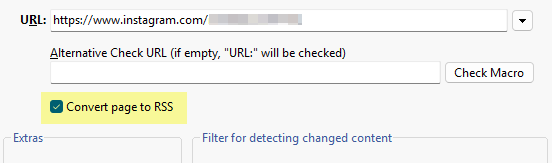
The Bookmark properties display the option "Convert page to RSS", which is automatically enabled for new Facebook, X, and Instagram Bookmarks.
Login to your account required
For these pages, you must log in to your account once. This process stores a cookie with your Login credentials, which is then used to monitor these pages.
Steps:
1. Right-click a Facebook, X, or Instagram Bookmark in the main window of WebSite-Watcher.
2. Select "Browser". This opens a browser window with the selected page.
3. Log in to your account.
4. Close the browser window.
Notes:
- Checking these pages can take 15 seconds or more. There is no way to improve performance.
- WebSite-Watcher only reports new articles, not changes to existing articles.
- WebSite-Watcher can only convert articles that are currently visible on the page. If you do not check Facebook, X, or Instagram pages frequently, the RSS feed may not include all postings. However, you will still be notified that new postings are available.
Table based forums
Table-Based Forums
WebSite-Watcher supports two different methods to monitor web-based forums:
1. Forum-Plugins
2. Forum-Templates
Forum-Plugins
Predefined Plugins are available for major forums with a default layout, such as phpBB. A suitable Plugin can be selected in the Bookmark properties or via the browser information bar.

When you select a Forum-Plugin, WebSite-Watcher performs compatibility checks to ensure that the Plugin can be used with the selected Bookmark.
Forum-Templates
WebSite-Watcher supports Forum-Templates for table-based forums, especially for topic lists.
Forum-Templates only work if a discussion forum uses the TABLE HTML tag to display the topic list. If a forum uses other HTML tags to simulate a table layout, for example the DIV tag, the Forum-Template system cannot be used.
A topic list must contain the following elements:
- A table header
The header tells WebSite-Watcher where the topic list begins, for example:
Topics | Replies | Author | Views | Last Post - A "Last Posting" time for each topic
Each thread or topic must display a last posting time, for example "09:13 AM". It does not work if the forum shows relative times, such as "13 minutes ago", instead of a fixed time. - A table footer
The footer tells WebSite-Watcher where the topic list ends. The footer may contain changing text or numbers, for example "Mark forum read" or "Page 1 of 13".
If a forum meets all these requirements, you can use the Forum Assistant to create the Forum-Template and the required filter definitions. No further configuration is required.
See also:
PDF files
Monitor PDF Files With a Plugin
With the included PDF-Plugin, WebSite-Watcher can extract and convert the text content of PDF files into an HTML page. The PDF file can then be checked and handled like a normal web page, and WebSite-Watcher can highlight changes in the extracted text.
The PDF-Plugin is assigned automatically when you add a new PDF document to the Bookmark list.
Monitor PDF Files Without a Plugin
If no Plugin is used to monitor PDF files, they are handled as binary files. Depending on the server response, one or a combination of the following checking methods is used:
- Check the PDF document by file date.
- Check the PDF document by file size.
- Check parts of the file content.
In this case, it is not possible to highlight text changes or to use the filter system to ignore unwanted content.
Word and Excel Documents
Use the Default Plugin
With the included Plugin, WebSite-Watcher can convert Word and Excel documents into an HTML page. The document can then be checked and handled like a normal web page, and WebSite-Watcher can highlight changes in the extracted text.
The Plugin is assigned automatically when you add a new Word or Excel document to the Bookmark list.
Use Microsoft Office to Convert Documents
By default, WebSite-Watcher uses internal conversion routines to convert Word and Excel files into web pages.
If Microsoft Office 2003 or higher is installed on your system, you can use Microsoft Office to convert these files. This usually provides better conversion quality, especially for Word documents. Separate Plugins are available to use Microsoft Office for the conversion.
Monitor Word and Excel Files Without a Plugin
If no Plugin is used to monitor Word or Excel documents, they are handled as binary files. Depending on the server response, one or a combination of the following checking methods is used:
- Check the Word or Excel document by file date.
- Check the Word or Excel document by file size.
- Check parts of the file content.
In this case, it is not possible to highlight text changes or to use the filter system to ignore unwanted content.
FTP Files and Directories
FTP files and directories
FTP files and directories can be monitored by entering the FTP address in the URL field of a Bookmark. The FTP and FTPS protocols are supported. FTP addresses must start with ftp:// and FTPS addresses must start with ftps://.
If you want to check a single file, you must enter the complete address, including the full path and file name. WebSite-Watcher checks the file by file date and file size. No content is transferred.
If you want to monitor an entire folder, the last character of the URL must be a slash "/" and must not include a file name.
How to check the content of a (text) file
With the checking method "automatic", a file is checked by file date and file size. If you want to check the file by content, for example a text file, you must change the checking method from "automatic" to "by content". The file is then downloaded and handled like a web page.
Password protected FTP files / directories
By default, WebSite-Watcher performs an anonymous FTP Login. If the FTP server is password protected, you must enter the user name and password in the Bookmark properties under "Advanced" and "Server Authentication".
Images
If the address of an image file is entered in the URL field of a Bookmark, the image is checked by content, and WebSite-Watcher can highlight changes within the image. No special settings are required in this case.
Binary files
WebSite-Watcher can monitor binary files, for example ZIP or EXE files, without downloading them. Depending on the server response, one or a combination of the following checking methods is used:
- Check by file date
- Check by file size
- Check parts of the file content
Normally, no special settings are required for binary files. If WebSite-Watcher cannot automatically identify a binary file, for example when a script redirects to a binary file, you must change the file type from "auto detect" to "binary".
Local files and folders
WebSite-Watcher can monitor local files and folders by entering the absolute path in the URL field of a Bookmark, for example "c:\docs\judo.doc" or "d:\docs\".
Monitor a directory with subdirectories
If you want to check a folder including all files and subfolders, you must use the Follow-Links feature. It is recommended to start with a link depth of 1 and increase this value if required.
Directories and the modified date
If a file in a directory is changed, the modified date of that directory is also updated. This may result in false update notifications. You can avoid this as follows:
- Create an appropriate filter
Create a suitable filter by using the Filter-Assistant, or - Use the folder creation date instead of the modified date
As an alternative to the default behavior, you can display the creation date instead of the modified date by adding the following line to the Tweaks section of the program configuration:
CheckLocalFolderUseCreationDate=1
Check by screenshot
If a page contains content that cannot be monitored with the available options, for example content displayed using Java, you can use the feature "Check by screenshot".
This checking method opens the page in a hidden browser window, creates a screenshot, and saves it as a PNG file. The saved screenshot is then used to detect updates. WebSite-Watcher can also highlight changes in the saved screenshot.
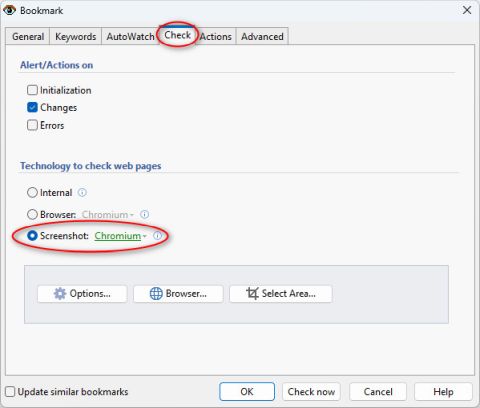
You can optionally define a custom window size and specify the region that you want to capture.
Many features do not work with this method, for example the keyword feature. However, this method provides an additional way to monitor content that cannot be checked by other technologies.
Steps:
1. Open the Bookmark properties.
2. Select the tab "Check".
3. Select the technology "Screenshot".
Password protected pages
Login via Server Authentication
Server Authentication is a method used to protect pages from public access. You can recognize this type of Login when a small dialog box appears and prompts you to enter a username and password, for example:
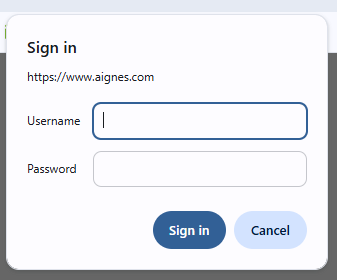
If this dialog appears, you must enter the username and password in the Bookmark properties (Advanced + Server Authentication).
Steps:
1. Open the Bookmark properties.
2. Select the "Advanced" tab.
3. Select "Login" on the left side.
4. Under "Login via Server Authentication", enter the username and password.
If the fields for the username and password are part of a web page, it is a web-based Login. In this case, you must record a Check-Macro.
Web based logins / Check-Macros
Web-based logins are logins where the fields for the username and password are part of a web page. This differs from Server Authentication, where a small dialog window appears and prompts you to enter the username and password.
WebSite-Watcher supports a feature called Check-Macros, which can automate steps and operations on a page. For example, you can record the steps required to log in to a page, navigate to the page that you want to monitor, and perform a Logout afterward. When the Bookmark is checked, these recorded steps are executed automatically.
Check-Macros can also be used to automate search queries, for example by entering a search term and clicking a search button.
Please note that it is not possible to automate all types of logins and login steps. This depends on the technology used on the page.
See topic Check Macros for more information.
Password protected FTP files
By default, WebSite-Watcher performs an anonymous FTP Login.
If an FTP server is password protected, you must enter the username and password in the Bookmark properties (Advanced + Server Authentication).
Steps:
1. Open the Bookmark properties.
2. Select the "Advanced" tab.
3. Select "Login" on the left side.
4. Under "Login via Server Authentication", enter the username and password.
Highlight changes
Highlight methods
When an update is detected, WebSite-Watcher highlights all text changes on the page. WebSite-Watcher supports different methods for highlighting text:
- Standard
The Standard method is a general-purpose method that works with most types of pages. It is designed to ignore changes in the page structure, for example when content is moved to another position, and works very well for news pages. This is the recommended default method. The other methods are optimized for specific situations or page types. - Exact
The Exact method uses a more detailed analysis to detect changes. It may work better on pages where only small details are updated, for example individual numbers within a table. Depending on the page structure, this method may produce more precise results than the Standard method - Table based (highlight whole, changed rows)
Use this method if you want to highlight entire table rows when the content of at least one cell has changed. To prevent a row from being highlighted when only numeric columns have changed, select the option "Cells with a changed number don't highlight the whole line"..
Steps:
1. Open the Bookmark properties.
2. Select the "Advanced" tab.
3. Select "Highlight changes" on the left side.
4. Enter the highlight configuration.
Highlight changed images in a page
WebSite-Watcher can optionally draw borders around changed images.
How are changed images detected?
Whether WebSite-Watcher can draw a border around changed images depends on the image configuration. WebSite-Watcher supports three different configurations to download and display images:
- Download images (recommended)
If an update is detected, WebSite-Watcher downloads all images to your hard disk. With this option, WebSite-Watcher compares the image content to determine whether an image has changed. This is the most reliable method for highlighting changed images with borders. - Display online images (not recommended)
With this setting, WebSite-Watcher downloads only the web page. Images are loaded from the server when you open the page in your browser. In this mode, WebSite-Watcher uses the image file name to detect new or changed images. - Display gray boxes instead of images (not supported)
This is the fastest method for checking and opening pages, but images are replaced by gray boxes. With this option, changed images cannot be highlighted.
Please note that a web page is marked as updated only when a text change is detected, and not when only an image has changed.
Monitor single image directly
If you want to monitor a specific image, enter the image address in the URL field of a Bookmark.
1.. Open the Bookmark properties.
2. Select the "Advanced" tab.
3. Select "Images" on the left side.
4. Enable the option "Download images".
5. Select "Highlight changes" on the left side.
6. Enable the option "Highlight images".
See also:
Report / Export
Overview / Templates
The Report/Export feature allows you to create custom reports in HTML, XML, or any other text format.
With report Templates, you can create individual reports. A report Template is an HTML file, for HTML reports, or a text file, for text exports, that contains predefined data fields. These data fields are replaced with actual values when the report is generated.
Reports are always created in UTF-8 format.
Steps to create a report:
Steps:
1. Select "Report/Export" from the Tools menu.
2. Select the Bookmarks that should be included in the report.
3. Select a report Template.
4. Select the output file where the report will be created.
5. Click the button "Start report".
Structure of report Templates
Structure of an HTML report Template, without folders:
<html>
<head>
<meta http-equiv="Content-Type" content="text/html; charset=UTF-8">
<title>your title</title>
</head>
<body>
Your header text
{wsw_begin_url}
<a href="{wsw_url_url}" target="_top">{wsw_url_name}</a><br>
{wsw_url_text}<br>
date: {wsw_url_date_changed}<br>
{wsw_end_url}
<br>
<br>
report date: {wsw_report_date}<br>
</body>
</html>
Structure of an HTML report Template, with folders:
<html>
<head>
<meta http-equiv="Content-Type" content="text/html; charset=UTF-8">
<title>your title</title>
</head>
<body>
Your header text
{wsw_begin_folder}
Folder: <b>{wsw_folder_name}</b><br><br>
{wsw_begin_url}
<a href="{wsw_url_url}" target="_top">{wsw_url_name}</a><br>
{wsw_url_text}<br>
date: {wsw_url_date_changed}<br>
{wsw_end_url}
{wsw_end_folder}
<br>
<br>
report date: {wsw_report_date}<br>
</body>
</html>
Datafields for bookmarks
All Bookmark fields are enclosed in { and } and are replaced with actual values when the report is generated.
Start/end of a bookmark block
|
{wsw_begin_url} {wsw_end_url} |
These two data fields define the start and end of a Bookmark block. For each Bookmark, everything between these two fields is exported. |
Bookmark fields
The following fields can be placed between {wsw_begin_url} and {wsw_end_url}:
|
{wsw_url_url} |
Bookmark URL. If a URL is defined in the Report section, in the Bookmark properties, it is used instead of the Bookmark URL. |
|
{wsw_url_checkurl} |
URL that was used to check the Bookmark, including resolved date variables and server relocations. |
|
{wsw_url_name} |
Bookmark name. If a name is defined in the Report section, in the Bookmark properties, it is used instead of the Bookmark name. |
|
{wsw_url_domain} |
Domain name of the Bookmark URL, for example aignes.com. |
|
{wsw_url_text} |
"Page Description" entered in the Report section of the Bookmark properties. |
|
{wsw_url_highlighted_changes(MAXLEN)} |
Extracts all changes from the page and displays them in text format. MAXLEN defines the maximum number of characters to display. To display the first 200 characters, use {wsw_url_highlighted_changes(200)}. If changes are available, the <br> tag is appended automatically. |
|
{wsw_url_removed_content(MAXLEN)} |
Extracts removed content from a page, which is normally displayed in red, and displays it in text format. MAXLEN defines the maximum number of characters to display. To display the first 200 characters, use {wsw_url_removed_content(200)}. If removed content is available, the <br> tag is appended automatically. |
|
{wsw_url_update_on_keywords_table} |
Displays the keywords found by the Update-On-Keywords feature, similar to the table in the Analysis tab of the internal browser. This variable returns an HTML table and is intended for HTML-based reports. |
|
{wsw_url_date_changed} |
Date of last update. |
|
{wsw_url_date_checked} |
Date of last check. |
|
{wsw_url_date_created} |
Creation date. |
|
{wsw_url_id} |
Unique Bookmark ID, which is the file name of the locally saved file without the file extension. |
|
{wsw_url_follow_master_id} |
If a Bookmark is part of a Follow-Links list, this field contains the unique Bookmark ID of the master Bookmark. |
|
{wsw_url_filename} |
File name without path of the locally saved file (new version). |
|
{wsw_url_path_filename} |
Absolute file name of the locally saved file (new version). |
|
{wsw_url_path_filename_chg} |
Absolute file name of the locally saved file (version with highlighted changes). |
|
{wsw_url_path_filename_chg1} |
Absolute file name of the locally saved file (version with highlighted changes) and an anchor to the first change. |
|
{wsw_url_relpath_filename} |
Relative path and file name of the locally saved file (new version). The relative path excludes the path to the *_WSW Cache folder and has no leading slash. This field can be used together with the <BASE HREF="..."> tag. |
|
{wsw_url_relpath_filename_chg} |
Relative path and file name, without leading slash, of the locally saved file, version with highlighted changes. The relative path excludes the path to the *_WSW Cache folder. This field can be used together with the <BASE HREF="..."> tag. |
|
{wsw_url_relpath_filename_chg1} |
Relative path and file name of the locally saved file, version with highlighted changes, including an anchor to the first change. The relative path excludes the path to the *_WSW Cache folder and has no leading slash. This field can be used together with the <BASE HREF="..."> tag. |
|
{wsw_url_foldername} |
Folder name of the Bookmark. |
|
{wsw_url_folderpath} |
Absolute folder path of the Bookmark, for example "Folder\SubFolder". |
|
{wsw_url_note} |
Bookmark note. |
|
{wsw_url_field1} {wsw_url_field2} {wsw_url_field3} |
Additional information fields. |
|
{wsw_url_checkstatus} |
Status of the last check. |
|
{wsw_url_readstatus} |
Read status of the Bookmark ("read" or "unread"). |
|
{wsw_folder_depth_tab} |
Inserts tab characters according to the folder depth. For a folder depth of 3, WebSite-Watcher inserts 3 tab characters. |
Datafields for folder
The following fields are required only for reports that include folders.
Start/end of a folder block
|
{wsw_begin_folder} {wsw_end_folder} |
These two data fields define the start and end of a folder block. For each folder, everything between these two fields is exported. |
Folder fields
The following fields can be placed between {wsw_begin_folder} and {wsw_begin_url}.
|
{wsw_folder_name} |
Folder name. |
|
{wsw_folder_name_absolute} |
Absolute folder path. For example, the subfolder "Internet" inside the folder "Tools" is displayed as "Tools / Internet". |
|
{wsw_folder_depth_tab} |
Inserts tab characters according to the folder depth. Use this field to indent Bookmarks within a folder. For a folder depth of 3, WebSite-Watcher inserts 3 tab characters. This field can also be placed between {wsw_end_url} and {wsw_end_folder}. |
Example:
{wsw_begin_folder}
Folder: {wsw_folder_name}<br>
{wsw_begin_url}
URL datafields...
{wsw_end_url}
{wsw_end_folder}
General datafields/options
General data fields
The following fields must not be used between {wsw_begin_folder} and {wsw_end_folder}, and not between {wsw_begin_url} and {wsw_end_url}.
|
{wsw_report_date} |
Replaced with the report date, which is the current date. |
Options
The following fields can be used to modify report properties. Insert one or more of these fields at the beginning of a report template.
|
{wsw_ansi} |
By default, a report is written in UTF-8 format. If you insert this field into the report template, the report is written in ANSI format. |
|
{wsw_encode_html} |
Encodes reserved HTML characters, for example the characters < and > are saved as < and >. Use this option when exporting to XML, RSS, or OPML format. |
|
{wsw_sort_url} |
Sorts the report by URL. The default sorting order is by name. |
|
{wsw_sort_domain} |
Sorts the report by domain name. The default sorting order is by name. |
|
{wsw_root_folder_bottom} |
If defined, WebSite-Watcher inserts Bookmarks from the root folder at the end of the report. By default, they are inserted at the beginning of the report. Only valid in combination with folders. |
|
{wsw_folder_root_without_overhead} |
Writes Bookmarks from the root folder without the defined overhead. The overhead is the content between the markers {wsw_begin_folder} and {wsw_begin_url}, and between {wsw_end_url} and {wsw_end_folder}. Only valid in combination with folders. |
|
{wsw_folder_not_nested} |
WebSite-Watcher writes nested folders as a single linear list. This option can be used together with the field {wsw_folder_name_absolute} instead of relative folder names. Only valid in combination with folders. |
|
{wsw_hide_empty_folder} |
Hides empty folders. This option works only in combination with folders and the option {wsw_folder_not_nested}. |
|
{wsw_dateformat(...)} |
Defines the date format in reports. You can use the following definitions:
Example: {wsw_dateformat(dd-mmm-yyyy)} The variable {wsw_dateformat(internet)} uses the internet date/time format, for example: Tue, 13 Mar 2007 13:39:53. |
Example: Simple URL list in HTML format
The following template exports Bookmarks as a simple list. For each Bookmark, the first 200 characters of the highlighted changes are displayed, followed by a link to the file with highlighted changes.
<html>
<head>
<meta http-equiv="Content-Type" content="text/html; charset=UTF-8">
<title>WebSite-Watcher Report</title>
</head>
<body>
{wsw_begin_url}
<a href="{wsw_url_path_filename_chg1}"><b>{wsw_url_name}</b></a><br>
<blockquote>
{wsw_url_highlighted_changes(200)}<br>
<i>date: {wsw_url_date_changed}
<a href="{wsw_url_path_filename_chg1}">{wsw_url_path_filename_chg1}</a></i>
</blockquote>
<br>
{wsw_end_url}
<br>
report date: {wsw_report_date}<br>
</body>
</html>
Example: Export to CSV format
The following example exports the Bookmark name and the URL to a CSV file. A CSV header line is written at the beginning of the file.
"Name","Url"{wsw_begin_url}
"{wsw_url_name}","{wsw_url_url}"{wsw_end_url}
Wildcards and Regular Expressions
Overview
Wildcards and Regular Expressions are supported by various features in WebSite-Watcher, especially by the filter system to ignore or watch specified page content.
WebSite-Watcher supports three methods to filter or search for text:
- Concrete words and phrases
- Wildcards
- Regular Expressions
All three methods are case insensitive, "HELLO" is treated the same as "hello".
Wildcards
WebSite-Watcher supports the following three types of wildcard filters. Only one wildcard character is allowed per filter expression.
- *EndText
This form filters everything from the beginning of the page up to the first occurrence of "EndText".
For example: *Daily News - StartText*EndText
This form filters all text areas that begin with "StartText" and end with "EndText".
For example: Downloads:*Publisher - StartText*
This form filters everything from the last occurrence of "StartText" to the end of the page.
For example: Users online*
All defined wildcard filters are case insensitive and are internally converted to lowercase.
Regular Expressions
With Regular Expressions, you can define complex search and filter expressions. All Regular Expressions are case insensitive by default.
Regex functions
Regular Expressions must be placed in one of the following functions:
- regex( ... )
Filters the specified Regular Expression.
For example: regex(\d+ downloads) - FirstRegex( ... )
Filters only the first occurrence of the specified Regular Expression.
For example: FirstRegex(\d+ downloads) - StartToRegex( ... )
Filters everything from the beginning of the page up to the first occurrence of the specified Regular Expression.
For example: StartToRegex(\d+ visitors) - RegexToRegex( ... , ... )
Filters everything between two Regular Expressions.
For example: RegexToRegex(Downloads\: \d+,License\:) - RegexToEnd( ... )
Filters everything from the last occurrence of the specified Regular Expression to the end of the page.
For example: RegexToEnd(\d+ users online) - RegexCmp( ... )
Finds a specified Regular Expression, extracts all digits from the result, and compares them with a predefined number. This can be used, for example, to extract and compare prices. A match can be accepted only if the extracted value is greater than 1000.
For example: RegexCmp(\d+(\[,\.]\d+)* Euro; , ; > 1000)
The RegexCmp function can be used in the Keywords functionality, Ignore filters, and Watch filters. A detailed description is provided below.
Tokens of Regular Expressions
Below is a list of commonly used Regular Expression tokens.
|
\ |
The backslash escapes any character and can therefore be used to force characters to be matched as literals instead of being treated as characters with special meaning. For example, '\[' matches '[' and '\\' matches '\'. |
|
. |
A dot matches any character. For example, 'go.d' matches 'gold' and 'good'. |
|
{ } |
{n} ... Match exactly n times {n,} ... Match at least n times {n,m} ... Match at least n but not more than m times |
|
[ ] |
A string enclosed in square brackets matches any character in that string, but no others. For example, '[xyz]' matches only 'x', 'y', or 'z', a range of characters may be specified by two characters separated by '-'. Note that '[a-z]' matches alphabetic characters, while '[z-a]' never matches. |
|
[-] |
A hyphen within the brackets signifies a range of characters. For example, [b-o] matches any character from b through o. |
|
| |
A vertical bar matches either expression on either side of the vertical bar. For example, bar|car will match either bar or car. |
|
* |
An asterisk after a string matches any number of occurrences of that string, including zero characters. For example, bo* matches: bo, boo and booo but not b. |
|
+ |
A plus sign after a string matches any number of occurrences of that string, except zero characters. For example, bo+ matches: boo, and booo, but not bo or be. |
|
\d+ |
Matches all numbers with one or more digits. |
|
\d* |
Matches all numbers with zero or more digits. |
|
\w+ |
Matches all words with one or more characters containing a-z, A-Z and 0-9. \w+ will find title, border, width etc. Please note that \w matches only numbers and characters (a-z, A-Z, 0-9) lower than ordinal value 128. |
|
\s |
Matches whitespace, such as space, tab, or line break. |
|
.*? |
Matches as few characters as possible. a.*?b means: "find "a", followed by as few characters as possible, followed by "b |
|
[a-zA-Z\xA1-\xFF]+ |
Matches all words with one or more characters containing a-z, A-Z and characters larger than ordinal value 161 (eg. ä or Ü). If you want to find words with numbers, then add 0-9 to the expression: [0-9a-zA-Z\xA1-\xFF]+ |
RegexCmp(...)
The RegexCmp function finds a specified Regular Expression, extracts all digits from the result, and compares them with a predefined number. If the comparison returns true, the match is accepted.
This function requires three parameters separated by the ';' character. The exact syntax is:
regexcmp(regular expression; decimal point character; operator number)
Parameters:
- regular expression
This Regular Expression extracts specific numbers from a page. The result can contain text and numbers, for example a match such as "Price: 49,00 Euro". The RegexCmp function extracts all digits from the result and compares the extracted number. - decimal point character
Defines whether a dot or a comma is used as the decimal point character in the page. Valid values are "." and "," without quotes. - operator number
Valid operators:
= ... equal
< ... less than
<= ... less or equal than
> ... greater than
>= ... greater or equal than
<> ... not equal
The number defines the comparison value and can optionally contain a decimal point character, for example 49,95 or 49.95. Thousands separators are not allowed.
Example:
regexcmp(\d+([,\.]\d+)* Euro;,; > 49.95)
- The first parameter searches for the Regular Expression "\d+(\[,\.]\d+)* Euro" and extracts all digits from the result, including the decimal point character, for example 1449,95.
- The second parameter defines the decimal point character, in this example ",".
- The third parameter checks whether the extracted price is greater than 49.95.
- If the extracted price is less than or equal to 49.95, the match is ignored. If it is greater than 49.95, the match is accepted.
Typical examples
- regex(bo*)
Finds "b", "bo", "boo", "booooo" - regex(bx+)
Finds "bxxxxxxxx", "bxx", "bx" but not "b" - regex(\d+)
Finds all numbers. - regex(\d+ visitors)
Finds "3 visitors" or "243234 visitors" or "2763816 visitors" - regex(\d+ of \d+ messages)
Finds "2 of 1200 messages" or "1 of 10 messages" - RegexToEnd(\d+ of \d+ messages)
Filters everything from the last occurrence of "2 of 1200 messages" or "1 of 10 messages" to the end of the page. - regex(MyText.{0,20})
Finds "MyText" and the next 20 characters after "MyText". - regex(\d\d.\d\d.\d\d\d\d)
Finds date strings with the format 99.99.9999 or 99-99-9999 (because the dot matches any character) - regex(\d\d\.\d\d\.\d\d\d\d)
Finds date strings with the format 99.99.9999 - regex(([_a-zA-Z\d\-\.]+@[_a-zA-Z\d\-]+(\.[_a-zA-Z\d\-]+)+))
Finds email addresses. - regexcmp(\d+([,\.]\d+)* Euro;,; > 49.95)
Finds prices in the format "9.999,99 Euro" and accepts only results where the price is higher than 49,95 Euro.
Bookmark files (database)
Where are bookmarks stored
Bookmark files
Bookmarks are stored in database files with the extension *.wsw. Downloaded Cache files are stored in the related subfolder *_WSW.
If your Bookmark file is named bookmarks.wsw, all downloaded files are stored in the related subfolder bookmarks_WSW.
Bookmark folder
Bookmark databases can be stored in any folder. The default location is:
c:\Users\%USERNAME%\AppData\Roaming\aignes\WebSite-Watcher\bookmarks\
To view the exact folder of the currently opened Bookmark file, select "File + Database + Move bookmark file". This dialog displays the folder path, the Bookmark filename, and the Cache folder.
Move bookmark files to another location
You can use the feature "Move bookmark file" to move a Bookmark database to a new location.
Steps:
1. Click "File" in the main menu.
2. Select "Database", then "Move bookmark file".
3. Enter the new location.
4. Click "OK".
This moves all Bookmarks, configurations, and downloaded Cache files to the new location. Depending on the number of Bookmarks, this operation may take several minutes.
Export/Import bookmarks between bookmark files
WebSite-Watcher provides an integrated Import/Export feature to exchange individual Bookmarks between Bookmark databases. This feature exports and imports Bookmarks with all configurations and Cache files, but without the folder structure.
The feature is available in the "Tools" menu under "Import / Export":
- Import Bookmarks from ZIP file
- Export Bookmarks to ZIP file
To keep two Bookmark databases synchronized, use the Synchronization feature.
Synchronize / Cloud Sync
The "Synchronize" feature synchronizes the currently opened Bookmark database with a local Cloud folder or a user-defined local folder on your PC or network.
If you want to synchronize your database via a Cloud service, you must install the client of the Cloud service you use, or alternatively the tool "rclone", which synchronizes a predefined local folder with the Cloud. All data stored in the Cloud is encrypted.
When is this feature required?
Use this feature if you work with WebSite-Watcher on more than one system, for example on a desktop PC and a notebook. You can synchronize both systems through the Cloud to keep the same Bookmark database on each device.
Options
- Sync downloaded images
If enabled, WebSite-Watcher synchronizes all images that were downloaded and saved in the local Cache folder. Depending on your configuration, this can significantly increase the size of the synchronized data. - Only for unread Bookmarks
If enabled, WebSite-Watcher synchronizes downloaded images only for unread Bookmarks. Unread Bookmarks are displayed correctly on synchronized PCs, while read Bookmarks are displayed without downloaded images. As soon as a Bookmark check detects an update, WebSite-Watcher automatically downloads missing images. This option can significantly reduce the size of the synchronized data.
Rclone
WebSite-Watcher can use the tool "rclone" to synchronize data with the Cloud. If rclone is installed on your PC, enter the path to rclone.exe and the preferred "Remote". In this case, no additional Cloud client is required.
"Remote" is the profile name of a Cloud service that you configured in rclone. If synchronization with rclone does not work correctly, you can temporarily enable Debug-Mode to view results and error messages from rclone.
More information and documentation about rclone are available at:
If you are not familiar with rclone, it is a recommended tool, especially in combination with the Cloud-Sync feature in WebSite-Watcher. Rclone supports many Cloud services, can add additional encryption to your data, and provides reliable synchronization of Bookmarks between PCs.
Transfer everything from one PC to another PC
Transfer Files Manually
Bookmarks are stored in database files with the extension *.wsw. Downloaded Cache files are stored in the related subfolder *_WSW. If your Bookmark file is named "bookmarks.wsw", all downloaded files are stored in the related subfolder "bookmarks_WSW".
To transfer all Bookmarks between two PCs, copy the *.wsw file and the related *_WSW Cache folder to the second PC using a file manager.
On the second PC, open the transferred Bookmark file using "File + Open".
Transfer via Backup/Restore
WebSite-Watcher provides an internal Backup/Restore feature that can be used to copy or transfer program configurations and Bookmark databases between PCs.
Steps to copy Bookmarks and program configurations from PC1 to PC2:
|
If you no longer need WebSite-Watcher on PC1, deactivate the license using "Help + Deactivate license".
Transfer via Synchronization
To keep two existing Bookmark databases synchronized, use the Synchronization feature.
Database Errors
Before you apply any of the following steps, it is strongly recommended to create a backup of the damaged database (.wsw file) and the related Cache folder (_WSW folder). This ensures that you can return to the original state if one of these steps fails.
If your Bookmark database is physically damaged, restore or repair it using one of the following procedures.
1. Restore a backup
If you have a working and up-to-date backup of your Bookmark database, restore that backup. This is the most reliable solution. By default, WebSite-Watcher creates an AutoBackup once per day, which can be restored using "Tools + Backup/Restore".
Steps:
1. Click "Tools" in the main menu.
2. Select "Backup/Restore".
3. Select "Restore AutoBackup" and follow the assistant.
2. Run the command "Repair database"
If you do not have a working backup, or if your backup is outdated, run the command "Repair database". This command repairs the database and restores as much data as possible.
After running this command, the next check may produce false update notifications, especially if the special filter "Ignore all HTML tags" is disabled.
Steps:
1. Click "File" in the main menu.
2. Select "Database".
3. Run the command "Repair database".
3. Run the command "Re-Create database from cache folder"
Use this command if "Repair database" fails and no working, up-to-date backup is available. This command re-creates the entire database from files stored in the Cache folder.
After running this command, the next check may produce false update notifications, especially if the special filter "Ignore all HTML tags" is disabled.
Steps:
1. Click "File" in the main menu.
2. Select "Database".
3. Run the command "Re-Create database from cache folder".
After performing any of these procedures, you can run the command "Optimize database", which also performs an integrity check.
Database Repair Tool
If WebSite-Watcher can no longer be started, or if a database cannot be opened due to corruption or crashes, use the application "dbtool.exe", which is located in the WebSite-Watcher installation folder.
With this tool, you can execute the procedures described above at a lower system level.
Additional tools and features
Check Macros
WebSite-Watcher supports a technique called Check-Macros to automate steps and operations on a web page. For example, you can record the steps required to perform a Login, navigate to the page you want to monitor, and perform a Logout afterwards. When the Bookmark is checked, these recorded steps are executed automatically.
Check-Macros can also be used to automate search queries, for example by entering a search term and clicking a search button.
Please note that it is not possible to automate all types of Logins and steps. This depends on the technology used by the web page.
Technologies
WebSite-Watcher supports different technologies to record and execute Check-Macros. Start with one method. If it does not work correctly, try the next available method.
Internet Explorer Macros are available for legacy reasons and work only with pages that still support Internet Explorer. This method is not recommended for new Macros and might be removed in a future version.
Method 1: Record Macros interactively
By default, Macros are recorded interactively. WebSite-Watcher captures and saves each step you perform while recording the Macro. This works with many page elements. If certain steps cannot be recorded, you can send keystrokes to the page as an alternative.
Steps:
1. Create a new Bookmark.
2. Open the Bookmark properties and click the "Check-Macro" button.
3. When the macro window opens, enter the Start-URL.
4. Click the button to start recording.
5. Navigate to the page you want to monitor.
6. Perform a Logout if required, and select the appropriate option to indicate that you are performing a Logout.
7. Click "Save Check-Macro" at the bottom of the window to stop recording and return to the Bookmark properties.
8. Click the "Check Now" button to test the Bookmark.
Method 2: Send keystrokes to the webpage
As an alternative to interactive recording, you can send keystrokes to the page to automate user actions, such as selecting elements, clicking links, or filling out forms.
Steps:
1. Create a new Bookmark.
2. Open the Bookmark properties and click the "Check-Macro" button.
3. When the macro window opens, enter the Start-URL.
4. Click the button to start recording.
5. After the page has loaded, click "Save Check-Macro" at the bottom of the window to stop recording.
6. Manually enter commands to send keystrokes to the webpage.
Demos and Videos
At https://www.aignes.com/videos.htm you can find videos that demonstrate how to record and use Check-Macros.
Check Macros Commands
Check-Macros support additional commands that can be added manually to the macro source. All fields are supported by Chromium-based Macros and Edge-based Macros.
As an alternative to recording a macro, you can, for example, use these commands to send keystrokes to a webpage when a page is checked.
Macro lines that do not begin with a supported command are treated as comments, for example, lines that start with ; or //.
|
Command |
Description |
|
WAIT: seconds=XXX |
Waits for the specified number of seconds Valid values are from 5 to 60 Example, to wait 10 seconds: WAIT: seconds=10 |
|
SCROLLPAGEDOWN: |
Scrolls the page down. To scroll multiple times, add one command for each scroll operation. Example, to scroll down two pages: SCROLLPAGEDOWN: |
|
RELOAD: |
Reloads the currently open page. |
|
LOGOUT: |
Use this command before WebSite-Watcher performs a logout. WebSite-Watcher monitors the page that is loaded immediately before this command is executed. All steps after this command are used only to log out of the account and are not included in content monitoring. |
|
SendKey: <key> |
Sends a keyboard key to the page. Use this command to automate Macro processing with keyboard shortcuts. Supported keys:
Use tab to move the focus to the next element on a web page. To press a button or link, use space or enter. Depending on the type of link or button, either space or enter may work. You must test which key works in each case. Example: SendKey: tab |
|
SendText: <text> |
Sends the specified text to the page. Use this command to enter text into input fields, for example, a search term or a username. Example: SendKey: tab |
|
SelectItem: <text> |
Sends the tab key to the page until the element with the specified text is selected. The text must match the full text of the element to select, or it can be a wildcard text with one or two wildcards (*). The specified text is not case-sensitive.
SelectItem: Login |
Example 1
Macro that performs a search query, then selects the first link that contains the text "grid", and presses space to open the link.
CMacroVersion=1
URL: https://www.domain.com/search
WAIT: seconds=3
SendText: weather today
SendKey: enter
SelectItem: *grid*
SendKey: Space
Example 2
Macro that performs a login and a logout.
EdgeMacroVersion=1
Incognito: 1
URL: https://www.domain.com/login.php
;-- press 2 x TAB to jump to the username input field
SendKey: tab
SendKey: tab
;-- enter username and password
SendText: myusername
SendKey: tab
SendText: mypassword
SendKey: tab
;-- press Login button
SendKey: space
WAIT: seconds=3
;-- perform LOGOUT
LOGOUT:
SelectItem: logout
SendKey: enter
Advanced Search
The Advanced Search feature allows you to search for text within the page content.
The button "Display in Main Window" transfers the search results to the "Search" folder in the main window, selects that folder, and closes the Advanced Search dialog.
Steps:
1. Open "Advanced Search" using the toolbar button  or press F7.
2. Enter the search terms.
3. Click the "Search" button.
See also:
Backup / Restore
The integrated Backup/Restore feature allows you to back up and restore your program configuration and the currently opened bookmark file, including all downloaded web pages, to a single backup file. The file extension of backup files is ".wswpac".
Steps:
1. Select "Tools" in the main menu.
2. Select "Backup / Restore...".
3. Follow the steps in the assistant.
Download Manager
WebSite-Watcher includes an integrated download manager that can be used to automatically download RSS feed enclosures. Supported download protocols are HTTP and HTTPS.
How to Download Files
- Download RSS feed enclosures
RSS feed enclosures can be downloaded automatically when an RSS feed changes. This option can be enabled in the bookmark properties in the "Advanced" section. By default, WebSite-Watcher downloads mp3 and wav files. These file extensions can be changed or extended in the program configuration in the "Advanced" section. - Add a URL manually
A download URL can also be added manually by starting the download manager and clicking the "Add Download" button. In WebSite-Watcher, open the download manager via the "Tools" menu. - Download within Plugins
The Plugin system supports the command AddToDownloadManager to add a download URL to the download manager. This allows you to extract a specific URL from a page and download it using the download manager.
Where Are Downloaded Files Stored?
By default, WebSite-Watcher saves downloaded files to the following folder:
c:\Users\%USERNAME%\AppData\Roaming\aignes\WebSite-Watcher\config\downloads\
Automatically Delete Files After X Days
The download manager keeps downloaded files for a predefined number of days. After that period, the files are automatically removed from the list and deleted from your hard disk. Right-click a file, or a selection of files, to copy or move the selected files to another folder.
You can also automatically copy downloaded files to another location based on configured rules. Configure these rules in the Download Manager settings.
Downloaded files are deleted only from the default download folder. If files were copied or moved to another location, either manually or automatically using the "Copy To" feature, those copies remain unchanged.
Run multiple instances
If you install the desktop edition of WebSite-Watcher, only one instance of WebSite-Watcher can run at a time.
To run a second instance on the same PC, you must install an additional copy of WebSite-Watcher as Portable Edition in a separate folder on your hard disk, for example c:\wsw2. This second installation can then be started and used at the same time as the desktop edition. For each additional instance, install another Portable Edition in a separate folder.
The "Portable Edition" option can be selected during installation in the setup assistant.
You do not need an additional license key when installing extra copies of WebSite-Watcher. Use the same license key that you used for the desktop edition.
Browser Engines
By default, WebSite-Watcher embeds the Chromium browser. It is used to display changed bookmarks and in other areas, for example in the filter assistant. The Chromium browser can consume a noticeable amount of memory and system resources.
If you run WebSite-Watcher 24/7 on a server, or if you do not use the internal browser to view changed bookmarks, the Chromium browser is not required. As an alternative, WebSite-Watcher provides a lightweight text view that displays page content in a simplified format. This text view is not based on Chromium and uses significantly fewer system resources and less memory. It is used only in the main application interface. The check technology "Browser: Chromium" continues to use the Chromium engine for page checks.
WebSite-Watcher supports the following browser engines:
- Chromium-Browser
Recommended if you open and read changed bookmarks within WebSite-Watcher. This is the best choice for most users. - Text-View
Displays page content in a simplified text format. It does not load the Chromium browser components and therefore uses fewer resources and less memory. This option is suitable if you run WebSite-Watcher 24/7 on a server and do not use the internal browser to read bookmarks.
Which Engine Should I Use?
Use the Chromium-Browser:
- if you regularly read changed bookmarks in the WebSite-Watcher user interface
Use the Text-View:
- if you run WebSite-Watcher 24/7 on a server
- if you rarely or never use the internal browser to view pages and instead read changed bookmarks in your system's default browser or by email
Command Line
A command line parameter is available to disable the Chromium browser engine.
This parameter can be used when you start WebSite-Watcher from the command line for automated monitoring.
Command line
Usage
wswatch.exe [Options] filename
Options
|
/R |
Runs a manual check of your bookmarks. A bookmark file must be specified on the command line when using the /R parameter. |
|
/Q |
Exits WebSite-Watcher after the check has finished. Works only in combination with /R. |
|
/NoBrowser |
Does not load the Chromium browser and uses a lightweight text view instead. Recommended if you start WebSite-Watcher only to perform a check run. See Browser Engines. |
|
/C |
Connects using Dialup. Works only in combination with /R. |
|
/D |
Disconnects Dialup. Works only in combination with /R. |
|
/L |
Writes a log file (wswatch.log). Works only in combination with /R. |
|
/SND |
Enables sound. Works only in combination with /R. |
|
/BatchMode |
Suppresses specific user input messages, for example when automatically checking for new versions. Works only in combination with /R. |
|
/MINIMIZE |
Starts WebSite-Watcher minimized. |
|
/SEARCH |
Opens the "Advanced Search" window. |
|
/SCRIPT="..." |
Executes the specified Script, enclosed in quotes. If the Script is not stored in the default Script directory, specify the full path to the Script file. |
|
/NODB |
Starts WebSite-Watcher without opening the last opened database. |
|
/EXIT |
Exits a running WebSite-Watcher. This parameter aborts a running check. |
Examples
wswatch.exe "c:\wsw\magazines.wsw"
wswatch.exe /c /q /NoBrowser "c:\wsw\magazines.wsw"
Date variables
If a URL contains a daily date, you can use a date variable. The variable is replaced with the current date when the Bookmark is checked.
Example of a URL with a date variable:
https://www.domain.com/file<$date$,'yyyy-mm-dd',0>.htm
Resulting URL:
https://www.domain.com/file2026-03-15.htm
Usage
<$date$,format,DayDifference>
<$date$,format,DayDifference,MonthNames>
If the date format contains the variable "mmm" or "mmmm" for month names, WebSite-Watcher uses English month names by default.
If you require localized month names, define them using the MonthNames parameter. Specify exactly 12 names separated by a colon, for example:
jan:feb:mae:apr:mai:jun:jul:aug:sep:okt:nov:dez
Date format
|
yy |
Current year with 2 digits |
|
yyyy |
Current year with 4 digits |
|
m |
Current month with 1 or 2 digits, no leading zero (1-12) |
|
mm |
Current month with 2 digits, leading zero (01-12) |
|
mmm |
Name of current month, 3 characters (jan, feb...) |
|
mmmm |
Full name of current month |
|
d |
Current day with 1 or 2 digits, no leading zero (1-31) |
|
dd |
Current day with 2 digits, leading zero (01-31) |
|
hh |
Hours |
|
nn |
Minutes |
|
ss |
Seconds |
|
"xx" |
Characters enclosed in quotes are displayed as-is, and do not affect formatting. |
Day Difference
The DayDifference parameter allows you to add or subtract a specified number of days to or from the current date.
- 0 ... Current date
- 1 ... Tomorrow
- -1 ... Yesterday
- -2 ... The day before yesterday
If you append the character "h", "m", or "s" to the parameter, the value is added to hours, minutes, or seconds.
- 1h ... plus one hour
- -100m ... minus 100 minutes
- 5s ... plus 5 seconds
Examples:
https://www.domain.com/file<$date$,'yyyy-mm-dd',0>.htm
https://www.domain.com/changes<$date$,'yy-mm',0>.txt
https://www.domain.com/events-<$date$,'mmm-dd',1>.html
https://www.domain.com/news_<$date$,'mmmmyyyy',0,jan:feb:mae:apr:mai:jun:jul:aug:sep:okt:nov:dez>.html
Cookies
Depending on the feature you use, WebSite-Watcher uses different databases to store Cookies.
WebSite-Watcher uses four separate Cookie databases:
- View pages in browser tabs
WebSite-Watcher uses an embedded Chromium browser to display Bookmarks and online pages. Cookies created while displaying pages in the internal browser are not used when checking Bookmarks. The check process uses isolated Cookie databases. Changes made in a browser tab do not affect Bookmark checks. - Check technology "Default"
When you check Bookmarks using the technology "Default", WebSite-Watcher uses a separate Cookie database dedicated to this check technology. To manage Cookies for a Bookmark, right-click the Bookmark in the main window and select "Browser". - Check technology "Browser: Chromium", Chromium-Macros, and "Screenshot: Chromium"
When you check Bookmarks using one of these technologies, WebSite-Watcher uses a separate Cookie database dedicated to these technologies. To manage Cookies for a Bookmark, right-click the Bookmark in the main window and select "Browser". - Check technology "Browser: Edge", Edge-Macros, and "Screenshot: Edge"
When you check Bookmarks using one of these technologies, WebSite-Watcher uses a separate Cookie database dedicated to these technologies. To manage Cookies for a Bookmark, right-click the Bookmark in the main window and select "Browser". - Check technology "Internet Explorer/Browser" and Internet Explorer Macros
When you check Bookmarks using one of these technologies, WebSite-Watcher uses the Internet Explorer Cookie database. To manage Cookies for a Bookmark, right-click the Bookmark in the main window and select "Browser".
These Cookie databases operate independently. Cookies are not shared between technologies.
See also:
Silent Install/Uninstall
The WebSite-Watcher setup program supports optional command line parameters for silent installations.
Silent Install
Syntax:
wswsetup.exe /SILENT /DIR="x:\dirname"
Parameters:
- /SILENT
Runs the setup in silent mode. No user interaction is required. Only the installation progress window and any error messages are displayed. - /DIR="x:\dirname"
Specifies the installation directory, which is normally shown on the "Select Destination Location" assistant page. A fully qualified path must be specified.
Silent Uninstall
Syntax:
unins000.exe /SILENT /REMOVEDATA
Parameters:
- /SILENT
Runs the uninstaller in silent mode. The user is not prompted for confirmation, and no message is displayed when the uninstall process is complete. Critical error messages are still displayed. - /REMOVEDATA
Removes the WebSite-Watcher configuration and the bookmark database, if it is stored in the default bookmark folder.
Advanced setup options
The topic Advanced setup options explains how to automatically install the license and predefine specific program configurations.
Advanced setup options
The features described below are only available in the registered Business Edition and are not available in the Trial version or the Free/Personal Editions.
This topic explains how to automatically install the license key and how to predefine specific program configurations. This can be useful when installing and maintaining WebSite-Watcher on multiple PCs or workstations.
Automatic installation (for all users of a computer)
Before installing WebSite-Watcher, create an INI file named wswconfig.ini and save it in the same folder as wswsetup.exe. During installation, the file wswconfig.ini is copied to the setup folder.
All options defined in wswconfig.ini are imported each time WebSite-Watcher starts. Users cannot overwrite these options in the program configuration.
Manual installation (for a single user of a computer)
Alternatively, copy the file wswconfig.ini manually to the user's config folder. When WebSite-Watcher starts, this file is imported once. The file is only imported if no wswconfig.ini file exists in the setup folder.
The exact path of this file is:
c:\Users\%USERNAME%\AppData\Roaming\aignes\WebSite-Watcher\config\wswconfig.ini
wswconfig.ini
The file wswconfig.ini can contain the following sections and fields:
[License]
Enter the license key for WebSite-Watcher in the next line. Line breaks are allowed. An example is provided at the end of this topic. A Business Edition license key is required for all following options.
[License_LWA]
Enter the license key for Local Website Archive in the next line, if required. Line breaks are allowed.
[General]
|
Language= |
Language of the user interface. Available language files are located in the "lang" subfolder. If not defined, English is used. See example at the end of this topic. |
|
ShowWelcomeWindow= |
0 ... Do not show the welcome window when starting WebSite-Watcher for the first time |
|
CheckForNewVersion= |
0 ... Check periodically and ask the user 1 ... Check periodically in the background without asking 2 ... Do not check for updates |
|
BookmarkFile= |
Absolute path and filename of the Bookmark file. Example: BookmarkFile=f:\website-watcher\bookmarks.wsw |
|
StartAutoWatchAfterLoading= |
1 ... Start AutoWatch after loading WebSite-Watcher 0 ... Do not start AutoWatch after loading WebSite-Watcher |
|
DateFormat= |
Date format for the columns "last check", "last update", etc. See also Appearance |
|
CurrentDateFormat= |
Date format for the current day See also Appearance |
|
ShowButtonInBrowserTitleBar= |
1/0 ... Show button in the browser title bar (Browser integration) See also General |
|
ShowUpdateTicker= |
1/0 ... Show Update-Ticker See also Update-Ticker |
[Proxy]
|
http_proxy_config= |
0 ... Automatic proxy configuration 1 ... Do not use proxy 2 ... Manual proxy configuration |
|
http_addr= |
HTTP proxy address |
|
http_port= |
HTTP proxy port |
|
http_username= |
Username, if required |
|
http_password= |
Password, if required, in plaintext |
|
ftp_noproxy= |
1 ... Do not use FTP proxy 0 ... Use FTP proxy |
|
ftp_direct_type= |
Use one of the following values: • not passive • passive |
|
ftp_type= |
Use one of the following values: • Proxy not passive • Proxy passive • Socks 4 • Socks 4a • Socks 5 |
|
ftp_login_type= |
Login type that can be determined automatically in the program configuration. Valid values are 0-8. |
|
ftp_addr= |
FTP proxy address |
|
ftp_port= |
FTP proxy port |
|
ftp_username= |
Username, if required |
|
ftp_password= |
Password, if required, in plaintext |
|
ftp_ftpoverhttp= |
1 ... Use FTP-over-HTTP 0 ... Do not use FTP-over-HTTP |
|
noproxy= |
Enter domains that should bypass the proxy. Separate domains with {crlf} Example: domain.com{crlf}domain2.com{crlf}.domain2.com |
[Connection]
|
threads= |
Number of simultaneous connections |
|
timeout= |
Timeout in seconds |
[Dialup]
|
usedialup= |
1 ... Use dial-up connection 0 ... Use permanent internet connection |
|
dial= |
1/0 ... Dial before checking |
|
hangup= |
1/0 ... Hang up after checking |
|
dun= |
Name of connection |
|
username= |
Username of connection |
|
password= |
Password of connection |
[Email]
|
smtp_server= |
Host address of the SMTP-Server |
|
smtp_port= |
Port number |
|
smtp_username= |
Username for SMTP server |
|
smtp_password= |
Password for SMTP server |
|
smtp_authentification= |
1/0 ... Perform SMTP authentication |
|
smtp_connection= |
fullssl ... Full SSL autossl ... Auto SSL |
|
smtp_after_pop= |
1/0 ... Use smtp-after-pop |
|
pop3_server= |
Host address of the POP3 server, required when using smtp-after-pop |
|
pop3_port= |
Port number |
|
pop3_username= |
Username for POP3-Server |
|
pop3_password= |
Password for POP3-Server |
|
pop3_connection= |
fullssl ... Full SSL autossl ... Auto SSL |
|
to_email= |
Recipient email addresses, separated by blank or comma |
|
to_email_bcc= |
BCC email addresses, separated by blank or comma |
|
from_email= |
Sender email address |
|
advanced_rules= |
Use advanced rules for sending emails instead of sending after each check run. Valid values are 1 or 0. |
|
max_mails_per_session= |
Maximum emails per SMTP session |
|
sec_between_sessions= |
Seconds between SMTP sessions. |
|
blacklist= |
Blacklisted phrases to suppress email sending. Separate lines with {crlf} Example: phrase1{crlf}phrase2{crlf}phrase3 |
[Sounds]
|
Updates= |
1/0 ... Play sound when a Bookmark has changed |
|
CheckEnd= |
1/0 ... Play sound when a check run has finished |
|
DefaultSounds= |
1/0 ... Play default sounds, for example when a message box is displayed or when initialized Bookmarks are opened |
Example
The following example applies these options:
1. Automatically use the specified license
2. Hide the welcome window
3. Do not check for new WebSite-Watcher versions
4. Use the program with the German user interface
[general]
CheckForNewVersion=2
ShowWelcomeWindow=0
Language=german.lng
[license]
VkdobElHWnZiR3h2ZDJsdVp5QmxlR0Z0Y0d4bElIZHBiR3c2RFFwaGRYUnZiV0YwYVdO
aGJHeDVJSFZ6WlNCMGFHVWcNClpXNTBaWEpsWkNCc2FXTmxibk5sRFFwb2FXUmxJSFJv
WlNCM1pXeGpiMjFsSUhkcGJtUnZkdzBLWkc5dUozUWdZWFYwDQpiMjFoZEdsallXeHNl
U0JqYUdWamF5Qm1iM0lnYm1WM0lGZGxZbE5wZEdVdFYyRjBZMmhsY2lCMlpYSnphVzl1
Y3cwSw0KVlhObElIUm9aU0J3Y205bmNtRnRJR2x1SUVkbGNtMWhiaUJzWVc1bmRXRm5a
VGhlIGZvbGxvd2luZyBleGFtcGxlIHdpbGw6DQphdXRvbWF0aWNhbGx5IHVzZSB0aGUg
ZW50ZXJlZCBsaWNlbnNlDQpoaWRlIHRoZSB3ZWxjb21lIHdpbmRvdw0KZG9uJ3QgYXV0
b21hdGljYWxseSBjaGVjayBmb3IgbmV3IFdlYlNpdGUtV2F0Y2hlciB2ZXJzaW9ucw0K
VXNlIHRoZSBwcm9ncmFtIGluIEdlcm1hbiBsYW5ndWFnZW==
Install on Removable Drive / USB-Stick
Run the WebSite-Watcher setup and select "Install as portable application onto your USB stick" in the setup assistant. You can then use WebSite-Watcher on any computer without installing it on that computer.
All configurations and Bookmarks are saved in the installation directory. WebSite-Watcher does not leave any traces on the host computer.
What you should know about the portable version:
- License key
If you run the portable version of WebSite-Watcher from a USB stick, no trial period is available, and a valid license key is required. If you install the portable version on a hard disk, you can run it in trial mode. - Cookies
The check technologies "Internet Explorer/Browser" and "Internet Explorer Macros" use the Internet Explorer Cookie system of the host computer. If you do not want to use Cookies from the host computer, do not use these two technologies. All other check technologies, Internal, Browser, and Screenshot, use separate Cookie databases.
App (Andorid / iOS)
WebSite-Watcher App
The WebSite-Watcher App can be used to read changed Bookmarks on your Smartphone.
WebSite-Watcher for Windows must be running. It uses the configured WebDAV server, or alternatively your personal Dropbox account, to send changed Bookmarks or status messages, for example if emails could not be sent, to the App.
Requirements
- WebSite-Watcher for Windows
- WebSite-Watcher App (Free or Pro Edition)
- WebDAV server or Dropbox account
Setup required on your PC
Steps:
1. In WebSite-Watcher, open the program configuration.
2. Click the button "WSW App".
3. Enter the WebDAV configuration, or connect WebSite-Watcher to your Dropbox account.
Setup required on your Phone
Steps:
1. Open the module "WSW for Windows".
2. Click the button "Connect to Cloud".
3. Select whether you want to use a WebDAV server or your personal Dropbox account.
4. Enter the WebDAV configuration, or connect WebSite-Watcher to your Dropbox account.
Upload Bookmarks and Cache files
WebSite-Watcher periodically sends a list of updated Bookmarks to the cloud, so you can see on your Smartphone which Bookmarks have changed. To view highlighted changes on your Smartphone, you must also upload the Bookmark Cache files. Enable Phone Mode to upload these files. Phone Mode is optional and disabled by default. The topic Upload Cache Files provides detailed information about which data is sent to the cloud and how Cache files are uploaded.
See also:
Upload Cache Files
Changed Bookmarks can be sent to the WebSite-Watcher App (Android / iOS) via any WebDAV-supported cloud or file hosting service, or alternatively your personal Dropbox account. Sending data to the App only works when the Windows version of WebSite-Watcher is running. This feature is primarily intended for use with AutoWatch or with a Script that periodically monitors Bookmarks.
Below you can find information about which data is sent to your WebDAV server or to your Dropbox account.
Data uploaded to the Cloud
The following data is uploaded to the Cloud:
- The Bookmark and status feed (always)
The Bookmark feed mainly contains the name, URL, and change date of the last 30 updated Bookmarks. No page content with highlighted changes is included in this feed. The status feed contains information about the last 5 errors, for example if an email could not be sent. This feed is uploaded every 10 minutes. Its size is approximately 20 KB. - The Bookmark Cache files (optional)
The Bookmark Cache files contain the checked pages with highlighted changes, which you typically see when you open a red, changed Bookmark. The file size depends on the page and is approximately 50 to 150 KB per Bookmark. Similar to the Bookmark feed, WebSite-Watcher keeps the last 30 Cache files in the Cloud. Cache files are only uploaded when Phone-Mode is enabled.
By default, uploading Cache files is disabled. WebSite-Watcher uploads only the Bookmark and status feed. With this limited information, you can see which Bookmarks have been updated, but you cannot open a changed Bookmark with highlighted changes in the App. To view highlighted changes in the App, the optional Cache files are required. Long-pressing a Bookmark always opens the online version of the page.
Uploading Cache files / Phone-Mode
To view changed Bookmarks with highlighted changes in the WebSite-Watcher App, you must upload the Cache files to the Cloud by enabling Phone-Mode.
Phone-Mode is a special mode that uploads Cache files with highlighted changes to the Cloud while it is enabled. Phone-Mode can be enabled in the Tools menu of WebSite-Watcher or via the WebSite-Watcher App.
Add to phone bookmarks
This feature allows you to add URLs from WebSite-Watcher for Windows to the Bookmark list on your Smartphone.
The feature adds URLs to a temporary list. This list stores the last 20 URLs. In the WebSite-Watcher App, you can then add new URLs from this list to your Bookmarks.
WebSite-Watcher for Windows
Add Bookmarks from the WebSite-Watcher main window to the temporary list:
Steps:
1. Right-click a Bookmark.
2. Select "Extras".
3. Click "Add to Phone Bookmarks".
You can also use the WebSite-Watcher button in your web browser to add URLs directly from the browser to the temporary list.
WebSite-Watcher App
Steps:
1. Add a new Bookmark.
2. Click "Windows".
3. Select the URLs from the temporary list.
4.. Click the "Add" button.
How to...
Display images instead of gray boxes
By default, WebSite-Watcher replaces all images on a page with local gray boxes. This is the fastest way to check and open Bookmarks.
As an alternative to the gray boxes, you can download and display the original images of a page. The image configuration can be changed globally in the program configuration or individually for each Bookmark.
Options to download images
WebSite-Watcher supports the following options to download and display images:
- Display gray boxes instead of images (fastest)
If this option is enabled, all images are replaced with a local gray image. This is the fastest way to check and open Bookmarks. No images are downloaded or displayed. - Do not display images
Replaces all images with a transparent image, so no image is shown on the page. Use this option if images overlap other areas of the page. It is as fast as option 1. - Display online images
If this option is enabled, all image addresses are converted to absolute addresses. No images are downloaded during a check. When you open a Bookmark, the images are downloaded from the server and displayed in your browser. - Download images
If this option is enabled, WebSite-Watcher downloads images as soon as an update is detected. All images are saved to your hard disk.
More options:
- Re-download already saved images
If this option is enabled, WebSite-Watcher always downloads all images instead of only new images. Enable this option if a web page always uses the same file name for changed images. - Show embedded videos
WebSite-Watcher can optionally display certain types of embedded videos if the option for absolute image addresses or downloading images is enabled. This only works if the technology used to display embedded videos is supported by WebSite-Watcher. - Don't show images within filtered content
If enabled, WebSite-Watcher does not download or display images within filtered content. This option only works in combination with Ignore filters, not with Watch filters.
Global image configuration
Steps:
1. Click Options in the main menu.
2. Open "Program configuration".
3. Select the "Bookmarks" tab.
4. Click the "Download/Display Images..." button.
5. Enter the image configuration.
Individual image configuration per Bookmark
Steps:
1. Open the Bookmark properties.
2. Select the "Advanced" tab.
3. Select "Images" on the left side.
4. Enter the image configuration.
Monitor pages for specified words (keywords)
To receive an update notification only when specified keywords are found within new or changed page content, use the "Keyword Monitoring" feature in the Bookmark properties.
To highlight specified keywords, use the "Highlight keywords" feature. Both features work independently. If you want to highlight the same keywords that you use for update notifications, you must enter the keywords twice or enable the option "Use same keywords as above".
Steps:
1. Open the Bookmark properties.
2. Select the "Keywords" tab.
3. Enter the keywords in "Highlight keywords" and/or "Keyword Monitoring". Enter one word, phrase, or Regex per line.
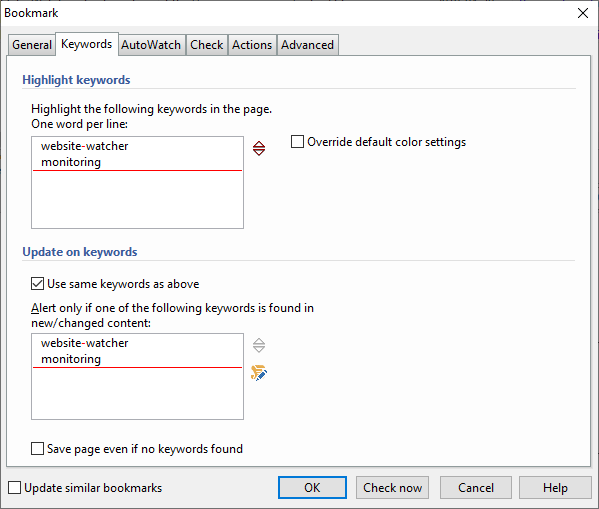
Keywords are only highlighted in the version with highlighted changes, not in the new or old version of a page.
If you use the "Keyword Monitoring" feature, the new version is only saved when at least one of the entered keywords is found within the changed content.
Regular expressions must be defined with regex() or regexcmp(), for example: regex(WebSite.Watcher)
Different keywords can be highlighted with different colors. Add #COLORNAME to the right of the keyword. Supported color names are: red, green, olive, lime, teal, blue, aqua, magenta, orange.
Example:
website #blue
watcher #red
See also:
Check pages that require JavaScript
By default, WebSite-Watcher filters all JavaScript content from a page and processes only the static, textual content.
For pages that can only be displayed with JavaScript enabled, WebSite-Watcher supports the check technology "Browser".
Steps:
1. Open the Bookmark properties.
2. Select the "Check" tab.
3. Select the technology "Browser", and change the browser engine if necessary.
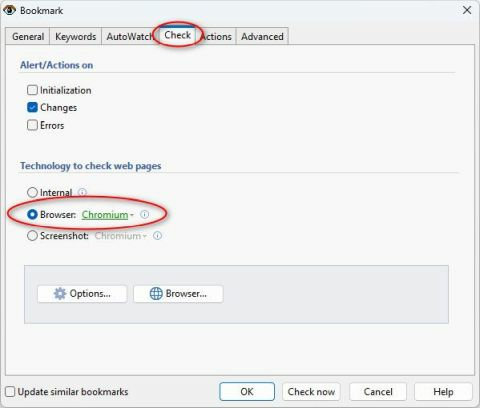
This technology opens the page in a hidden browser window and converts the dynamic JavaScript content into static, textual content that can be processed by WebSite-Watcher. WebSite-Watcher supports the browser engines Chromium, Edge, and Internet Explorer.
- Delay after page has loaded (in seconds):
Use this option for pages that change their content dynamically after the page has loaded. For example, some pages require a few seconds until the final content is displayed.
Monitor entire site (Follow Links)
By default, you must create a separate Bookmark for each page you want to monitor.
If you want to monitor an entire site instead of individual pages, use the Follow Links feature. This feature automatically inserts all links found on a page as new Bookmarks. Various options allow you to specify how many links or which links are inserted as new Bookmarks, for example by defining the link depth.
Follow Links requires a Master-Bookmark, which serves as the root for all automatically inserted child Bookmarks. Master-Bookmarks display the image  before the Bookmark name and are usually sorted before all other Bookmarks.
For all child Bookmarks, the Follow Links configuration is disabled. Changes to the Follow Links configuration can only be made in Master-Bookmarks.
Steps:
1. Create a new folder. It is recommended to place each Master-Bookmark in a separate folder.
2. Create a new Bookmark and enter the URL.
3. Select the "Advanced" tab.
4. Select "Follow Links" on the left side.
5. Enable the "Follow-Links" option and enter the configuration.
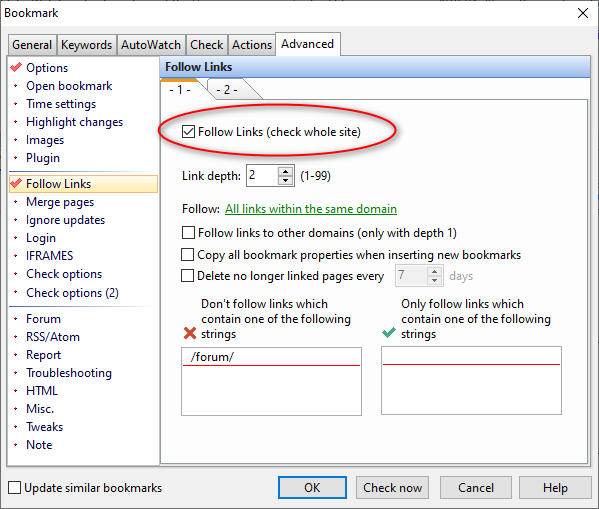
Send emails when changes are detected
If changes on a page are detected, WebSite-Watcher can send an email to one or more recipients. The setup of this feature consists of two steps:
- SMTP server setup
- Enable the Send email feature for specific Bookmarks
SMTP Server Setup
Before you can send emails, enter the mail server configuration.
Steps:
1. Open the program configuration.
2. Select the "Check" tab.
3. Click the "Email" button.
4. Enter the server configuration.
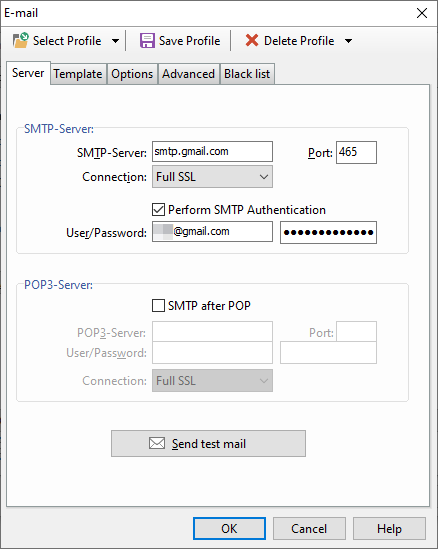
- Smtp Server
SMTP server for outgoing emails. - Smtp after Pop
Depending on the server configuration, a POP3 Login may be required before emails can be sent. This is also called SMTP-after-POP or POP-before-SMTP authentication. If this option is enabled, WebSite-Watcher performs only a Login and Logout to the POP3 server. No emails are downloaded. - Pop Server
Required only if you use the Smtp-after-Pop feature. - Connection
WebSite-Watcher supports different methods for server authentication:
• Regular: Standard Login without SSL or TLS.
• Full SSL: Uses SSL or TLS starting with the first contact to the server. Servers with full SSL or TLS usually do not use the standard TCP port 25.
• Auto SSL: Uses SSL or TLS only if it is supported by the remote server.
Template
The Template section contains basic email settings, such as the name and email address of the sender or recipient. To enter more than one email address in the Recipient field, separate the addresses with a comma or a space.
The Subject and Body fields can contain variables that are replaced with actual values when emails are sent.
Variables in the email subject:
|
{name} |
Name of the Bookmark |
|
{url} |
URL of the Bookmark |
|
{check_url} |
URL that was finally checked. Recognizes changes to the URL via the Plugin system, event function Wsw_BeforeCheck, and redirections |
|
{folder} |
Absolute folder path |
|
{foldername} |
Folder name |
|
{status} |
Status of the last check |
|
{infofield1} |
Info field #1 |
|
{infofield2} |
Info field #2 |
|
{infofield3} |
Info field #3 |
|
{changes50} |
First 50 characters of highlighted changes |
|
{changes50a} |
Same as {changes50} but removes the text "NEW ITEMS(n):" from RSS feeds |
|
{changes50b} |
Same as {changes50} but removes the text "NEW ITEMS" from RSS feeds while keeping the number of new items |
|
{date_changed} |
Date of last update |
|
{counter} |
Incrementing counter. The counter increases by 1 with each email sent. In your mailbox, you can see at a glance if a message is missing because of a skipped number. |
Variables in the message body:
|
{name} |
Name of the Bookmark |
|
{url} |
URL of the Bookmark |
|
{check_url} |
URL that was finally checked. Recognizes changes to the URL via the Plugin system (event function Wsw_BeforeCheck) and redirections.. |
|
{folder} |
Absolute folder path |
|
{foldername} |
Folder name |
|
{status} |
Status of the last check |
|
{note} |
Bookmark note |
|
{infofield1} |
Info field #1 |
|
{infofield2} |
Info field #2 |
|
{infofield3} |
Info field #3 |
|
{date_changed} |
Date of last update |
Maximum email Size:
If you send emails with embedded images, you can limit the maximum size of the emails. WebSite-Watcher removes images from the email as long as the size is larger than the configured maximum value.
Enable the "Send email" feature in the Bookmark properties
To send an email for a Bookmark, enable the "Send Mail" feature in the Bookmark properties.
Steps:
1. Open the Bookmark properties.
2. Select the "Actions" tab.
3. Select "Send email" on the left side.
4. Enable the Send email feature.
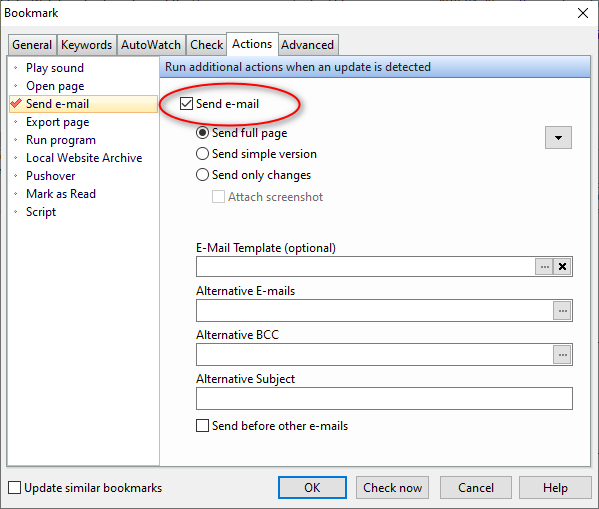
If a Recipient field is entered here, it overrides the recipient defined in the program configuration. If you enter more than one email address, separate them with a comma or a space. The Subject field supports the same variables as in the program configuration.
- Send full page
Sends the complete page with all CSS definitions and downloaded images. The goal is to make the email look similar to the page in your Internet Explorer or other browser. Many email clients or webmail services do not support all formatting commands, so the layout may appear incorrect. In this case, choose one of the other sending options. - Send simple version
This option removes the layout of the page and sends a simplified version. It is similar to the TEXT tab of the internal browser. Use this option if your email client has problems displaying the full layout or formatting of the page. - Send only changes
Extracts and sends only the highlighted text of the page. This option provides the best compatibility with various email clients and reduces the size of the emails. - Attach screenshot
Attaches a Screenshot with the highlighted changes. This option can be used together with "Send only changes" and may be useful if the page layout is required to understand the highlighted changes. The size of the Screenshot is limited, so not all changes may be visible. - Email Template
Allows you to assign a customized email Template. If assigned, the Template configuration overrides the global email configuration and can be used to send emails with an alternative "From" address or an alternative Body. - Send before other emails
Inserts the email at the top of the outbox. These emails have higher priority and are sent before emails without this option enabled. Use this option only for individual critical Bookmarks, not for most or all Bookmarks.
Scraper: Extract content
The features described below are only available in the Business Edition and are not available in the Free or Personal Edition.
The Bookmark action "Scraper" can extract content and structured data from monitored pages and save it to a file on your hard disk. Supported output formats are XML, CSV, or a tab-delimited file.
Typical data that can be extracted includes product prices, product information, news articles, or the highlighted changes from the last detected update.
Templates
To extract data from a page, you must define a Template. A Template contains fields that describe the content to be extracted. These fields can be selected interactively using the selection assistant. When the Bookmark action is executed, the Template is used to extract the content and save it in a structured format on your hard disk.
Templates can be defined individually per Bookmark or as shared Templates that are stored on your hard disk and used by multiple Bookmarks.
Fields
The following types of content can be extracted:
- Single fields
Fields can be located anywhere on the page. You can specify whether all matches or only the first X matches should be extracted. A typical example is extracting a product name and price. - Group of fields
You can define a recurring page area that contains specific fields. WebSite-Watcher then extracts all groups, including the defined fields for each group. A typical example is a table row, where the group is the row and the fields are the cells in that row. WebSite-Watcher can then extract all rows and their cells.
Another example is a topic thread in a forum, where a group represents a complete posting. Each posting contains the user name and the posted text. WebSite-Watcher can extract all postings with user names and text. - Highlighted changes
Extracts the content that is displayed in the "Changes" tab of the internal browser. You can choose between HTML format and TEXT format. If you select the TEXT format, all changes are marked with [change] and [/change].
Select CSS definition per field
Use the following steps to select a CSS definition for a field:
- Click the button "..." on the right side of the CSS field. This opens a window where you can select the most suitable CSS definition.
- Select the content to be extracted in the left panel. All possible CSS definitions are displayed in the middle panel.
- Select a CSS definition in the middle panel. The right panel shows all matches.
- If the correct CSS definition is found, click "OK".
As an alternative to selecting the content in the left panel, you can use the "Select" button in the toolbar. This opens another view of the page. This method may be more convenient in some cases, but it may not work with all page layouts.
Output formats
The extracted data can be saved in the following formats:
XML
Standard XML structure with defined field names and values.
CSV (full)
This format contains the following fields:
- item: Defines the association between rows
- type: Type of extracted data, field, group, or changes
- group: Defined group name, if the extracted element is a group
- field: Defined field name
- value: Extracted data
The following characters are encoded:
- \ as \\
- New line as \n
- " as \"
Tab-delimited (full)
This format contains the following fields:
- item - Defines the association between rows
- type - Type of extracted data, field, group, or changes
- group - Defined group name, if the extracted element is a group
- field - Defined field name
- value - Extracted data
The following characters are encoded:
- \ as \\
- Tab as \t
- New line as \n
CSV (simple), Tab-delimited (simple)
The simple format can only be used if the Template contains a single element, for example a single field or one group of fields. Characters are encoded as listed above.
Output file
Defines where the file is saved on your hard disk.
Variables in the file name:
|
{id} |
Bookmark ID |
|
{datetime} |
Current date and time in the format: yyyy-mm-dd hh.mm.ss (ms) |
|
{infofield1} |
Info field #1 |
|
{infofield2} |
Info field #2 |
|
{infofield3} |
Info field #3 |
|
<$date$, 'format'> |
Date variable as described in the topic Date variables |
Ignore updates
The "Ignore updates" feature allows you to:
- Prevent an update notification when a page contains a predefined text, blacklist mode, or
- Allow an update notification only when a page contains a predefined text, whitelist mode.
Typical example: Page displays a specific error message
If a page regularly displays a specific error message, you can prevent false update notifications when this message appears. Typical examples include "Too many users online, please try again later" or "Could not connect to database".
Steps:
1. Open the Bookmark properties.
2. Select the "Advanced" tab.
3. Select "Ignore Updates" on the left side.
4. Enter the text for which WebSite-Watcher should prevent an update notification, one phrase per line.
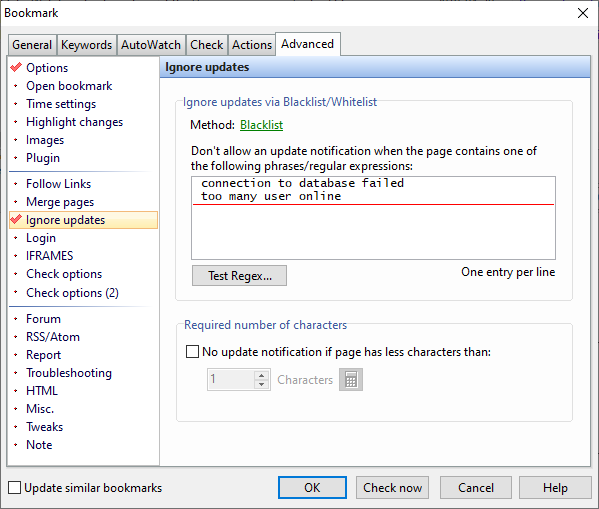
If a blacklisted word is found on the page, WebSite-Watcher ignores the update. The Bookmark is not listed in the error folder, and no notification is triggered after X errors in a row.
If WebSite-Watcher should list the Bookmark in the error folder and trigger a notification after the configured number of errors in a row, use the program Tweak HandleIgnoreUpdateAsError=1.
Limit connections to a specific server/URL
If a server does not allow simultaneous connections, you can reduce the number of connections to that server or to a specific URL.
Steps:
1. Open the program configuration.
2. Select the "Check" tab.
3. Click the "Connection..." button.
4. Select the "Advanced Connection Rules" tab.
5. Click the "New" button.
6. Enter the domain name, for example aignes.com, and specify the connection limits to be applied.
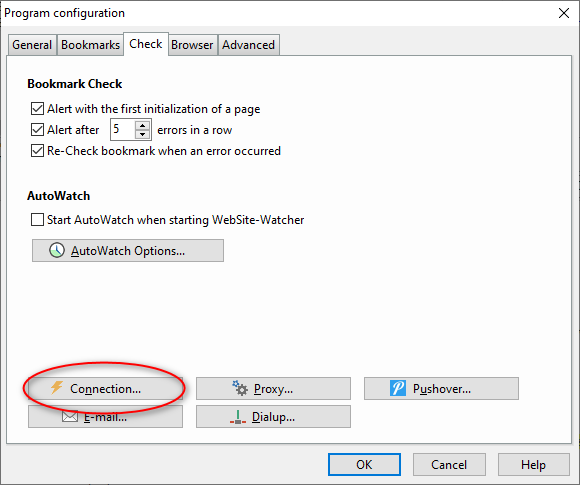
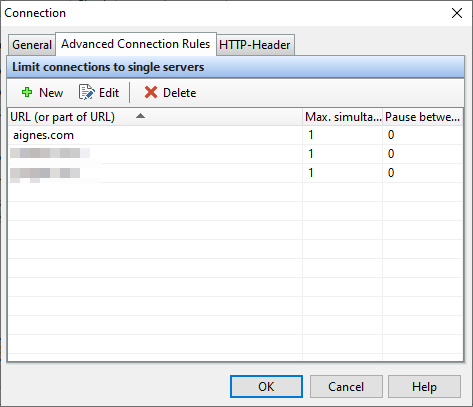
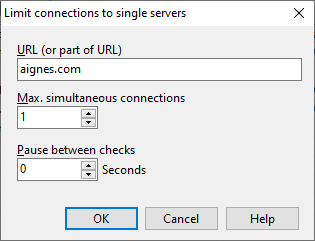
Make a Bookmark a Hotsite
What are HotSites
HotSites are Bookmarks with the HotSite flag enabled. All HotSites are listed in the virtual folder "HotSites", regardless of the folder in which they are actually stored.
This allows you to display your favorite Bookmarks in a single folder.
How to make a Bookmark a HotSite
There are several ways to mark a Bookmark as a HotSite:
- Enable the "HotSite" check box in the Bookmark properties.
- Select a Bookmark and double-click the HotSite column.
- Drag and drop a Bookmark into the "HotSites" folder.
Change properties in multiple bookmarks
WebSite-Watcher provides different ways to change specific properties in multiple Bookmarks in a single procedure.
1. Change properties in selected Bookmarks
Steps:
1. In the main window, select the Bookmarks you want to modify.
2. Right-click the selection.
3. Select "Set properties in all selected bookmarks...".
This opens a window where you can configure specific Bookmark properties. To change a particular setting, enable the "Assign" check box and configure the related feature.
Disable an already configured option
To disable an already configured feature, enable the "Assign" check box and then disable the related feature, as shown in the following example:
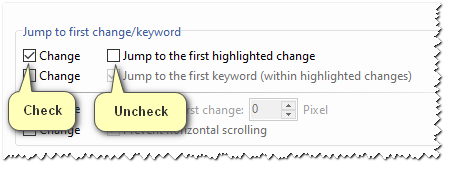
2. Update similar Bookmarks
If you change a configuration directly in the Bookmark properties and want to apply these changes to other Bookmarks, enable the option "Update similar bookmarks" before clicking the "OK" button.
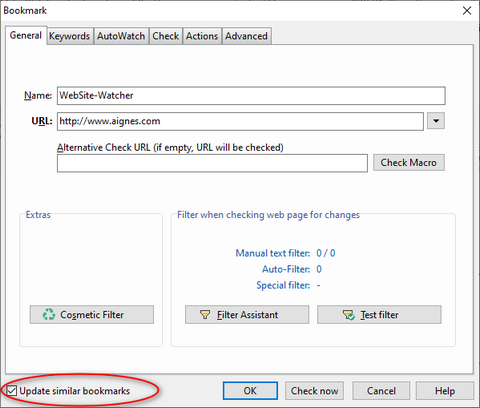
This opens a window where you can select the target Bookmarks and the options to copy from the currently opened Bookmark.
Monitor the full HTML code of a page
By default, WebSite-Watcher filters all HTML tags and uses only the actual, readable text content of a page. To monitor a page with all HTML tags, disable the "Ignore all HTML tags" filter in the Bookmark properties.
Steps:
1. Open the Bookmark properties.
2. Click the "Filter-Assistant" button.
3. Select the "Special filter" tab.
4. Clear the "Ignore all HTML tags" check box.
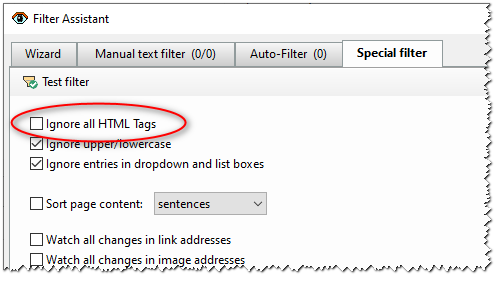
If you want to view the source code of the page, instead of the rendered page, when opening the Bookmark, change the "file type" option from "auto detect" to "text".
5. Select the "Advanced" tab.
6. Select "Check options (1)" on the left side.
7. Change the "file type" option from "auto detect" to "text".
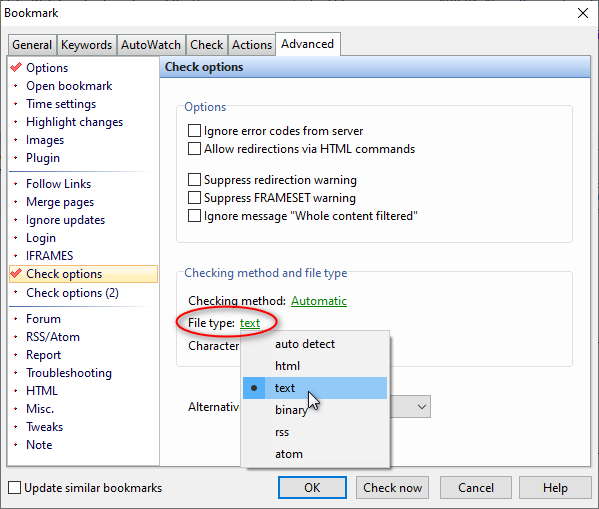
Ignore Cookie Banner
Automatically accept cookies
For Chromium-based and Edge-based check technologies, WebSite-Watcher can automatically accept Cookies and close cookie banners on many web pages. This automatic feature is optional. It can be enabled or disabled in the program configuration and works on many web pages. If a cookie banner cannot be removed automatically, you can use one of the following alternative solutions.
Preferred alternative solution
If a checked Bookmark displays a cookie consent banner that cannot be accepted automatically, in most cases, you can use the following steps:
Steps:
1. Right-click the Bookmark.
2. Select "Browser". This loads the page in a browser window.
3. Accept the cookies.
4. Close the window.
After the next detected update, the cookie message should no longer be displayed. To test these steps immediately, right-click the Bookmark and select "Extras + Re-Initialize bookmark".
This is the preferred method for handling cookie consent banners and should be used whenever possible.
Alternative: Cosmetic Filters
If the steps above do not work correctly, or the cookie banner reappears after a short time, you can use Cosmetic Filters to remove it from the page.
Steps:
1. Open the Bookmark properties.
2. Click "Cosmetic filter".
3. Click the Assistant icon.
4. Select "Cookie Banner". This attempts to automatically determine the appropriate cosmetic filter.
Create Cosmetic Filter manually
If no cosmetic filters are found using the steps above, create the cosmetic filter manually.
Typical steps:
Steps:
1. Click "Create new filter".
2. Enter a short word or phrase that is part of the cookie consent text, for example cookie.
3. Locate the correct occurrence of the entered word or phrase.
4. Click "Next". This searches for related CSS definitions.
5. Select a CSS definition that includes all text of the cookie banner.
6.. Click "OK".
7. Test the filter. If the cookie banner is removed, click "Add filter".
Pre-define Bookmark properties
Ways to pre-define Bookmark properties
1. Globally in program configuration
Settings for new Bookmarks can be pre-defined globally in the program configuration. These pre-definitions apply to all databases and are assigned when you create new Bookmarks.
Steps:
1. Click "Options" in the main menu.
2. Select "Program configuration".
3. Select the "Bookmarks" tab.
4. Click the "Assign bookmark properties" button.
5. Enter the properties to be pre-defined for new Bookmarks.
2. Per folder
You can also pre-define Bookmark properties for new or existing Bookmarks per folder. These pre-defined properties are stored per Bookmark database.
Steps:
1. Right-click a folder.
2. Select "Properties".
3. Select the "Assign bookmark properties" tab.
4. Define when and which Bookmark properties should be assigned.
3. Rule based for certain URLs
A third method uses a rule-based system that allows you to pre-define properties for Bookmarks with specific URLs. For example, you can use the checking method "Browser: Chromium" for all URLs with the domain "aignes.com". These pre-defined properties are stored per Bookmark database and can be assigned to new or existing Bookmarks.
Define these rules as precisely as possible. If a matching pre-definition is found and the option "Continue processing with other pre-definitions" is disabled, no additional rules are applied to the Bookmark. Otherwise, multiple pre-definitions can be assigned to a single Bookmark.
Steps:
1. Click "Options" in the main menu.
2. Select "Global bookmark pre-predefinitions".
3. Enter the rules and the properties for new or existing Bookmarks.
Order in which pre-defined Bookmark properties are assigned
- Pre-definitions from the program configuration, new Bookmarks only.
- Pre-definitions from folder properties.
- Rule-based pre-definitions from "Global bookmark pre-predefinitions" in the Options menu.
Define these rules as precisely as possible. If a matching pre-definition is found and the option "Continue processing with other pre-definitions" is disabled, no additional rules are applied to the Bookmark. Otherwise, multiple pre-definitions can be assigned to a single Bookmark.
If pre-definitions are available in steps 1, 2, and 3, they are all applied. Properties from step 2 override properties from step 1, and properties from step 3 override properties from steps 1 and 2.
Using Local Website Archive
WebSite-Watcher stores the last two versions of a web page. If you want to archive a page permanently for future reference, you can use the tool Local Website Archive (LWA). Local Website Archive can be used as a WebSite-Watcher add-on or as a standalone solution to archive web pages from your browser.
There are different ways in which WebSite-Watcher and Local Website Archive can work together.
1. Archive pages manually
Similar to archiving pages from your Internet Explorer, Chrome, Edge, or Firefox browser, you can archive web pages from the internal WebSite-Watcher browser to Local Website Archive.
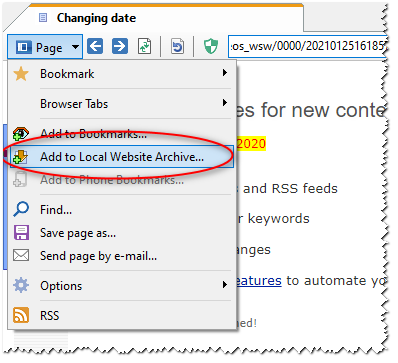
2. Archive pages automatically
Updated pages can be archived automatically to Local Website Archive using the Bookmark actions. After an update has been detected, you can archive either the page with highlighted changes or the new version of the page.
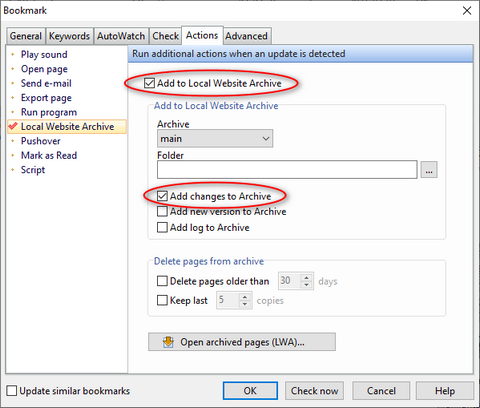
3. Open archived pages
If you use the automatic method described in section 2, you can open archived pages from the following locations:
- Bookmark properties
- Bookmark context menu
- Clicking the "Version" button in the browser toolbar
- A shortcut that can be configured in Options + Shortcuts
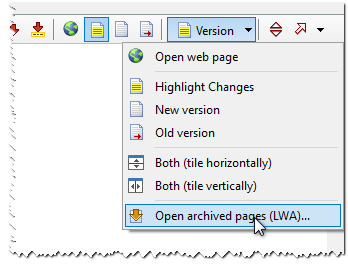
This opens a separate window that displays all archived pages of the selected or opened Bookmark.
What to do when...
A page cannot be displayed
If a page cannot be displayed correctly, you can try the check technology Browser. With this technology, WebSite-Watcher creates a hidden browser window and checks the page in that window.
Steps:
1. Open the Bookmark properties.
2. Select the "Check" tab.
3. Select the "Browser" technology, and change the browser engine if necessary.
If this method does not work, you can try the Screenshot technology.
Steps:
1. Open the Bookmark properties.
2. Select the "Check" tab.
3. Select the "Screenshot" technology, and change the browser engine if necessary.
All bookmarks report an error
If a check run reports an error for all Bookmarks, one of the following reasons may be causing the problem:
Proxy settings are not correct
If you need a Proxy to connect to the internet, verify that the Proxy configuration is entered correctly in WebSite-Watcher.
Steps:
1. Open the program configuration.
2. Select the "Check" tab.
3. Click the "Proxy" button.
4. Enter your Proxy configuration.
WebSite-Watcher is blocked by a firewall
If you are using a firewall or another Internet security suite, WebSite-Watcher may be blocked by that software. In this case, configure your firewall to allow WebSite-Watcher to access the internet. This issue cannot be resolved within WebSite-Watcher.
A check has status "Whole content filtered (verify your filter settings)"
If a check shows the status message "Warning: whole content filtered (please verify your filter settings)", there may be an issue with your filter definitions, and WebSite-Watcher is unable to detect updates.
WebSite-Watcher compares the filtered text content of the new version with the filtered text content of the previous version of a page. If the entire content is filtered out, there is nothing to compare, and updates cannot be detected. In this case, the warning message is displayed.
Open the Bookmark properties and review or adjust your filter definitions to resolve this behavior. Use the "Test filter" function to view the filtered content that is used to detect updates.
See also:
A web page contains only cryptic characters
If a web page displays only unreadable or cryptic characters, the page probably does not contain a character set definition, and WebSite-Watcher converts language-specific characters incorrectly to Unicode.
To resolve this issue, define the character set manually.
Steps:
1. Open Bookmark properties.
2. Select the "Advanced" tab.
3. Select "Check options (1)" on the left side.
4. Click "Character set".
5. Select the correct character set from the submenu.
6. Re-check the Bookmark.
User Interface
Program configuration
General
Tray Icon
The Tray Icon section lets you define whether and when WebSite-Watcher should be displayed in the Windows notification area.
- Always show icon in Windows notification area
If enabled, WebSite-Watcher is always displayed in the system tray, regardless of whether the application is minimized. - Move to Windows notification area when minimizing
WebSite-Watcher is moved to the system tray when you click the minimize button in the window title bar. - Move to Windows notification area when closing
WebSite-Watcher is moved to the system tray when you click the close button in the window title bar. In this case, you can close WebSite-Watcher only by using the menu command File + Exit or TrayIcon + Exit.
Regardless of the Tray Icon configuration, WebSite-Watcher can always be moved to the system tray by pressing F8 or by clicking the toolbar button  .
Browser Integration
Show button in browser title bar
If WebSite-Watcher is running, a WebSite-Watcher button is displayed in the browser title bar. Clicking this button adds the currently open page to WebSite-Watcher. It works with all major browsers such as Chrome, Edge, and Firefox. The horizontal position of this button can be adjusted using a Tweak.
See also:
Bookmarks
Bookmarks
- Automatically sort changed bookmarks first
If this option is enabled, WebSite-Watcher sorts all changed Bookmarks to the top of the list, regardless of the current sort direction. - Hide bookmarks in "Changed bookmarks" folder after opening
A Bookmark is automatically removed from the "Changed Bookmarks" folder as soon as you open it. - Opening the next unread bookmark also jumps to the next folder
When you open the next unread Bookmark, WebSite-Watcher automatically jumps to the next folder if the current folder no longer contains changed Bookmarks.
Download/Display images
WebSite-Watcher supports different methods to download or display images. Images can be replaced with local gray boxes, which is the fastest method. Images can also be downloaded from the internet when the page is opened, using absolute image addresses. Alternatively, images can be downloaded immediately and stored on your local hard disk.
See also:
Predefined settings for new bookmarks
Here you can define properties that are assigned to new Bookmarks. These predefined properties can be overridden for each folder via the folder properties.
Check
Bookmark Check
- Notification when a page is initialized for the first time
During the first check, a page is initialized. Only subsequent checks can detect updates. If this option is enabled, you will receive an update notification when the page is initialized during the first check. No bookmark actions, for example "Send email", are performed in this case. - Notification after XX errors in a row
If a Bookmark reaches the specified number of consecutive errors, you will receive an update notification. As soon as you open the page, the error counter is reset to zero. No bookmark actions, for example "Send email", are performed in this case. - If an error occurs, repeat the bookmark check a second time
If a Bookmark check fails with an error, the Bookmark is reinserted into the check queue for a second attempt.
AutoWatch
WebSite-Watcher supports an automated checking method called AutoWatch, which monitors Bookmarks automatically at predefined time intervals. You can enable this mode by clicking the AutoWatch button  in the toolbar.
- Start AutoWatch when starting WebSite-Watcher
If this option is enabled, AutoWatch starts automatically when WebSite-Watcher is launched. - Delay before first check
Enter the countdown in seconds before the first check is executed. After the first check, WebSite-Watcher calculates the next countdown automatically based on the time configuration of each Bookmark.
Automatic AutoWatch Interval
The "Automatic AutoWatch Interval" allows WebSite-Watcher to use optimized time configurations automatically, based on the previous update frequency.
Active pages are checked more frequently, while pages that remain unchanged for months are checked less frequently. This option is intended for Bookmarks where it is not critical to receive an update notification immediately.
If a Bookmark check does not detect changes, the time interval can increase up to the specified maximum. If changes are detected, the time interval is reset to the specified minimum, and a new adjustment cycle begins.
Automatic time configuration and Keywords:
If Keywords are specified in the Bookmark properties, see Keyword Monitoring, the time interval is also reset to the specified minimum when the page has changed but no Keywords were found.
See also:
Browser
- Use internal browser
By default, WebSite-Watcher opens Bookmarks in the internal browser, which is based on Chromium. If you disable this option, WebSite-Watcher opens Bookmarks in the external default browser instead. - Close browser tabs when closing the internal browser
If this option is enabled, WebSite-Watcher closes all open browser tabs when you close the internal browser. When you reopen the internal browser, an empty page is displayed.
Tabbed Browsing
- Use Tabbed Browsing
Tabbed browsing allows you to display pages in multiple tabs. If you click a link while pressing the Shift key, the link is opened in a new browser tab. If this option is disabled, links are opened in your default web browser instead of a new tab in the internal browser. - Tab #1: Open links in new tabs
If this option is enabled, clicking a link in the first browser tab automatically opens the link in a new tab. Otherwise, online pages can also be opened in the first browser tab. - Restore last visited browser tabs
If the internal browser is closed while tabs are still open, WebSite-Watcher can reopen these tabs automatically.
Ad-Blocker Whitelist
WebSite-Watcher includes a DNS-based ad blocker, which is enabled by default. If a server detects an ad blocker and does not display the web page, you can add the domain to the whitelist and disable the ad blocker for that domain.
Enter one domain per line, without protocol, www, or path.
Example:
aignes.com
website-watcher.com
See also:
AutoBackup
If the option "AutoBackup" is enabled, WebSite-Watcher backs up your Bookmark database to the configured AutoBackup folder. Only the Bookmark database is saved. Cache files and program configurations are not included.
You can restore these AutoBackups by selecting "Tools + Backup/Restore", then choosing "Restore AutoBackup" and following the assistant. This process restores your Bookmark database and recreates all required Cache files.
Appearance
General
- Show grid lines
Displays grid lines in the Bookmark list. - Start minimized
Starts WebSite-Watcher in a minimized state. Alternatively, you can use the command line parameter /MINIMIZE to start WebSite-Watcher minimized.
Date format
Defines how the date is displayed in the columns "Last checked" and "Last changed". For the current day, you can define a separate date and time format, for example to display only the time without the date.
Date format:
|
yyyy |
Year with 4 digits |
|
mmm |
Month name, format: Jan, Feb, Mar, ... |
|
mm |
Month with 2 digits |
|
dd |
Day with 2 digits |
|
hh |
Hours |
|
nn |
Minutes |
|
ss |
Seconds |
|
am/pm |
Adds am or pm to the current time |
Examples:
dd-mmm-yyyy hh:nn 31-Jan-2024 14:30
hh:nn am/pm 02:30 pm
Fonts
Allows you to change the font used in the folder tree and the Bookmark list.
Changed Bookmarks
Allows you to change the text color and the bold setting for changed Bookmarks.
If you disable the bold setting, selected changed Bookmarks cannot be clearly identified, because the text color of selected Bookmarks is always the same. Disabling the bold setting is recommended only if you view changed Bookmarks in the "Changed Bookmarks" folder.
Messages
In this section, you can specify when WebSite-Watcher displays messages or warnings.
Folder
Show folders
Specify which special folders are displayed.
Trash
- Empty Trash after NN days
Specify how long deleted Bookmarks remain in the Trash. After this period, deleted Bookmarks and Cache files are permanently removed.
Virtual Folder
- Display bookmark count for each virtual folder
Enable this option to display the number of Bookmarks and the number of updates for each virtual folder in the main window.
This option can reduce performance if you have many Bookmarks and many virtual folders.
You will usually not notice a slowdown if you have approximately 1,000 Bookmarks and 10 virtual folders. However, performance can decrease significantly if you have, for example, more than 10,000 Bookmarks and 100 virtual folders with a complex configuration.
Update-Ticker
WebSite-Watcher can display a small floating Information Window (InfoWin) when:
1. Changed Bookmarks are detected.
2. WebSite-Watcher is not the foreground window.
A double-click on this window brings WebSite-Watcher to the foreground.
Sounds
All sounds must be available in WAV format.
- Updates
Is played when a page has changed. - End of check run
Is played when a check run has finished. - Allow default sounds
Plays the default sounds, for example when a message box is displayed or when initialized Bookmarks are opened.
External Browser
Specify the browser that is used as the external browser.
RSS Feed Enclosures
WebSite-Watcher includes an internal Download Manager that can be used to automatically download RSS feed enclosures (Podcasts).
By default, WebSite-Watcher uses this Download Manager for MP3 or WAV enclosures. To add additional file extensions, separate them with a comma.
Example:
mp3,wav,exe,msi,zip,rar,7z
Colors
Last change marker
WebSite-Watcher can display a marker at the position of the last change on a page. Here you can define the text and the color of this marker. For each Bookmark, the option "Show last change marker" can be enabled in the Bookmark properties.
Removed elements
Define the color used to highlight removed elements. For each Bookmark, the option "Show removed elements" can be enabled in the Bookmark properties.
Local Website Archive
WebSite-Watcher stores the last two versions of a web page. If you want to archive checked pages permanently for future reference, you can use the additional tool "Local Website Archive".
By default, "Local Website Archive" is installed automatically with WebSite-Watcher. If you want to use a separate installation of Local Website Archive instead of the version included with WebSite-Watcher, you must enter the full path and file name of "wsarc.exe", for example: c:\mytools\lwa\wsarc.exe.
The option "Use separate installation" is mainly available for legacy reasons. Starting with WebSite-Watcher 2023, Local Website Archive is automatically installed and updated together with WebSite-Watcher.
Homepage of Local Website Archive: https://www.aignes.com/lwa.htm
See also:
User Agent
By default, WebSite-Watcher identifies itself as Chrome.
If you want WebSite-Watcher to be identified as a different browser or crawler, you can define a custom browser identification.
Check for new version
WebSite-Watcher can check for new versions online. This feature is available only in the registered version.
Images
Download/Display images
By default, WebSite-Watcher replaces all images on a page with local gray boxes. This is the fastest way to check and open Bookmarks. As an alternative to the gray boxes, you can download and display the original images of a page.
For each Bookmark, the global image configuration can be overridden in the Bookmark properties.
See chapter Display images instead of gray boxes for more information.
Show embedded videos
WebSite-Watcher can optionally display certain types of embedded videos if the option for absolute image addresses or downloading images is enabled. This works only if the technology used to display embedded videos is supported by WebSite-Watcher.
Don't show images within filtered content
If enabled, WebSite-Watcher does not download or display images within filtered content. This option works only in combination with Ignore filters, not with Watch filters.
Proxy
If you connect to the internet through a Proxy, enter the Proxy configuration in this section.
To access certain sites without using a Proxy, enter the domain names of those sites, one entry per line.
Example:
www.aignes.com
website-watcher.com
345.32.123.21
If an entered line starts with a dot, no Proxy is used for all subdomains:
- domain.com ... does not use a Proxy for domain.com
- .domain.com ... does not use a Proxy for news.domain.com, download.domain.com, etc., but uses a Proxy for domain.com
FTP Proxy
WebSite-Watcher supports different Login types for FTP Proxy servers. You can specify them with numbers from 0 to 8. To determine the correct number for your FTP Proxy, click the button "Detect Login Type automatically".
FTP over HTTP
Use the FTP-over-HTTP method only if you must connect through a Proxy that does not support the FTP protocol.
A typical example where FTP-over-HTTP is required is a proxy solution. The FTP-over-HTTP method sends an HTTP-like request, for example GET "ftp://ftp.something.com", to the proxy. The proxy connects to the FTP server and retrieves a file listing. It then converts this file listing into a web page and returns it to your browser or to WebSite-Watcher.
Disadvantages and limitations:
- No direct support for password-protected FTP servers or directories. The only way to monitor a password-protected directory is the insecure URL format: ftp://USERNAME:PASSWORD@ftp.something.com/
This format is not supported by all proxies, so you must test whether it works in your environment. - It is not possible to monitor a single file through a directory entry. Only a complete directory listing can be monitored, all files in the directory are listed.
- A Proxy change or Proxy update can cause a false positive.
Tip: Use the FTP-over-HTTP method only if direct FTP access is not possible.
Proxy Rotation
If two or more Proxy servers are entered, the Proxy rotation feature changes the Proxy with each check run. This makes it more difficult for a web server to detect WebSite-Watcher as a bot.
This feature is available only in the Business Edition.
Proxy List
The Proxy List section allows you to define additional HTTP Proxy servers that can be selected per Bookmark, see also chapter Check Options. This makes it possible to monitor different Bookmarks with different proxies. A custom Proxy works only for Bookmarks that use the internal checking technology.
When a page has changed, WebSite-Watcher can automatically send emails to one or more recipients. In this section, enter your mail server configuration.
Server
- SMTP Server
SMTP server for outgoing emails. - SMTP after POP
Depending on the server configuration, a POP3 Login may be required before you can send emails, this is also called SMTP-after-POP or POP-before-SMTP authentication. If this option is enabled, WebSite-Watcher performs only a Login and Logout to the POP3 server, no emails are downloaded. - POP Server
Required only if you use the SMTP-after-POP feature. - Connection
• Regular - Standard Login without SSL/TLS
• Full SSL - Uses SSL/TLS starting with the first contact to the server. Servers using full SSL/TLS mode usually do not use the standard TCP port 25.
• Auto SSL - Uses SSL/TLS only if it is supported by the remote server.
Template
The Template section contains basic email settings, such as the name and email address of the sender or recipient. To enter more than one email address in the Recipient field, separate them with a comma or a space.
Variables:
The Subject and Body fields can contain variables that are replaced with actual values when emails are sent. Supported variables are described in the topic Send emails when changes are detected.
Options
- Use absolute image URLs in HTML mails
If this option is enabled, WebSite-Watcher uses absolute URLs for images in HTML mails, regardless of whether images are downloaded to your hard disk when checking Bookmarks. This option is enabled by default and can significantly reduce the size of HTML mails. Facebook, Twitter, and Instagram Bookmarks also benefit from this option. - Maximum email size
If you send emails with embedded images, you can limit the maximum size of the emails. WebSite-Watcher removes images from the email as long as the size is larger than the configured maximum value. - Variable {counter}
Incrementing counter that can be used in the email subject. This counter increases by 1 with each email sent. In your mailbox, you can quickly see if a message is missing because of a skipped number.
Advanced
By default, WebSite-Watcher performs a Bookmark check run and sends queued emails afterward. This means that checking Bookmarks and sending emails do not compete for the same resources.
With the advanced sending rules, queued emails can be sent independently of Bookmark check runs. This provides more flexibility, and emails can be sent earlier if you have many Bookmarks and a check run takes a long time.
- Mails per SMTP Login
If at least one email exists in the outbox, WebSite-Watcher logs in to the SMTP server and sends the queued emails, but not more than the configured maximum number. If emails remain in the outbox, WebSite-Watcher waits for the configured time between SMTP Logins, performs a new Login, and sends the next group of emails. This process is repeated until all emails are sent. - Time between SMTP Logins
Defines the time in seconds between SMTP Logins.
Blacklist
The blacklist can be used to suppress sending emails if the page contains predefined blacklisted text, for example "could not connect to database".
Enter one phrase per line. Entries are case-insensitive. Wildcards or regular expressions are not supported.
Example:
database error
site under maintenance
WSW App
The WebSite-Watcher App can be used to read changed Bookmarks on your Smartphone.
WebSite-Watcher can use any WebDAV-supported cloud or file hosting service, or alternatively your personal Dropbox account, to send changed Bookmarks or status messages, for example if emails could not be sent, to the App.
See also:
WebDAV
WebSite-Watcher can use any WebDAV-supported cloud or file hosting service to synchronize data between the Windows version and the App.
WebSite-Watcher saves all required files in the folder "wswapp", which you can store anywhere on your server.
On your WebDAV server:
- Create the folder "wswapp". This folder can be created in the root folder or in any subfolder.
Examples:
/wswapp
/sync/wswapp
/Username/wswapp
This is the only folder used by WebSite-Watcher. Do not save any other files in that folder, they are deleted automatically by WebSite-Watcher. If you enter a WebDAV URL without "wswapp" in WebSite-Watcher, WebSite-Watcher asks whether this folder should be created automatically.
In WebSite-Watcher:
- Open the program configuration.
- Click the button "WSW App".
- Select "WebDAV".
- Enter the WebDAV URL, including the folder created in step 1.
Examples:
https://webdav.server.com/wswapp
https://www.server.com/webdav/sync/wswapp
http://192.168.1.101:8181/Username/wswapp - Enter the Login credentials.
- Click "OK".
WebSite-Watcher performs an initial test to verify that the entered configuration is correct and can be used for synchronization.
Pushover
WebSite-Watcher can be configured to send Pushover messages for certain actions, for example when emails could not be sent. Pushover messages are similar to SMS, but without costs per message. Pushover messages can be received on a wide range of devices, for example iOS, Android, macOS, and Windows. If you run WebSite-Watcher 24/7 on a server and you are a Pushover user, this is a fast way to receive notifications on your phone when a problem occurs.
To use this feature, you need your own Pushover account. More information about Pushover is available at pushover.net.
Pushover configuration
To set up Pushover in WebSite-Watcher, enter the following three fields. All required data can be found in your Pushover account.
- User Key
The User Key found in your Pushover account. It is a string with approximately 30 characters. - API-Token
The API-Token found in your Pushover account. It is a string with approximately 30 characters. - Device
This setting is optional and can be used if you want to send notifications only to specific devices. If this field is empty, WebSite-Watcher sends notifications to all your Pushover devices.
After entering these fields, send a test message to verify that the configuration is correct.
Cookie-Banner
For Chromium-based and Edge-based check technologies, WebSite-Watcher can automatically accept cookies and close cookie banners on many web pages.
This feature works with the following technologies:
- Browser: Chromium
- Browser: Edge
- Chromium Check-Macros
- Edge Check-Macros
- Check by Screenshot: Chromium
- Check by Screenshot: Edge
Exclusion list
If this feature does not work on pages from a specific domain, you can exclude those domains by adding them to the exclusion list. Enter one domain per line.
Example:
domain1.com
domain2.info
Alternative solution
If WebSite-Watcher cannot automatically accept cookies and close the cookie banner, apply these steps to accept cookies:
1. Right-click the bookmark in the main window.
2. Select "Browser".
3. Accept cookies.
4. Close the browser window.
See also:
Ransomware Detection
Ransomware is a type of malicious program that encrypts many of your documents, such as text documents, photos, and videos, makes them inaccessible, and demands payment to provide a decryption key or a program to remove the Ransomware from the infected computer. If you are sitting in front of your PC, you will usually notice an infection quickly because a payment request to decrypt your files is typically displayed. If you run WebSite-Watcher 24/7 on a server or a separate PC, you may not immediately notice that something is wrong.
With the "Ransomware Detection" feature, WebSite-Watcher regularly checks whether a specific reference file has been changed or deleted. If this happens, you can receive a notification. This feature works only while WebSite-Watcher is running.
How does it work
When WebSite-Watcher starts, a unique RTF file is created on your hard disk. As long as WebSite-Watcher is running, this file is monitored for changes. If this file is changed or deleted, the following actions occur:
- WebSite-Watcher stops all running tasks, for example checking Bookmarks or sending emails.
- WebSite-Watcher locks and protects as many important files in the WSW folder as possible to reduce the risk of encryption. These files remain locked as long as WebSite-Watcher is running, for example Bookmark databases, configuration files, and AutoBackups.
- A window is displayed on top of all other applications.
- Optional alert by email. The message is sent immediately without being saved in an Outbox on your hard disk.
- Optional alert via Pushover. The push message is sent immediately without being saved in an Outbox on your hard disk.
- If you use the WebSite-Watcher App and check the special Bookmark WSW-for-Windows, you also receive a notification that your PC was infected with Ransomware.
How to test this feature
The "Ransomware Detection" configuration includes a button named "Test this feature...". When you click this button, the reference file is deleted after you close the program configuration. An alert should appear after a few seconds.
How secure is it
There is no guarantee that WebSite-Watcher can detect all types of Ransomware infections using this technique. WebSite-Watcher can detect an infection only if the reference file is changed, for example encrypted, or deleted, and only while WebSite-Watcher is running. WebSite-Watcher cannot stop the encryption of documents on your hard disk or prevent infection with Ransomware. If the RTF reference file is not encrypted or deleted, or if WebSite-Watcher is not running, the infection cannot be detected.
Connections
General check configuration
- Max. total connections
Number of simultaneous update checks. - Max. HTTPS connections per server
Maximum number of simultaneous connections to a specific server using the HTTPS protocol. - Max. FTP connections per server
Maximum number of simultaneous connections to a specific server using the FTP protocol. - Timeout
If the check of a single Bookmark takes longer than the specified number of seconds, the check is aborted. This value can be overridden for each Bookmark. - Warning download size (per file)
If the downloaded size of a page exceeds the specified value, WebSite-Watcher displays a warning message in the status column. This is only an informational message and does not abort the check.
Advanced Connection Rules
The advanced connection rules offer the possibility to limit the number of simultaneous connections to specific servers or URLs. If the URL field is enclosed in quotation marks, it is treated as a top-level domain, for example "domain.com".
"Pause between checks" can be used if a server allows, for example, only two requests per minute. The search feature in forums often has such a limitation to prevent automated attacks.
Rules displayed in blue are fixed rules that are automatically created by WebSite-Watcher. You can increase the limits for these fixed rules via Tweaks, but you cannot remove them.
Advanced connection rules and Check-Macros:
URLs within macros are not recognized. This functionality is based on the Bookmark fields "URL" and "Alternative URL". If an alternative URL is entered, this field is used, otherwise the URL field is used.
HTTP-Header
- Accept-Language
Lets you configure the Accept-Language entry in the HTTP header, the default value is en.
For more information about this header, search the web for "HTTP Accept-Language".
Dialup
If you use a dial-up connection to access the internet, enter the dial-up configuration in this section.
- Name
"Name" is the name of the configured dial-up or VPN connection on your PC. This field must be entered manually and must exactly match the configured connection name.
WebSite-Watcher uses rasdial.exe to connect and disconnect. "rasdial.exe" is part of Windows and can be tested in the Command Prompt using the following commands:
Dial-up:
rasdial.exe entryname username password
Disconnect:
rasdial.exe entryname /DISCONNECT
Use rasdial.exe /? for additional help.
Tweaks
The Tweaks section allows you to fine-tune WebSite-Watcher and to enable special features or Workarounds.
The Tweaks section uses an INI file format, but without sections, which are names enclosed in "[" and "]". Simply create one or more entries without specifying a section. Each tweak can be used only once. Changes in the Tweaks section require a restart of WebSite-Watcher to take effect.
Available Tweaks
- BrowserButtonMoveLeft=nnn
With this setting, you can move the WebSite-Watcher button, which can be displayed in the browser title bar, horizontally. nnn is the horizontal value in pixels. A positive value moves the button to the left, a negative value moves it to the right. This is useful to avoid overlapping when other programs also display buttons in the browser toolbar. - UnfocusedColorRGB=
Defines the color, in RGB format, of selected but unfocused folders and Bookmarks.
Example: UnfocusedColorRGB=ff0000 displays unfocused selections in red. - UseProxyIfUrlExists=
If a URL is entered, WebSite-Watcher tries to access this URL before the first check run. If it is reachable, WebSite-Watcher uses the defined Proxy settings from the general options. Otherwise, WebSite-Watcher uses a direct internet connection. If you place a "+" before the URL, without quotation marks, it is validated before each check. Otherwise, the URL is checked only once until you restart WebSite-Watcher. You can use only a URL that can be monitored with the internal check technology. URLs that require the check technology "Browser" do not work with this tweak. This setting is used for the HTTP and HTTPS protocols.
Examples:
UseProxyIfUrlExists=https://www.DOMAIN.com
UseProxyIfUrlExists=+https://www.DOMAIN.com - PerformCheckOnlyIfUrlExists=URL;ValidText
WebSite-Watcher checks the specified URL before a Bookmark check run is performed. The page must contain the specified "ValidText" to confirm that it is available. If the specified text is not found, the Bookmark check run is not performed. This feature is useful if you use different internet connections, for example at different locations, and want to ensure that WebSite-Watcher can connect to the internet. If you place a "+" before the URL, without quotation marks, it is validated before each check run. Otherwise, the URL is checked only once after starting WebSite-Watcher. You can use only a URL that can be monitored with the internal check technology. URLs that require the check technology "Browser" do not work with this tweak.
Examples:
PerformCheckOnlyIfUrlExists=https://www.google.com;Advanced Search
PerformCheckOnlyIfUrlExists=+https://www.google.com;Advanced Search
This example downloads the page www.google.com and starts a Bookmark check only if the page contains the phrase "Advanced Search". - BookmarkDblClickOpens=web|new
Alternative double-click operation for Bookmarks to open the online or the new version of a page. Valid values are "web" and "new". - OpenUrlInsteadOfAlternativeUrl=1
If an "Alternative URL" is entered, WebSite-Watcher opens the Bookmark URL instead of the "Alternative URL" when you open the online version of the Bookmark. - CheckSortedBookmarkList=name
Sorts the Bookmarks by name before adding them to the checking queue. - BrowserActiveTabColorRGB=
Defines the color of the active browser tab, in RGB format.
Example: BrowserActiveTabColorRGB=f0f0f0 - CreateHighlightedChangesInBackground=1
By default, WebSite-Watcher calculates and generates the file with highlighted changes when you open a Bookmark. If this option is enabled, WebSite-Watcher creates the file with highlighted changes immediately while a Bookmark is checked. This speeds up opening changed Bookmarks, but the check run consumes more memory and system resources. It is not recommended to use this tweak if you frequently re-check changed or unread Bookmarks without opening them after each check. - FolderCheckAndShowRecursive=1
Enhances the command "Check Folder and Subfolders" in the folder context menu and automatically shows Bookmarks in subfolders. - FollowLinksShowDepth=1
Displays the link depth on the right side of the Follow-Links symbols
 .
- SuppressInitializedInfoBar=1
Suppresses the yellow browser information bar that is displayed when you open an initialized Bookmark. - BookmarkPropertiesDefaultButton=check
Sets the "Check Now" button in the Bookmark properties as the default button. This button is used when you close the Bookmark properties with the Enter key. - CheckLocalFolderUseCreationDate=1
If local directories are checked for changes, WebSite-Watcher uses the modification date for folders. Folders are displayed as changed when files inside these folders are changed. If this option is set, the folder creation date is used instead. - ReopenTabsAfterCrash=0
If WebSite-Watcher crashes, the next start displays a dialog to reopen the last opened browser tabs. This tweak suppresses that dialog and does not reopen the browser tabs. - AutoWatchGuard=1
Checks every 5 minutes whether AutoWatch is running. If AutoWatch is disabled, it is started automatically. Useful if you sometimes disable AutoWatch and forget to enable it again. - MinAutoWatchSecondsAfterHibernation=
If an AutoWatch countdown is active when the system enters hibernation, WebSite-Watcher waits at least 15 seconds before starting the next AutoWatch check after the system resumes. This gives Windows time to reestablish network connections. Default value is 15 seconds.
Example: MinAutoWatchSecondsAfterHibernation=60 - PauseCheckIfWindowExists=
Pauses AutoWatch or a running Bookmark check if one of the defined windows is in the foreground. You can use this feature when working with a specific program or playing a game and do not want to check Bookmarks during that time. Use the Windows Task Manager to determine the window title.
Define one or more window titles separated by the ";" character. WebSite-Watcher checks whether one of the defined strings is part of the title of the foreground window to trigger a pause. All definitions are case-insensitive.
Example: PauseCheckIfWindowExists=notepad;My Game;Video Player - SendMailOnlyNewRssArticles=0
By default, the Bookmark action "Send Mail" sends only new articles of an RSS feed. If this tweak is set, all articles of an RSS feed, as shown when opening the Bookmark, are included in the emails. - SendMailRemoveWswTags=0
By default, WebSite-Watcher removes help tags for highlighting changes from emails to keep email size as small as possible. With this tweak, no tags are removed. This can be useful if you want to post-process emails and extract changes using these tags, for example wswchange1, wswchange2, and so on. - ConvertRssTitleLength=
Defines the length of article titles when WebSite-Watcher converts Facebook, Twitter, or Instagram pages to RSS feeds. Valid values are between 30 and 200. Default value is 40. - HighlightChangesExactHigh=1
Improves the accuracy of the highlight method "Excact". This tweak uses a more precise algorithm to highlight different words in similar paragraphs. This method requires more resources and may be slower. Use it only if the default behavior of the "Excact" method is not accurate enough. When this tweak is enabled, WebSite-Watcher cannot strike out filtered content. - UptimeControlFile=
Writes a control file once per minute and can be used to verify that WebSite-Watcher is running, Business Edition only.
Example: UptimeControlFile=c:\path\file.dat - AutoDeleteOutdatedIgnoreFilters=0
By default, WebSite-Watcher automatically detects and removes outdated ignore filters. With this tweak, you can disable this mechanism. Over time, this may result in very long ignore filter lists if you use the filter assistant to create new filters interactively. It is not recommended to disable this system unless you want to maintain filter definitions manually. Keep in mind that many defined filters require more resources and time to process, even if they are outdated. - HandleIgnoreUpdateAsError=1
Refers to the Ignore updates feature in the Bookmark properties. If blacklisted text is found on a page, WebSite-Watcher ignores the update and does not list the Bookmark in the Error folder or trigger a notification after the configured number of errors in a row. If WebSite-Watcher should list the Bookmark in the Error folder and trigger a notification after the configured number of errors, use this tweak. - HandleWarningWholeContentFilteredAsError=1
If a check reports the message "Warning: whole content filtered (please verify your filter settings)", it is handled as a warning by default. If you enable this tweak, this status message is handled as an error, the Bookmark is listed in the Error folder, and the Bookmark option "Notifications/Actions on Error" is performed. - QuickInsertFromWebBrowserContextMenu=1
If you insert a Bookmark via the web browser context menu, WebSite-Watcher normally shows a dialog for name, URL, and folder selection. If this tweak is set, Bookmarks are inserted into the root folder of the open Bookmark list without displaying the dialog. If a Bookmark already exists, the URL is not inserted. - UseStaticTrayIconHint=1
Displays the static text "WebSite-Watcher" as the tray icon hint, tooltip, instead of dynamically generated information about the current check or update status. - crTwitterPauseSec=
Advanced connection rule for Twitter Bookmarks. Defines the number of seconds between checks. Valid values are 0 to 600. - crInstagramConnections=
Advanced connection rule for Instagram Bookmarks. Defines the number of simultaneous connections. Valid values are 1 to 3. - crInstagramPauseSec=
Advanced connection rule for Instagram Bookmarks. Defines the number of seconds between checks. Valid values are 0 to 600. Takes effect only if the number of simultaneous connections is set to 1. - crFacebookConnections=
Advanced connection rule for Facebook Bookmarks. Defines the number of simultaneous connections. Valid values are 1 to 3. - crFacebookPauseSec=
Advanced connection rule for Facebook Bookmarks. Defines the number of seconds between checks. Valid values are 0 to 600. Takes effect only if the number of simultaneous connections is set to 1. - BlindUser=1
Optimizes the user interface for blind users.
Example:
BrowserButtonMoveLeft=100
BookmarkSort=-date_changed
Bookmark properties
General
General
- Name and URL
The URL field is required. If a URL contains a changing daily date, you can use date variables to handle this. See chapter Date variables for more information. If the Name field is empty, the page title is automatically assigned during the next Bookmark check. - Alternative Check-URL
If an address is entered, WebSite-Watcher monitors this URL instead of the address entered in the URL field. - Check-Macro
If you want to monitor a password-protected page that is located behind a Login page, you must use a Check-Macro. Check-Macros can also be used for pages that require multiple steps to reach a specific page, for example search queries. See chapter Check Macros for more information. - Convert page to RSS
This option is available only for certain pages, for example Facebook, Twitter, or Instagram pages. If enabled, WebSite-Watcher converts the page to an RSS feed, which makes it easier to monitor these pages. WebSite-Watcher reports only new articles, not changes in existing articles. See also Facebook/Twitter/Instagram pages.
See also:
- Using the Assistant
- Add bookmarks manually
- Facebook/Twitter/Instagram pages
- RSS / Atom feeds
- FTP files and directories
- Binary files
- PDF files
- Images
Cosmetic Filters
Cosmetic filters completely remove unwanted content from a page and create a new page, which is then processed by WebSite-Watcher. Ignore and Watch filters are applied to the page created by the cosmetic filters.
See also:
Filter for detecting changed content
To detect updates, WebSite-Watcher compares the text content of the new version of a page with the text content of the previous version. If the contents differ, WebSite-Watcher reports an update. If a page contains frequently changing parts, for example a daily date or advertisements, an update would be reported with each check. A filter can ignore specific parts of a page to prevent false update notifications.
If a filter is defined, WebSite-Watcher compares the filtered text content of the new version with the filtered text content of the previous version to detect updates.
Filters can be created automatically with the Automatic Filter system, or manually, for example by using the Filter-Assistant. By default, the filter "Ignore all HTML-Tags" is enabled and returns only the readable text content of a page. Disable this filter only under special circumstances, for example if you want to monitor changes in the page source code.
The feature "Test filter" allows you to verify your filter settings by comparing the filtered content of the new version with the filtered content of the previous version of the page.
See also:
- What are filter settings (Overview)
- Automatic Filters
- Filter Assistant
- Create Ignore / Watch filter manually
- Special Filter
- Filter with Wildcards
- Working with Regular Expressions
- Cosmetic Filter
Update similar bookmarks
If you change a configuration directly in the Bookmark properties and want to apply these changes to other Bookmarks, enable the option "Update similar bookmarks" before clicking "OK". A window is displayed that lets you select the target Bookmarks and the options to copy from the currently opened Bookmark. See also Change properties in multiple bookmarks.
Keywords
Highlight keywords
This feature allows you to highlight specified keywords in a page. Whole keywords must be placed in quotation marks, for example "watch". All entered keywords are case-insensitive.
Keywords are highlighted only in the version with highlighted changes, not in the new or old version of a page.
Regular Expressions must be placed between "regex(" and ")" without quotation marks.
For example: regex(WebSite.Watcher) finds "WebSite-Watcher", "WebSite Watcher", "WebSite_Watcher", and similar variations.
Restriction: Keywords can be highlighted only if no HTML-Tags are placed within the word. For example, the text "<b>H</b>ello" contains HTML-Tags, so the keyword "Hello" cannot be highlighted. If WebSite-Watcher cannot highlight all entered keywords, a warning is displayed at the beginning of the page.
Different keywords can be highlighted with different colors. Add #COLORNAME to the right side of the keyword. Supported color names are: red, green, olive, lime, teal, blue, aqua, magenta, orange.
Example:
website #blue
watcher #red
Keyword Monitoring
The Update-on-keywords feature reports an update only if at least one of the entered keywords is found in new or changed content. If none of the entered keywords is found on a page, WebSite-Watcher does not save the checked page to your hard disk. When you open the Bookmark, you always see the latest version that contained at least one of the entered keywords.
Enter one keyword per line. All entered keywords are case-insensitive.
- Parts of a word
By default, WebSite-Watcher searches for keywords anywhere in new and changed text content, including when they are part of a word. If you enter the keyword watch, you also get a positive result when the word WebSite-Watcher is present. - Whole words
If WebSite-Watcher should find only whole words, place them in quotation marks. The keyword "watch" does not produce a positive result when the page contains WebSite-Watcher, but "watch" is found in the text you can watch a page for. - Combination of words
Words on a single line can be combined with a logical AND, which means that all words must be found in new or changed content. Combine keywords by placing " + " between them, space-plus-space. Whole keywords are supported by placing them in quotation marks.
Examples:
keyword1 + keyword2
"keyword1" + keyword2 + "keyword3"
"website" + "watcher" - Regular Expressions
Keywords can also be defined using Regular Expressions. Regular Expressions must be placed between "regex(" and ")" without quotation marks.
For example: regex(WebSite.Watcher) finds "WebSite-Watcher", "WebSite Watcher", "WebSite_Watcher", and similar variations.
A special function, regexcmp(...), allows you to compare prices with a specified number.
Save page even if no keywords found:
This option is turned off by default. WebSite-Watcher does not save the page when no keywords are found, so you always see the last version in which keywords were found. This behavior is intended for pages where keywords are searched in new content.
Enable this option if a specific keyword always appears or disappears at the same location, for example the keyword "in stock" on a shop page.
Defined Filters:
WebSite-Watcher does not search for keywords in content that is filtered by Ignore filters. Defined Watch filters are not used when searching for keywords.
Plugins:
With the integrated Plugin system you can define complex keyword queries with logical operators. More details are available in topic Wsw_CheckKeywords. If keywords and a Plugin are defined, both mechanisms are executed. WebSite-Watcher reports an update if at least one of these features finds a keyword.
See also:
AutoWatch
WebSite-Watcher supports an automated checking method called AutoWatch, which monitors Bookmarks automatically based on predefined time settings. You can enable this mode with the AutoWatch button  in the toolbar.
Here you can define whether and how often a Bookmark is checked when WebSite-Watcher is running in AutoWatch mode.
Automatic check interval
The option "Automatic check interval" allows WebSite-Watcher to use optimized check intervals automatically, based on previous updates.
Frequently updated pages are checked more often, while pages that remain unchanged for months are checked less often. This option is intended for Bookmarks where it is not critical to receive an update notification immediately.
The minimum and maximum intervals can be defined in the program configuration.
See also:
Check
Notifications/Actions on
With the Notifications/Actions option, you can define when an update notification and Bookmark actions, for example "Send email", are performed. The default value is "Notifications-On-Changes", which means that you receive update notifications only when a page has changed.
See also "Notification when a page is initialized for the first time" and the global error handling settings in the program configuration.
Technology to check webpages
- Internal
This is the default method for checking pages. Use alternative methods only if this method fails. - Browser
Use this method if WebSite-Watcher cannot check a page with the internal check technology, for example when a page can only be displayed using JavaScript.
By default, WebSite-Watcher filters all JavaScript content from a page and works only with the static text content. This method opens the page in a hidden browser window and converts the dynamic JavaScript content into static text that can be processed by WebSite-Watcher. Supported browser engines are Chromium, Edge, and Internet Explorer. - Screenshot
If a page contains content that cannot be monitored with the other methods, for example content displayed using JavaScript, you can create a Screenshot of the page and compare it to detect changes. See chapter Check by screenshot for more information. Supported browser engines are Chromium and Edge.
Advanced Options
- Delay after page has loaded, in seconds
Use this option for pages that change their content dynamically after the page has loaded, for example when the final content is displayed a few seconds later. - Scroll down pages
Defines how many times the page is scrolled down during a check. Use this option if a page loads additional content dynamically while scrolling. - Simulate user interaction
Activate this option if a page requires user interaction, for example keyboard input or mouse movement, to load correctly. Enable this option only if necessary, as the page takes longer to load. - Alternative method to get page content
You can try one of these methods if WebSite-Watcher cannot retrieve the content from the browser to monitor a page.
Print/PDF: The browser prints the page content to a PDF file, and WebSite-Watcher converts this PDF file into an HTML page.
Collect: This method analyzes all transferred documents and combines them into a single page. This method can be useful if WebSite-Watcher cannot resolve IFRAMES or other embedded elements.
See also:
Actions
When an update is detected, WebSite-Watcher can optionally perform additional tasks.
Play sound
Enter a sound file in WAV format that is played when an update is detected.
Open page
When a page is updated, you can open it automatically in the internal or an external browser. This feature is intended for individual pages, not for all pages in a list.
Send email
The "Send email" feature allows you to send emails to one or more recipients. WebSite-Watcher sends a separate email for each changed Bookmark.
- Send full page
Sends the complete page including CSS definitions and downloaded images. The goal is to make the email look similar to the page in your web browser. Many email clients or webmail services do not support all formatting features, so the layout may not be displayed correctly. In this case, select one of the other sending options. - Send simple version
Strips the layout and sends a simplified version of the page. This is similar to the TEXT tab of the internal browser. Use this option if your email client has problems displaying the full layout or formatting. - Send only changes
Extracts and sends only the highlighted text of the page. This option provides the best compatibility with most email clients and reduces the size of the emails. - Attach screenshot
Attaches a Screenshot with the highlighted changes. This option can be combined with "Send only changes" and may be useful if the page layout is required to understand the highlighted changes. The size of the Screenshot is limited, so not all changes may be visible. - Email Template
Allows you to assign a customized email Template. If assigned, the Template overrides the global email configuration and can be used to define an alternative "From" address or message body. - Send before other emails
Inserts the email at the top of the outbox, so it has higher priority and is sent before emails without this option enabled. Use this option only for individual, critical Bookmarks.
See also:
Export page
The export feature saves the updated page, new version without highlighted changes, to a specified file name.
Variables in the file name:
|
{id} |
Bookmark ID |
|
{datetime} |
Current date and time in the format yyyy-mm-dd hh.mm.ss (ms) |
|
{infofield1} |
Info field #1 |
|
{infofield2} |
Info field #2 |
|
{infofield3} |
Info field #3 |
|
<$date$, 'format'> |
Date variable as described in topic Date variables |
Format:
|
Website, only HTML |
WebSite-Watcher exports the page without CSS or image files. |
|
Website, complete |
WebSite-Watcher exports related CSS and image files to a subfolder with the extension ".files". If the export file name is "test.htm", CSS and image files are stored in the subfolder "test.files". WebSite-Watcher does not automatically remove outdated files from that folder when you export again using the same file name. |
|
Text |
Optionally strips all HTML tags and saves the page as a text file. |
Scraper
This Bookmark action is available only in the Business Edition and does not work in the Free or Personal Edition.
The Scraper action extracts content and structured data from a monitored page and saves it to a file on your hard disk. Supported output formats are XML, CSV, or a tab-delimited file.
To extract data from a page, create a Template that contains one or more fields. You can create private Templates defined per Bookmark or shared Templates. Shared Templates are saved as separate files and can be used for multiple Bookmarks.
Variables in the file name:
|
{id} |
Bookmark ID |
|
{datetime} |
Current date and time in the format yyyy-mm-dd hh.mm.ss (ms) |
|
{infofield1} |
Info field #1 |
|
{infofield2} |
Info field #2 |
|
{infofield3} |
Info field #3 |
|
<$date$, 'format'> |
Date variable as described in topic Date variables |
See also:
Run program
This action starts a program and passes the following variables as parameters:
|
{url_new} |
New version of the downloaded page |
|
{url_changes} |
Version with highlighted changes |
|
{url_old} |
Previous version of the downloaded page |
|
{url} |
URL of the Bookmark |
|
{postdata} |
PostData field of the Bookmark |
|
{infofield1} |
Info field #1 |
|
{infofield2} |
Info field #2 |
|
{infofield3} |
Info field #3 |
If more than one program must be executed, create a DOS batch file and start the programs from that batch file.
Local Website Archive
This action exports a page to Local Website Archive. Local Website Archive must be installed separately and can archive web pages and documents permanently for future reference. More information about Local Website Archive is available at https://www.aignes.com/lwa.htm.
See also:
Pushover
This action sends a Pushover message to your Pushover client. To use this feature, you need your own Pushover account. More information is available at pushover.net.
The size of a Pushover message is limited, so not all changes may be visible.
Mark as Read
If you do not open Bookmarks within WebSite-Watcher, for example if you read changed Bookmarks only in your email client, enable the Mark-as-Read action. Otherwise, the old version is not replaced with the new version, and you continue to see all differences between the unchanged old version and the current version from the web.
Starting with WebSite-Watcher 2017, the Mark-as-Read action is no longer required for the actions "Send email" and "Open bookmark".
Script
Allows you to execute specific commands when a Bookmark is updated. Scripts are line-oriented, which means each command must be placed on a separate line.
The following commands are supported:
|
CheckFolder |
Allows you to check a Bookmark folder when a specific Bookmark is updated. Examples: CheckFolder "News" CheckFolder "Software\Mail" |
|
DisableCheck |
If an update is detected, checks for this Bookmark are paused for the specified number of minutes. Example: DisableCheck=5 |
Options
Jump to the first change / keyword
- Jump to the first highlighted change
If enabled, WebSite-Watcher automatically jumps to the first highlighted change when a Bookmark is opened. - Jump to the first keyword, within highlighted changes
If keywords are defined, WebSite-Watcher can automatically jump to the first keyword within the highlighted changes when the page is opened. - Offset before first change
When WebSite-Watcher jumps to the first highlighted change, the change is displayed at the top edge of the internal browser window. With this option, WebSite-Watcher scrolls back the specified number of pixels. This can make reading the first highlighted change more comfortable, but it may slightly increase the scrolling time. The default value is 0. - Prevent horizontal scrolling
If WebSite-Watcher jumps to the first change or keyword and the page width is larger than the width of the browser window, horizontal scrolling may occur. Enabling this option prevents horizontal scrolling. This works only if the change is completely or partially visible. If a change is completely outside the visible browser window, horizontal scrolling is always required to display it.
Show elements
- Show removed elements at the bottom of the page
If enabled, WebSite-Watcher displays removed elements at the bottom of the page. - Show marker for the last change
If enabled, WebSite-Watcher displays a marker after the last change. The text and color of this marker can be defined in the program configuration.
Options
- Disable bookmark, Do not check
This option disables a Bookmark and excludes it from checking. Disabled Bookmarks can only be checked using the feature Check selected bookmarks, extended. - HotSite
HotSites are Bookmarks with a specific flag enabled. All HotSites are listed in the virtual folder "HotSites", independent of the folder in which they are stored. This allows you to display your favorite Bookmarks in a single folder. See chapter HotSites for more information.
Open bookmark
Select which version of the page should be opened and whether the Bookmark should be opened in the internal browser or in your external default browser.
For example, open a Bookmark in your external browser if the internal browser causes problems or crashes for that Bookmark.
Time Settings
You can use these options to define time settings for manual Bookmark checks, shortcut F9 or the toolbar Check button  .
If no configuration is defined, the Bookmark is checked during every check run.
Highlight changes
Highlight method
Depending on the page type, WebSite-Watcher supports several methods to highlight text changes.
See also:
Options
- Highlight new/changed images
Depending on the image configuration, WebSite-Watcher can place a border around changed images. This option works only if images are downloaded or online images are used for display. Please note that a web page is marked as updated only when a text change is detected, not when only an image has changed. - Watch filter: Highlight only matched results
If you create an ignore filter, WebSite-Watcher strikes out the filtered content. If you create a watch filter, nothing is struck out by default, and WebSite-Watcher highlights all changes on the page. When this option is enabled, WebSite-Watcher highlights only the changes found within the watch filter and strikes out all other content. The behavior is then the same as in the Filter Assistant.
See also:
Colors
Here you can define the color and style of highlighted changes.
Images
The Image section allows you to override the global image configuration for this Bookmark.
See also:
Plugin
The Plugin system provides a powerful way to change or enhance the functionality of Bookmark checks by writing small "Basic" scripts.
WebSite-Watcher supports Private Plugins, which are created and saved per Bookmark, and Shared Plugins, which are saved in separate files and can be used by multiple Bookmarks.
Plugin-specific data
This section contains fields that can be used by a Plugin. For example, the password field can be used to check password-protected Excel files. A Plugin can read this field using the function Bookmark_GetProperty.
See also:
Follow Links
By default, you must create a separate Bookmark for each page that you want to monitor.
If you want to monitor an entire site instead of individual pages, use the Follow Links feature. This feature automatically inserts all links from a page as new Bookmarks. Various options allow you to define how many links or which links are inserted, for example by specifying the link depth.
Follow Links requires a Master-Bookmark that serves as the root for all automatically inserted child Bookmarks. Master Bookmarks display the icon  before the Bookmark name and are usually sorted before all other Bookmarks.
For all child Bookmarks, the Follow Links configuration is disabled. Changes to the Follow Links configuration can be made only in Master-Bookmarks.
It is recommended to place each Master-Bookmark in a separate folder.
Options
- Link depth
The link depth defines how deep WebSite-Watcher follows links. A link depth of 1 means that WebSite-Watcher follows only links on the current page. A link depth of 2 means that WebSite-Watcher also follows links on linked pages, and so on. - Copy all bookmark properties when inserting new bookmarks
By default, only the most important Bookmark properties are copied to automatically inserted Bookmarks. If this option is enabled, almost all Bookmark properties of the source Bookmark are copied to the new Bookmarks. - Delete no longer linked pages every X days
This option automatically detects and deletes pages that are no longer linked from the Bookmark list. Because this process can take some time, you can define how often it should be performed. You can also perform this operation manually by right-clicking a Master-Bookmark in the Bookmark list and selecting the appropriate command from the context menu.
Do not follow links that contain any of these strings
With this option, new Bookmarks are not inserted if a link address contains at least one of the specified strings. Enter one string per line. All strings are case-insensitive and are treated as substrings. Regular Expressions with the function regex(...) and date variables are supported. Wildcards or other regular expression functions besides regex(...) are not supported, for example StartToRegex.
Examples:
.zip
.exe
/adv/
regex(/example\d+/)
Only follow links that contain any of these strings
With this option, new Bookmarks are inserted only if a link address contains at least one of the specified strings. Enter one string per line. All strings are case-insensitive and are treated as substrings. Regular Expressions with the function regex(...) and date variables are supported. Wildcards or other regular expression functions besides regex(...) are not supported, for example StartToRegex.
Examples:
techinfo
forum_data
regex(/article\d+/)
Options (2)
- Name Prefix
If defined, automatically inserted Bookmarks use the specified text as a prefix in the Bookmark name. Example: [wsw] - Do not follow links in ignored content
With this option, the Follow Links feature uses defined Ignore filters to exclude links that appear in filtered areas of a page. This option works only with Ignore filters, not with Watch filters.
Advanced Options
Check if a URL already exists in WebSite-Watcher
If a URL contains a changing Session-ID, it may be inserted again each time the site is checked. To prevent this behavior, you can define regular expressions to exclude specific parts of a URL when WebSite-Watcher checks whether it already exists. Enter one regular expression per line. The function text "regex(" and ")" is optional.
Examples:
- ?.*
Filters everything after the question mark. - &s=.*?&
Filters the parameter &s= up to the next ampersand, for example &s=hasdqwe79a8sd798&. - &sid=[a-z|1-9]*
Filters a session ID consisting of characters a-z and digits.
See also:
Merge pages
If a page consists of multiple subpages, for example search results, and the URL contains a parameter that defines the page number, WebSite-Watcher can merge these pages into a single page.
Typical examples of supported URLs:
- https://www.domain.com/search.php?s=text&page=3&id=792837492387
- https://www.domain.com/topic.php?start=15&sort=asc
There are two different ways to merge pages
- Merge pages with a permanent start page
Use this option if you want to monitor, for example, the first five pages of a search result. - Merge the last pages that have new content
Use this option if you want to monitor, for example, new posts in a forum thread that are added to higher page numbers. WebSite-Watcher then automatically monitors the latest pages that contain new postings.
To set up the merge feature, start the assistant and follow the instructions.
Alternative solution via Plugins
You can also write a Plugin to merge pages automatically. This method also works for URLs where the page number is part of the URL or file name and not available as a parameter. See examples Merge search result pages and Merge pages in forum thread.
Ignore updates
Ignore updates via Blacklist/Whitelist
The "Ignore updates" feature supports two different modes:
- Blacklist mode
This mode prevents an update notification when a page contains a specific predefined text. It can be used when a page regularly displays a certain error message, for example "Too many users online, please try again later" or "Could not connect to database". - Whitelist mode
This mode allows an update notification only when a page contains a specific predefined text. If the predefined whitelisted text is not found on the page, WebSite-Watcher does not report an update.
See also:
Required number of characters
If a server occasionally sends an empty page, you can use this option to prevent false update notifications. Enter the minimum number of readable characters that must be present on the page.
IFRAMES
IFRAMES, also known as inline frames or embedded pages, are often used to display advertisements within a web page.
WebSite-Watcher does not check IFRAMES automatically. If a page contains IFRAMES, the internal browser displays an information bar that allows you to enable IFRAME checking or suppress the IFRAME warning.
Login
Login via Server Authentication
Server Authentication is a method used to protect pages from public access. You can recognize this type of login when a small dialog box appears and asks you to enter a username and password, for example:
If this dialog appears, enter the username and password in this section.
Web-based login
If the fields for username and password are part of a web page, it is a web-based login and you must record a Check-Macro.
See also:
Check Options
Options
- Ignore server error codes
Enable this option if a misconfigured server permanently sends an error code for an existing page, for example "404 file not found". - Do not display redirection warnings
If you monitor a page that redirects to another address, WebSite-Watcher always shows "redirection" in the status column. With this option, you can suppress this status message. - Ignore message "Whole content filtered"
If a check displays the status message "Warning: whole content filtered (please verify your filter settings)", either the page content is empty or your defined filters remove the entire page content, and WebSite-Watcher cannot detect updates. In this case, WebSite-Watcher reports an "Update" so that you are aware of a potential configuration problem and can review the bookmark settings. If you enable this option, WebSite-Watcher does not report an update in this situation. Use this option with caution, because WebSite-Watcher cannot detect updates when no content is available.
Checking Method and file type
- Checking method
WebSite-Watcher supports several checking methods to monitor a page. The default method is "Automatic", which allows WebSite-Watcher to select the most suitable method automatically, or, depending on the page type, a combination of methods. Only in special cases should you manually select a different checking method.
• Automatic - Depending on the page type, this method automatically decides which method should be used to check a page. It may also use a combination of the available methods.
• by content - This method downloads the entire page and compares the filtered content of the new version with the filtered content of the old version. If differences are found, WebSite-Watcher reports an update.
• by file date - This method uses the file date of a page to detect updates. It depends on the page type whether the server provides this date. This method is typically used for binary files.
• by file size - This method works similarly to the "by file date" method and uses the file size reported by the server. This method should only be used for binary files. - File type
If WebSite-Watcher cannot detect the file type automatically, you must select the correct file type manually. For example, if WebSite-Watcher cannot identify an RSS feed, you must select the file type "rss". One possible reason is that the server incorrectly identifies an RSS feed as a binary file. - Character set
By default, WebSite-Watcher determines the character set of a page automatically. If neither the page nor the server log contains information about the character set, WebSite-Watcher cannot display the page correctly, and you must select the correct code page manually. See chapter A web page contains only cryptic characters for more information.
Alternative Proxy
If you want to use a separate Proxy to check a bookmark, you can select a configured Proxy from the list. See also chapter Proxy. This setting is only used for the internal checking method. The check technologies "Chromium", "Edge" and "Internet Explorer" always use the proxy configuration of your system.
Check Options (2)
User-Agent / Timeout
- Use custom User-Agent
By default, WebSite-Watcher identifies itself as Chrome. This identification can be overridden individually for each bookmark. - Use custom Timeout value
Here you can override the default Timeout value defined in the program configuration.
Cookies
The Cookies configuration is only used by the internal checking technology. The technologies "Chromium", "Edge" and "Internet Explorer" use their own Cookie systems.
WebSite-Watcher supports the following methods to handle Cookies:
- Use Cookies
This is the default method. WebSite-Watcher uses Cookies from an internal Cookie database. To obtain Cookies for a bookmark, right-click the bookmark in the main window of WebSite-Watcher, select "Browser" to load the page and perform logins if required, then close the window. - Use separate Cookies
As an alternative to the Cookie database, WebSite-Watcher can manage Cookies individually for each bookmark. The Cookies are stored in the bookmark properties and are not shared with other bookmarks. - Do not use Cookies
WebSite-Watcher does not use Cookies.
GET / POST
Allows you to send a POST command to the server. This option works only with the internal checking technology. When a POST command is required, it is usually recommended to record a Check-Macro.
By default, WebSite-Watcher uses the GET command to monitor web pages. If a page requires the POST command, for example after submitting a form, you can use the tool MiniBrowser to determine the POST URL and PostData. The PostData field can also contain date variables.
See also:
Ext.
Some extended commands can be used in combination with the internal checking technology.
- Allow redirections via HTML commands
If a web page is only reachable through HTML redirections, enable this option. WebSite-Watcher downloads the first page, scans the source code for HTML redirections, and then checks the target page. - Referrer
If a page requires a referrer URL, enter the required URL here.
Forum
The topic list of discussion forums can be monitored using predefined forum Plugins or with Forum-Templates.
Forum Plugins are available for well-known forum systems, for example phpBB or vBulletin. If a suitable forum Plugin is available, simply assign it to the bookmark. No further configuration is required in this case.
If a forum is not supported by a forum Plugin, you can create a Forum-Template by selecting the forum header, the last posting time of a thread or topic, and the forum footer. WebSite-Watcher then creates all required settings automatically, and no additional configuration is necessary.
See also:
RSS/Atom
This section can be used to define basic RSS and Atom feed configurations.
- RSS style
WebSite-Watcher supports different layouts to convert RSS feeds into a readable HTML page. - Ignore changes in old articles
By default, WebSite-Watcher reports an update when new or changed postings are found in an RSS feed. If you are only interested in new posts and not in updated articles, enable this option. - Keep the most recent X articles
By default, WebSite-Watcher displays only the RSS feed items currently contained in the RSS feed file. Enabling this option allows you to keep a small archive of older postings within the feed. This feature can also be useful when an RSS feed dynamically adds new articles and removes older ones. - Ignore articles older than X days
By default, WebSite-Watcher displays all articles stored in an RSS feed. If a feed contains many old articles, the resulting HTML file can become very large and slow down WebSite-Watcher. With this option, you can ignore articles older than the specified number of days to keep RSS feeds small and fast. - Ignore article text
If enabled, WebSite-Watcher completely removes the text bodies of articles. Only fields such as title and pubdate are displayed. - RSS item identification
Defines which fields are used to detect new RSS feed postings. By default, WebSite-Watcher uses an automatic system that may fail under certain circumstances, for example when an RSS feed regularly changes the GUID (Globally Unique Identifier) for existing postings. In such cases, you can manually select the fields that should be used to detect new items. In most situations, the automatic system works correctly. - Blacklist / Whitelist
You can define either a Blacklist or a Whitelist for each RSS feed. In Blacklist mode, articles that contain at least one of the specified words are ignored. If a blacklisted word is found, WebSite-Watcher removes the article completely from the list. In Whitelist mode, only articles that contain at least one of the defined words are monitored, all other articles are ignored and removed. Enter one word per line. Wildcards and regular expressions using the syntax regex(...) are supported.
Report
In this section, you can define additional fields for the Report/Export feature.
If the fields "URL" and "Name" are entered here, the Report feature uses these values instead of the main URL and Name fields.
See also:
Workarounds
The following options can be used if a downloaded page cannot be displayed correctly:
- Ignore CSS definitions
If this option is enabled, all CSS definitions in the downloaded page are ignored. - Ignore text colors
If this option is enabled, all text colors in the downloaded page are ignored. - Ignore background colors
If this option is enabled, all background colors in the downloaded page are ignored. - Do not ignore NOSCRIPT parts
By default, WebSite-Watcher does not support Javascript and related NOSCRIPT parts. Errors often occur in NOSCRIPT sections because they are usually not tested. If a page can only be displayed with Javascript, use the check technology Browser. - Do not optimize for offline browsing
Enable this option only if WebSite-Watcher has problems optimizing a page for offline browsing.
As an alternative to these options, you can also try the check technologies Browser or Screenshot.
See also:
HTML
This section contains options to convert a page into a simplified HTML version and to extract parameters from HTML tags that are not readable by default. This makes it possible to monitor content that is only available in parameters of HTML tags, for example the TITLE parameter of the IMG tag.
- Convert to simple HTML version
This option converts the page into a very simple version. You can use this option if the checked page cannot be displayed correctly or if opening the bookmark causes a crash. - Extract DATA parameter from HTML tags
Extracts text content from various HTML tag parameters and inserts it into the page, for example text from ALT, TITLE, or DATA-CONTENT parameters. This allows you to monitor content that is typically visible only when moving the mouse pointer over certain elements. - Extract TITLE parameter from HTML tags
Extracts text content from the ALT and TITLE parameters of any HTML tag and inserts it into the page. - Extract image title
Extracts text content from the ALT and TITLE parameters of image tags and inserts it into the page. - Extract image addresses
Extracts the URL of image tags and inserts it into the page. - Extract links addresses
Extracts the URL of link tags and inserts it into the page.
Misc.
This section contains various configuration options that do not fit into other sections.
- Filename prefix for download manager
If you download a file using the download manager, for example via RSS feed enclosures or via a Plugin, you can define a prefix for the downloaded file name. This field is optional. The maximum length is limited to 10 characters.
Tweaks
The Tweaks section allows you to fine-tune bookmark properties, enable special features, or apply specific Workarounds. The Tweaks section uses an INI file format without sections, that is, without names between "[" and "]".
- HttpAcceptLanguage=
Allows you to configure the Accept-Language HTTP header. For more information about this header, search the web for "HTTP Accept-Language".
Example: HttpAcceptLanguage=de
Note / Info fields
For each bookmark, you can enter a note and three additional information fields.
These fields can be displayed as separate columns in the bookmark list. You can also quickly edit these fields by double-clicking the note icon  in the bookmark list.
Folder properties
Folder properties
General
Bookmark name and user-defined icon.
Options
- Automatically delete bookmarks
Use this feature if you want to monitor bookmarks only for a specific period of time. You can optionally exclude bookmarks with flags ( ) from automatic deletion.
Assign bookmark properties
In this section, you can define if and when specific properties should be assigned to bookmarks in the selected folder.
Virtual folder
Virtual folder properties
Virtual folders contain only bookmarks that meet specific criteria defined in the Virtual Folder dialog.
Process bookmarks in folders
For each Virtual Folder, you can select which folders should be processed. By default, all folders are processed. Alternatively, you can select specific folders only.
Rules
To list a bookmark in a Virtual Folder, the defined rules must be met.
- Keywords
A bookmark is listed in a Virtual Folder if an update has been detected and at least one of the specified keywords is found within the new or changed content. If keywords are found, additional actions can also be executed, for example sending an email or permanently archiving the page to Local Website Archive.
In addition to searching in new or changed content, WebSite-Watcher also searches for keywords in the following elements: bookmark name, bookmark URL, the TITLE tag of the page, and the META tag fields "keywords" and "description".
WebSite-Watcher searches for words or phrases only. Wildcards and regular expressions are not supported. - Advanced Rules
A bookmark is listed in a Virtual Folder if the configured rules are met. If only Advanced Rules are configured, without any keywords defined, additional actions from the "Actions" tab cannot be executed. - Combination: Keywords + Advanced Rules
If both keywords and Advanced Rules are defined, both criteria must be met for a bookmark to be listed.
If you add or modify Advanced Rules, the changes are applied immediately and the Virtual Folder is refreshed with matching bookmarks. Changes to the keyword configuration are not applied immediately and are processed only during a bookmark check. To apply keyword changes immediately, right-click a Virtual Folder and run the command "Re-process virtual folders".
Actions
If specified keywords are found within new or changed content, WebSite-Watcher can execute additional actions similar to those available in the bookmark properties. A full description of these actions is available in the topic Bookmark Actions.
Scripting language
Scripting language (Overview)
The built-in scripting language provides a simple way to automate tasks in WebSite-Watcher.
The scripting language is line-oriented, which means that each command must be placed on a separate line. See also the chapter Syntax overview.
Edit scripts
WebSite-Watcher includes a built-in script editor that can be opened from the "Script" menu.
To quickly open a script in the editor, hold down the Shift key while selecting a script from the "Script" menu.
Special scripts
Special scripts are executed automatically at appropriate times. For example, the "Autostart" script runs when WebSite-Watcher starts. You can find and edit these special scripts in the "Edit special script" menu. All other scripts must be started manually from the "Script" menu or via the command line.
- Autostart script
This script runs automatically when WebSite-Watcher starts. - Scripts for toolbar buttons
WebSite-Watcher can optionally display three toolbar buttons that execute special scripts. You can also assign keyboard shortcuts to these scripts. - Scripts executed after each check run
WebSite-Watcher can optionally execute a script after each check run. Not all commands are allowed in these scripts. The script editor displays a notification if a disallowed command is used.
Commands
Commands to check bookmarks:
General commands:
- AbortScript
- CloseBrowser
- CloudSync
- CreateBackup
- CreateReport
- ImportBookmarks
- MarkAsVisited
- MessageBox
- OpenBookmarkFile
- OpenWithInternalBrowser
- PlaySound and SystemBeep
- QuestionBox
- Quit
- RestartScript
- RunProgram
- SelectFolder
- SendBookmarks
- SendMail
- StartAutoWatch
- WaitDelay / WaitUntilTime
- WindowToTray
Variables and advanced commands:
Global settings and flags:
Examples
Syntax
Code lines
The syntax of the scripting language is line-oriented. This means that each statement must be written on a single line without line breaks. A single logical line can be wrapped using the characters "(+)". The length of a line is not limited.
Allowed:
MessageBox "This is line number 1\nThis is line number 2"
CreateReport /template="{programdir}examples\report_template_changes.htm" (+)
/output="c:\report.htm" (+)
/bookmarks=changed
Not allowed:
MessageBox "This is line number 1
This is line number 2"
Comments
Comments start with a double slash "//". The rest of the line is ignored. Comments must be placed on a separate line. It is not allowed to combine a comment and a Script command on the same line.
Allowed:
// Check all Hotsites
CheckBookmarks /hotsites
Not allowed:
CheckBookmarks /hotsites // Check all hotsites
Script commands
AbortScript
AbortScript /IfUpdates /IfNoUpdates
Aborts the Script.
Parameters
- /IfUpdates ... Aborts the Script only if the Bookmark list contains updated Bookmarks.
- /IfNoUpdates ... Aborts the Script only if the Bookmark list does not contain updated Bookmarks.
If no parameter is specified, this command always aborts the Script.
Example:
CheckBookmarks /all
AbortScript /IfNoUpdates
CreateReport /template="{bookmarkdir}changes.htm" (+)
/output="e:\report.htm" (+)
/bookmarks=changed
CheckBookmarks
CheckBookmarks /all /autowatch /hotsites
Checks all Bookmarks in the folder "All Bookmarks", "AutoWatch", or "HotSites".
You can use only one of these parameters at a time.
Example:
CheckBookmarks /hotsites
CheckFolder
CheckFolder "foldername" /subfolder
This command checks all Bookmarks in the specified folder.
Subfolders can be defined by separating the folder and subfolder with a backslash, for example "folder\subfolder".
The parameter /subfolder also checks all Bookmarks in subfolders.
Example:
CheckFolder "Programming" /subfolder
CheckFolder "Tools\Internet"
CloseBrowser
CheckFolder "foldername" /subfolder
Closes the internal browser window.
CloudSync
CloudSync /backup /restore
Synchronizes the currently opened database with the configured Sync folder. This command executes the Synchronize / Cloud Sync feature.
Parameters
- /backup ... If specified, a backup is performed instead of a synchronization.
- /restore ... If specified, a restore operation is performed instead of a synchronization.
Example:
// Synchronize the opened database
CloudSync
CreateBackup
CreateBackup /bookmarks /config /addDate "..."
This command backs up the currently opened Bookmark file and, optionally, the program configuration to a specified backup file. The file extension for backup files is ".wswpac". You can use the variables {programdir} and {bookmarkdir}.
{programdir} is the installation directory of WebSite-Watcher. {bookmarkdir} is the directory of the currently opened Bookmark file (*.wsw). Both variables include a trailing backslash. See also Predefined variables.
- /bookmarks ... Backs up all Bookmarks including downloaded Cache files.
- /NoCacheFiles ... Works in combination with /bookmarks and excludes all Cache files. The created backup file is significantly smaller and contains only the Bookmark database with all required files and configurations. Cache files are not essential when restoring a backup.
- /config ... Backs up the program configuration.
- /addDate ... Adds the current date to the specified backup file name.
Example:
CreateBackup /bookmarks /addDate "e:\cd\bookmarks.wswpac"
CreateBackup /config "e:\cd\wswconfig.wswpac"
CreateReport
CreateReport /template="..." /output="..." /bookmarks=all|changed
Creates a Report using the specified parameters.
- /template="..."
Defines the Report Template, including the full path and file name. - /output="..."
Defines the target file where the Report will be saved, including the full path and file name.
In the parameters /template and /output, you can use the variables {programdir} and {bookmarkdir}, which are replaced with the corresponding directory paths. {programdir} is the installation directory of WebSite-Watcher. {bookmarkdir} is the directory of the currently opened Bookmark file (*.wsw). Both variables include a trailing backslash. See also Predefined variables. - /bookmarks=all|changed|unread|selected
Specifies which Bookmarks are included in the Report.
all ... All Bookmarks.
changed ... All Bookmarks changed during the last check run.
unread ... All changed or unread Bookmarks that are displayed in red and bold.
selected ... All Bookmarks currently selected in the main window. - /folder="..."
Creates a Report for the specified folder. Folders and subfolders must be separated by a backslash.
For example: /folder="Software\WSW" - /subfolder
Includes all subfolders. Can only be used together with the parameter /folder="...".
Example:
CreateReport /template="{bookmarkdir}changes.htm" (+)
/output="e:\report.htm" (+)
/bookmarks=changed
ImportBookmarks
ImportBookmarks parameters
Imports all or new Bookmarks from a specified source file into a specified folder.
Parameters
- /Text1 ... Imports URLs from a text file, one URL per line. The file must be stored in ANSI or UTF8 format.
- /Text2 ... Imports URLs from a text file, one entry per line in the format: Name TAB URL. The file must be stored in ANSI or UTF8 format.
- /TextIgnoreDuplicates ... If Bookmarks are imported from a text file, duplicates can optionally be ignored. This option is slower and works only in combination with /Text1 or /Text2.
- /WSW ... Imports Bookmarks from a WebSite-Watcher export file.
- /Excel ... Imports Bookmarks from an Excel file. See also topic Import from Excel / CSV
- /CSV ... Imports Bookmarks from a CSV file. See also topic Import from Excel / CSV
- /duplicates=insert ... Inserts all duplicates. Works only in combination with /Excel or /CSV.
- /duplicates=ignore ... Does not import duplicates. Works only in combination with /Excel or /CSV.
- /duplicates=update ... If a Bookmark already exists, it is not inserted again, instead its properties are updated. Works only in combination with /Excel or /CSV.
- /Chrome ... Imports Bookmarks from Chrome.
/Firefox ... Imports Bookmarks from Firefox. - /file="..." ... Specifies the file from which the Bookmarks are imported. This parameter works only in combination with the flags /Text1, /Text2, /Excel, /CSV, and /WSW. You can use the variables {programdir} and {bookmarkdir}. {programdir} is the installation directory of WebSite-Watcher. {bookmarkdir} is the directory of the currently opened Bookmark file (*.wsw). Both variables include a trailing backslash. See also Predefined variables.
- /targetfolder="..." ... Specifies the target folder in WebSite-Watcher where the imported Bookmarks are stored. A backslash can be used to define subfolders, for example "folder\subfolder".
Example:
// Import from Excel file
ImportBookmarks /Excel /file="{programdir}import.xls" /targetfolder="xls" /duplicates=update
// Import from CSV file
ImportBookmarks /CSV /file="{programdir}import.csv" /targetfolder="csv" /duplicates=ignore
// Import from text file
ImportBookmarks /Text1 /file="{programdir}text1.txt" /targetfolder="Import\Text-1"
ImportBookmarks /Text2 /file="{programdir}text2.txt" /targetfolder="Import\Text-2"
// Import from WebSite-Watcher Export file
ImportBookmarks /WSW /file="c:\123\exp.zip" /targetfolder="Import\WSW""
MarkAsVisited
MarkAsVisited "foldername" /subfolder /all
Marks Bookmarks as visited.
You can specify a folder name or use the /all parameter to mark all Bookmarks as visited. Subfolders can be defined by separating the folder and subfolder with a backslash, for example "folder\subfolder".
If you specify a folder name, you can also use the /subfolder parameter to mark Bookmarks in subfolders as visited.
The parameter /all can only be used by itself and cannot be combined with other parameters.
Example:
MarkAsVisited "Tools" /subfolder
MarkAsVisited /all
MessageBox
MessageBox "message" /beep
Displays a message box with the specified text. Use \n to insert line breaks in the message.
The parameter /beep plays a short sound.
Example:
MessageBox "Script finished\nThis is a second line" /beep
OpenBookmarkFile
OpenBookmarkFile "..."
Opens a Bookmark file, including the full path and file name. You can also use the variables {programdir} and {bookmarkdir}, which are replaced with the corresponding directory paths. {programdir} is the installation directory of WebSite-Watcher. {bookmarkdir} is the directory of the currently opened Bookmark file (*.wsw). See also Predefined variables.
Example:
OpenBookmarkFile "{bookmarkdir}tools.wsw"
OpenWithInternalBrowser
OpenWithInternalBrowser "..."
Opens the specified HTML document in the internal browser of WebSite-Watcher. You must specify the full path and file name.
In the file parameter, you can use the variables {programdir} and {bookmarkdir}, which are replaced with the corresponding directory paths. {programdir} is the installation directory of WebSite-Watcher. {bookmarkdir} is the directory of the currently opened Bookmark file (*.wsw). See also Predefined variables.
Example:
OpenWithInternalBrowser "{bookmarkdir}report.htm"
PlaySound + SystemBeep
PlaySound "wavfile"
// or
SystemBeep
PlaySound plays the specified WAV file, including the full path and file name.
SystemBeep plays a short system beep.
Example:
PlaySound "c:\mysound\wow.wav"
QuestionBox
QuestionBox "Message" /ContinueOnYes /ContinueOnNo /beep
Displays a question box with the specified text and the buttons "Yes" and "No". Use \n to insert line breaks in the message.
The parameters /ContinueOnYes or /ContinueOnNo define which button must be clicked to continue the Script. If the required button is not clicked, the Script is aborted. If no parameter is specified, the Script continues regardless of which button is clicked. Information about which button was clicked is available through the function GetQuestionBoxResult (see example below).
The parameter /beep plays a short sound.
Example:
QuestionBox "Start this script?" /ContinueOnYes /beep
QuestionBox "Question\nAbort this script?" /ContinueOnNo /beep
QuestionBox "Click yes or no"
if GetQuestionBoxResult="yes" then MessageBox "yes has been clicked"
if GetQuestionBoxResult="no" then MessageBox "no has been clicked"
Quit
Quit /IfNoUpdates
Aborts the Script and exits WebSite-Watcher.
If the parameter /IfNoUpdates is specified, this command is executed only when no updates are available.
RasDial
RasDial
Establishes an Internet connection if you use a dial-up connection. A dial-up connection must be configured in the program configuration, otherwise this command has no effect.
You can use the RasHangup command to terminate the connection.
Example:
RasDial
CheckFolder "Software"
RasHangup
RasHangup
RasHangup
Terminates the existing Internet connection. A dial-up connection must be configured in the program configuration, otherwise this command has no effect.
You can use the RasDial command to start a connection.
Example:
RasDial
CheckFolder "Software"
RasHangup
RestartScript
RestartScript
Restarts the Script. The Script runs repeatedly in a continuous loop.
A running Script can be aborted using the Abort button in the toolbar. Alternatively, you can use the commands AbortScript or QuestionBox to prompt the user to abort or continue the Script.
RunProgram
RunProgram "..." /parameter="..." /wait
Starts an external program with the specified command line parameters.
If the parameter /wait is specified, the Script is paused until the external program has finished.
The variables {programdir} and {bookmarkdir} can be used for the specified program path and for the parameter /parameter. {programdir} is the installation directory of WebSite-Watcher. {bookmarkdir} is the directory of the currently opened Bookmark file (*.wsw). See also Predefined variables.
Example:
RunProgram "E:\tools\post-process.exe" /parameter="{bookmarkdir}report.htm"
SelectFolder
SelectFolder "foldername"
This command selects the specified folder.
Subfolders can be defined by separating the folder and subfolder with a backslash, for example "folder\subfolder".
Example:
SelectFolder "AutoWatch"
SelectFolder "Tools\Internet"
SendBookmarks
SendBookmarks /bookmarks=changed|unread
Sends emails for the specified Bookmarks, one email per Bookmark. This command uses the same program configuration, including sender, recipient, and variables, as the Bookmark action Send email.
Parameters
- /bookmarks=changed|unread
Specifies which Bookmarks are sent.
changed ... All Bookmarks changed during the last check run.
unread ... All changed or unread Bookmarks that are displayed in red and bold.
Example:
// Send e-mail for all unread bookmarks
SendBookmarks /bookmarks=unread
SendMail
SendMail /recipient="..." /subject="..." /body="..." /attachfile="..."
Sends an email.
Parameters
- /recipient="..."
Defines one or multiple email addresses. Multiple addresses must be separated by a blank space or a comma. - /subject="..."
Defines the subject of the email. - /body="..."
Defines the body text of the email. You can use \n to insert line breaks. - /attachfile="..."
Adds an attachment to the email, including the full path and file name. You can use the variables {programdir} and {bookmarkdir}. {programdir} is the installation directory of WebSite-Watcher. {bookmarkdir} is the directory of the currently opened Bookmark file (*.wsw). See also Predefined variables.
Example:
SendMail /recipient="support@domain.com, info@domain2.com" (+)
/subject="WSW-Report" /body="Attached a WSW report" (+)
/attachfile="{bookmarkdir}report.htm"
StartAutoWatch
StartAutoWatch
Aborts the running Script and starts AutoWatch mode.
StringToFile
StringToFile($file, $value)
Saves the string variable $s to a specified file. The file must be specified with the full path and file name. The value must be a string variable.
To read a string from a file, you can use the built-in function FileToString.
Example:
//Save the current date/time to a file
$s = Now
StringToFile("c:\files\script.dat", $s)
//Read string from file
$Date = FileToString("c:\files\script.dat")
MessageBox "Value is: {$Date}"
WaitDelay + WaitUntilTime
WaitDelay seconds
WaitUntilTime HH:MM
- WaitDelay seconds
Waits for the specified number of seconds.
The status bar displays a countdown until the timer ends. - WaitUntilTime HH:MM
Waits until the specified time, hours (0–23) and minutes (0–59), in "hh:mm" format.
The status bar displays a countdown until the timer ends.
Example:
// Wait 10 seconds
WaitDelay 10
CheckBookmarks /all
// Check at 9am
WaitUntilTime 9:00
CheckBookmarks /all
// Check at 4pm
WaitUntilTime 16:00
CheckBookmarks /all
RestartScript
WindowToTray
WindowToTray
Minimizes the WebSite-Watcher main window to the system tray.
Variables and advanced commands
Variables
Variables start with a single dollar sign ($) followed by the variable name. The name can contain letters (a–z), numbers (0–9), and the underscore character (_). The length of a variable name is not limited. Variable names are case-insensitive, $abc is the same as $ABC. You can assign numbers and strings to a variable. Strings must be enclosed in double quotation marks ("..."). An explicit declaration is not required.
You can assign the following values to a variable:
- Number
- String, enclosed in double quotation marks ("...")
- Another variable
- Result of a built-in function
Example:
$i = 1
$string = "This is a string"
$s = $string
$result = GetQuestionBoxResult
Numeric operations
For numeric calculations, you can use the following operations:
- variable = Operand1 + Operand2
- variable = Operand1 - Operand2
- variable = Operand1 * Operand2
- variable = Operand1 / Operand2
Operand1 and Operand2 can be numbers, other variables, or the result of a built-in function.
String operations
For strings, you can use the following operation:
- variable = Operand1 + Operand2
Operand1 and Operand2 can be strings, other variables, or the result of a built-in function.
Example:
$i = 1
$i2 = $i + 10
$s = "Text1"
$s2 = "Text2"
$s3 = $s1 + $s2
Please note that only one operation per line is allowed.
Variables in MessageBox and other commands
Variables can also be used in the MessageBox command and in the parameters of all other commands. If you place the variable name between { and }, it is automatically replaced with the value of the variable.
Example:
$i = 1
$s = "Text1"
MessageBox "Value of i is {$i} and value of s is {$s}"
$dynamic_filename = GetUniqueID + ".htm"
CreateReport /template="{bookmarkdir}changes.htm" (+)
/output="e:\{$dynamic_filename}" (+)
/bookmarks=changed
Predefined variables
Within parameters, you can use the following predefined variables. All variables contain a trailing backslash.
- {programdir}
Installation directory of WebSite-Watcher - {bookmarkdir}
Directory of the currently opened bookmark file (*.wsw) - {appdatadir}
Application data directory - {mydocumentsdir}
My Documents directory - {windowsdir}
Folder where Windows is installed (for example: C:\Windows\) - {winprogramsdir}
Program Files folder (for example: C:\Program Files\)
Label and Goto
Label <identifier>
// and
Goto <identifier>
Label marks a position in the Script with the specified identifier. It is used as the target for the Goto statement.
Goto jumps to the specified label identifier and continues Script execution at that position.
Example:
Label restartLabel
CheckBookmarks /all
WaitDelay 10
Goto restartLabel
IF statement
if <expression> then <command>
If the specified expression returns TRUE, the command after then is executed. Otherwise, the Script continues with the next line.
<expression> can have the following format:
- Operand1 <= Operand2
- Operand1 < Operand2
- Operand1 <> Operand2
- Operand1 = Operand2
- Operand1 > Operand2
- Operand1 >= Operand2
Operand1 and Operand2 can be numbers, strings, variables, or the result of a built-in function.
Example 1:
Jump to the label noUpdate when no updated bookmarks are available.
$updated = GetUpdatedBookmarkCount
if $updated=0 then goto noUpdate
Example 2:
Display a question box and perform different actions, depending on the button that was clicked.
QuestionBox "Click yes or no"
if GetQuestionBoxResult="yes" then goto yes_has_been_clicked
if GetQuestionBoxResult="no" then goto no_has_been_clicked
label yes_has_been_clicked
// insert commands here
goto continue
label no_has_been_clicked
// insert commands here
label continue
Example 3:
Loop with 10 iterations.
$i=1
Label BeginLoop1
if $i > 10 then goto EndLoop1
// commands, for example a Messagebox which displays the iteration number
MessageBox "Iteration #: {$i}"
$i = $i + 1
goto BeginLoop1
Label EndLoop1
Built-in functions
The following functions can be used with Variables and IF statements.
- GetSelectedFolder
Returns the name of the selected folder.
Example:
$selected = GetSelectedFolder
MessageBox "The selected folder {$selected} will now be checked..."
CheckFolder "{$selected}"
- GetUpdatedBookmarkCount
Returns the number of updated bookmarks. - GetLastCheckUpdatedBookmarkCount
Returns the number of updated bookmarks from the last check run. - GetFolderBookmarkCount(...)
Returns the number of bookmarks in the specified folder. Folder and subfolders must be separated with a backslash, for example GetFolderBookmarkCount("Software\WSW"). - GetFolderUpdatedBookmarkCount(...)
Returns the number of updated bookmarks in the specified folder. Folder and subfolders must be separated with a backslash, for example GetFolderUpdatedBookmarkCount("Software\WSW"). - GetUniqueID
Returns a unique string ID, for example 20041212120023123. This value can be used if unique file names are required, for example to generate a report in a new, unique file. - GetDateTime(...)
Returns the current date and time. As a parameter, you can define the date format.
Format:
yy - current year with 2 digits
yyyy - current year with 4 digits
m - current month with 1 or 2 digits, no leading zero (1-12)
mm - current month with 2 digits, with leading zero (01-12)
mmm - name of the current month, 3 characters (jan, feb...)
mmmm - full name of the current month
d - current day with 1 or 2 digits, no leading zero (1-31)
dd - current day with 2 digits, with leading zero (01-31)
ddd - name of the current day with 3 characters
dddd - full name of the current day
hh - hours
nn - minutes
ss - seconds
Example:
$date1 = GetDateTime("yyyy-mm-dd")
$format = "dd-mm-yyyy"
$date2 = GetDateTime($format)
- Now
Returns the current date as a string. The format is yyyymmddhhnnss. - MinutesAgo(...)
Returns an integer that specifies the number of minutes between the specified parameter and the current date. The parameter must have the format "yyyymmddhhnnss". The result is always a positive value.
Example:
$time = "20231224234500"
$diff = MinutesAgo($time)
$time = Now
$diff = MinutesAgo($time)
- HoursAgo(...)
Returns an integer that specifies the number of hours between the specified parameter and the current date. The parameter must have the format "yyyymmddhhnnss". The result is always a positive value.
Example:
$time = "20231224234500"
$diff = HoursAgo($time)
$time = Now
$diff = HoursAgo($time)
- GetDayOfTheWeek
Returns the number of the current day of the week, 1 for Monday, 2 for Tuesday, 3 for Wednesday, and so on. - GetQuestionBoxResult
Returns the button clicked in the QuestionBox command. The result is "yes" or "no". - Uppercase
Converts a string to uppercase. - Lowercase
Converts a string to lowercase. - StrToInt
Converts a string to an integer value. - IntToStr
Converts an integer value to a string. - FileExists("...")
Checks whether the specified file exists. The result is "1" or "0".
Example:
if FileExists("c:\test\export.htm") = "1" then MessageBox "File export.htm exists"
- FileToString("...")
Reads the content of the specified file. To write the value of a variable to a file, use the function StringToFile.
Example:
//Save the current date/time to a file
$s = Now
StringToFile("c:\files\script.dat", $s)
//Read string from file
$Date = FileToString("c:\files\script.dat")
MessageBox "Value is: {$Date}"
- GetBookmarkFileName
Returns the name of the currently opened bookmark file (full path + file name), for example "c:\wsw\bm.wsw".
Example:
// Store absolute path + filename of the currently opened bookmark file in variable $s
$s = "{bookmarkdir}" + GetBookmarkFilename
// Open the bookmark file "c:\wsw\bm.wsw" if it is not the opened bookmark file
$s1 = "{bookmarkdir}" + GetBookmarkFilename
$s1 = Lowercase($s1)
if $s1 <> "c:\wsw\bm.wsw" then OpenBookmarkFile "c:\wsw\bm.wsw"
- TestConnection(...)
Tests whether an internet connection exists by accessing the specified URL. If the URL can be accessed, this function returns 1. If the URL reports an error, this function returns 0.
Example:
if TestConnection("https://www.domain.com") = 0 then AbortScript
Global settings/flags
Flags to disable defined bookmark properties
The following commands can be used to temporarily disable specific bookmark properties while a Script is executed:
Time settings:
- SetBookmarkUseTimeSettings /off
Bookmark actions:
- SetBookmarkActionSendMail /off
- SetBookmarkActionOpenWebsite /off
- SetBookmarkActionRunPrg /off
- SetBookmarkActionExport /off
- SetBookmarkActionScraper /off
- SetBookmarkActionLWA /off
Example:
SetBookmarkActionSendMail /off
SetBookmarkActionLWA /off
CheckBookmarks /all
In this example, all bookmarks are checked without sending emails or exporting changed pages to Local Website Archive.
Example 1: Check bookmarks
The following example checks the bookmarks in three specified folders. All defined bookmark actions are temporarily disabled during the check.
At the beginning, WebSite-Watcher prompts you to confirm whether the Script should be executed.
// Ask if the script should be executed
QuestionBox "Run the script ?" /ContinueOnYes /beep
// disable bookmark actions
SetBookmarkActionSendMail /off
SetBookmarkActionOpenWebsite /off
SetBookmarkActionRunPrg /off
SetBookmarkActionLWA /off
SetBookmarkActionExport /off
SetBookmarkActionScraper /off
// Check the following folders
CheckFolder "Tools\Internet"
CheckFolder "Blogs" /subfolder
CheckFolder "Magazines"
Example 2: Simulate AutoWatch
The following example simulates the AutoWatch feature for all HotSites from two different bookmark files. The delay between checks is one minute.
The Script uses the time settings that are defined for manual checks in the bookmark properties.
The Script can be aborted with the Abort button in the main toolbar. Defined bookmark actions are executed, for example Send email, because they are not disabled in the Script.
// Check all Hotsites from bookmark file tools.wsw
OpenBookmarkFile "f:\wswatch\tools.wsw"
CheckBookmarks /hotsites
// Check all Hotsites from bookmark file magazines.wsw
OpenBookmarkFile "{bookmarkdir}magazines.wsw"
CheckBookmarks /hotsites
// Wait 60 seconds, then restart the script
WaitDelay 60
RestartScript
Example 3: Create and send a report
The following example checks all bookmarks. Afterward, it creates a report and opens it in the internal browser.
Optionally, you can send the report to two different email addresses. The Script prompts for confirmation before sending an email.
// Ask if the script should be executed
QuestionBox "Run the script ?" /ContinueOnYes /beep
// Check all bookmarks
CheckBookmarks /all
// Create a report and open it in the internal browser
CreateReport /template="{programdir}examples\report_template_changes.htm" (+)
/output="c:\report.htm" (+)
/bookmarks=changed
OpenWithInternalBrowser "c:\report.htm"
// Ask if an e-mail should be sent
// If the user does not abort the script, then send the e-mail
QuestionBox "Send the report by e-mail?" /ContinueOnYes /beep
SendMail /recipient="support@domain.com,info@domain2.com" (+)
/subject="WSW-Report" (+)
/body="Attached a WSW report" (+)
/attachfile="c:\report.htm"
MessageBox "Done." /beep
Example 4: Run CloudSync
The following example runs CloudSync, but not more than once every 12 hours.
To execute this Script after an AutoWatch check run, insert the following Script into the special Script autowatch_after.wws (Main menu + Script + Edit special scripts + autowatch_after.wws).
//Run CloudSync every 12 hours
//Load last sync date
$Date = FileToString("c:\myfiles\CloudSync.dat")
//Calc difference in hours
$Diff = HoursAgo($Date)
if $Diff < 12 then goto End
CloudSync
//Save last sync date
$Now = Now
StringToFile("c:\myfiles\CloudSync.dat", $Now)
label End
To run CloudSync only when the database "sync.wsw" is loaded, you can extend the Script as follows:
//Run CloudSync every 12 hours (only if database sync.wsw is opened)
$DB = GetBookmarkFilename
$DB = Lowercase($DB)
if $DB <> "sync.wsw" then goto End
//Load last sync date
$Date = FileToString("c:\myfiles\CloudSync.dat")
//Calc difference in hours
$Diff = HoursAgo($Date)
if $Diff < 12 then goto End
CloudSync
//Save last sync date
$Now = Now
StringToFile("c:\myfiles\CloudSync.dat", $Now)
label End
Advanced Examples / Code snippets
1. Check all bookmarks and display a MessageBox with the number of changed bookmarks
CheckBookmarks /all
$Updated = GetUpdatedBookmarkCount
MessageBox "Bookmarks changed: {$Updated}" /beep
2. Check all bookmarks. If updates are available, create a report with a dynamic, unique filename and send it by email
CheckBookmarks /all
if GetUpdatedBookmarkCount=0 then goto NoUpdates
$filename = GetUniqueID + ".htm"
CreateReport /template="{programdir}examples\report_template_changes.htm" /output="c:\{$filename}" /bookmarks=changed
SendMail /recipient="support@domain.com,info@domain2.com" /subject="WSW-Report" /body="Attached a WSW report" /attachfile="c:\{$filename}"
Label NoUpdates
3. Display a QuestionBox and perform different actions, depending on the button that was clicked
QuestionBox "Click yes or no"
if GetQuestionBoxResult="yes" then goto yes_has_been_clicked
if GetQuestionBoxResult="no" then goto no_has_been_clicked
label yes_has_been_clicked
// insert commands here
goto continue
label no_has_been_clicked
// insert commands here
label continue
4. Loop with 10 iterations
$i=1
Label BeginLoop1
if $i > 10 then goto EndLoop1
// commands, for example a Messagebox which displays the iteration number
MessageBox "Iteration #: {$i}"
$i = $i + 1
goto BeginLoop1
Label EndLoop1
5. Open a bookmark file if it is not currently open
// Open the bookmark file "c:\wsw\bm.wsw" if it is not the opened bookmark file
$s1 = "{bookmarkdir}" + GetBookmarkFilename
$s1 = Lowercase($s1)
if $s1 <> "c:\wsw\bm.wsw" then OpenBookmarkFile "c:\wsw\bm.wsw"
6. Check bookmarks at the beginning of every full hour
Label myStart
$sHH = GetDateTime("hh")
$nHH = StrToInt($sHH)
$nHH = $nHH + 1
if $nHH > 23 then $nHH = 0
WaitUntilTime "{$nHH}:00"
CheckBookmarks /all
goto myStart
Plugin System
Overview
The Plugin system allows you to modify or extend the functionality of bookmark checks by writing small scripts.
WebSite-Watcher includes a powerful integrated development environment (IDE) for writing, debugging, and testing these Plugins.
A Plugin script must contain one or more Event functions. During a bookmark check, WebSite-Watcher calls these event functions, if available, at the appropriate times. This allows you to perform custom processing. For example, you can extract a specific price from a web page, compare it with the price from the previous version, and trigger a notification only if the price is lower than USD 100 and lower than the previous price.
WebSite-Watcher supports Private Plugins, which are created and saved per bookmark, and Shared Plugins, which are stored in separate files and can be used by multiple bookmarks.
Shared/Private Plugins
Plugin types
WebSite-Watcher supports two types of Plugins:
- Private Plugins
Private Plugins are created and stored per bookmark and cannot be shared between bookmarks. - Shared Plugins
Shared Plugins are stored in separate files and can be used by multiple bookmarks.
Both Plugin types use the same programming language and provide the same features. The only difference is how they are stored.
Identification of Shared Plugins
Private Plugins are stored per bookmark. Shared Plugins require an identification mechanism to determine whether they are compatible with a specific bookmark.
For each Shared Plugin, you must define unique identification strings from the HTML source to make the Plugin compatible with specific pages. Enter these identification strings on the "Identification" tab in the Plugin IDE.
Automatic suggestion of Shared Plugins
During a bookmark check, WebSite-Watcher uses the identification strings to determine whether a Shared Plugin is compatible with a page. If a compatible Plugin is found and you open the page in the internal browser, the browser information bar is displayed.

Click the information bar to open the list of compatible Plugins.
Event functions
Event functions
A Plugin Script must contain one or more Event functions that are called by WebSite-Watcher at appropriate times. All Event functions start with "Wsw_".
- Wsw_SelectPlugin
This function is called when a user selects a Plugin. It can verify that all required conditions are met, for example the availability of an external converter, and cancel the selection if necessary. - Wsw_BeforeCheck
This function is called before a bookmark check starts. You can use it to modify bookmark properties before the check begins. - Wsw_MergePages
This function is called during a bookmark check and allows you to merge multiple pages into a single page. - Wsw_PreProcessPage
This function is called immediately after a page is downloaded and before any other processing begins. You can use it to modify the page source or convert it to another format. - Wsw_CompareVersions
This function is called to compare the online version of a page with the locally saved version. You can compare the page content, or selected parts of it, and determine whether a bookmark should report an update, for example if a specific price in the online version is lower than in the locally saved version. - Wsw_CheckKeywords
This function is called when WebSite-Watcher searches for keywords. It can be used to perform advanced keyword searches with additional logic. - Wsw_ActionsOnUpdate
This function is called to perform actions after a detected update, after initialization, or after an error. - Wsw_AfterCheck
This function is called after a bookmark check has been completed.
Built-in Functions Reference
WebSite-Watcher provides many built-in functions, especially string functions, that can be called from within Basic Scripts.
In the following declarations and examples, string variables typically start with "s", and integer variables typically start with "i" or "n".
Find strings
- InStr
- InStrRev
- FindString
- FindWildcard
- GetFirstWildcardMatch
- GetAllWildcardMatches
- DeleteAllWildcardMatches
- FindRegex
- GetFirstRegexMatch
- GetAllRegexMatches
- KeywordExists
String extraction
String functions for HTML processing
- FindHtmlTag
- DeleteHtmlTags
- OptimizeHtml
- HtmlGetParam
- HtmlExtract
- DownloadPageToString
- DecodeHtmlChars
- HtmlExtractPageTitle
- HtmlChangePageTitle
- HtmlTagsBegin
- HtmlTagsEnd
String manipulation/conversion
- LCase
- UCase
- Trim
- LTrim
- RTrim
- Len
- Replace
- ReplaceWildcard
- ReplaceRegex
- Insert
- Chr
- Asc
- IntToHex
- DeleteDoubleBlanks
- Crc32
- GetUniqueID
- SortStringLines
String Lists
- StringList_AddItem
- StringList_InsertItem
- StringList_ChangeItem
- StringList_DeleteItem
- StringList_GetItem
- StringList_GetItemIndex
- StringList_ItemCount
- StringList_Sort
- StringList_RemoveDuplicates
- StringList_RemoveEmptyItems
- StringList_LoadFromFile
- StringList_SaveToFile
File related functions
- AddToDownloadManager
- FileExists
- FileToString
- StringToFile
- AddStringToFile
- DeleteFile
- MakeUniqueFilename
- ExtractFileName
- ExtractFileExt
- ExtractFilePath
- ChangeFileExt
- AddBackslash
- AddSlash
Program execution
String/Number/Date conversion
Number related functions
Date/Time related functions
- Now
- FormatDateTime
- EncodeDateTime
- DateDiff
- DayOfWeek
- IncYear
- IncMonth
- IncDay
- IncHour
- IncMinute
- IncSecond
- IsLeapYear
Array related functions
Mixed functions
User interaction
Bookmark functions
- Bookmark_GetProperty
- Bookmark_SetProperty
- Bookmark_ApplyFilter
- Bookmark_AddLog
- Bookmark_LoadCacheFile
- Bookmark_SaveWebPageAsRaw
Constants
The following constants can be used in Plugin Scripts:
- WSW_CONFIG_DIR
String expression. Absolute path to the WebSite-Watcher configuration folder. - WSW_SETUP_DIR
String expression. Absolute path to the WebSite-Watcher installation folder. - WSW_TEMP_DIR
String expression. Absolute path to the WebSite-Watcher TEMP folder. - MaxInt
Integer value. Maximum integer value that can be used.
Example:
$s = Mid($s, 3, MaxInt) - CRLF
String expression. Carriage return and line feed (chr(13)+chr(10)).
Example:
$s = $s + CRLF + "new line"
Scripting language
Overview
Plugins are written in a simple scripting language. This chapter provides a brief introduction to the supported language features.
Plugins must contain one or more predefined Event functions that are called by WebSite-Watcher. Plugins do not contain a script body that is executed automatically.
- Each statement must be placed on a separate line and does not require a closing character. An instruction line can be any length.
- Statements, variables, and function names are case-insensitive, for example LCase($abc) is the same as LCASE($ABC).
- Global variables in a Script must be defined before the Event functions.
- The interpreter does not support short-circuit boolean evaluation.
Comments
A comment starts with the character ' and ends at the end of the line.
To comment or uncomment multiple lines in a single step, select the lines and press Ctrl+Shift+#.
Example:
' This is a comment
$i = 1 ' This is another comment
Datatypes / Operators
Datatypes
The Plugin system supports three elementary data types: signed integer numbers, floating-point numbers (Double), and character strings. Boolean values are represented as integers and can be either 1 or 0. DateTime values are handled as strings with a length of 14 characters in the format "yyyymmddhhnnss".
- String
- Integer
- Double
- Boolean
- DateTime
The data type of a variable does not need to be declared explicitly. It is determined automatically when you assign a value to the variable.
DateTime values are strings with a length of 14 characters in the format "yyyymmddhhnnss". You can extract information from a DateTime value by using string functions, for example Mid($date,1,4) extracts the year. You can also use DateTime-related functions such as AddDay, AddMinute, and DateDiff.
Boolean values are represented by integers and can be either 1 or 0. You can also use True and False.
Type conversion
In expressions, values of different data types are converted automatically if necessary. You can also use the functions CStr(), CInt(), and CDbl() to convert variables from one elementary data type to another.
Operators
|
( ) |
grouping |
|
Not |
logical negation |
|
And |
logical AND |
|
Or |
logical OR |
|
+ |
addition, string concatenation |
|
- |
subtraction |
|
* |
multiplication |
|
/ |
division |
|
Div |
division without remainder |
|
Mod |
modulus (remainder of division) |
|
< |
less than |
|
<= |
less than or equal to |
|
> |
greater than |
|
>= |
greater than or equal to |
|
= |
equal |
|
<> |
not equal |
Assign statements
The assignment statement is written using the "=" character.
Examples:
Dim $i, $s
$i = 23 + 5
$s = "The result of 23+5 is " + $i
Variables
Each variable must be declared using the Dim directive. The data type is determined automatically when you assign a value to the variable. Variables are not permanently bound to a specific data type during their lifetime and always have the data type of their current value.
Each variable name begins with a single dollar sign $, followed by uppercase or lowercase letters, digits, or the underscore _. The dollar sign must be followed by a letter. The length of a variable name is not limited. Variable names are case-insensitive, so $ABC is the same as $abc.
Variables can be initialized with a default value using the following syntax:
Dim $variable = value
Examples:
Dim $x, $y, $z
Dim $ABC
Dim $n = 4
Dim $s = "some text"
$x = $n + 4
$y = ($x * 3) + $x
$s = "This is a string"
Strings
Strings are enclosed in " characters. If you want to use a " within a string, you must duplicate this character.
Strings are one-based, which means that the first character of a string has the index 1. Mid($s,1,1) returns the first character, Mid($s,2,1) returns the second character, and so on.
Examples:
Dim $s = "This is a string"
Dim $i, $ch
$ch = Mid($s, 1, 1) 'returns "T"
$ch = GetChar($s, 1) 'returns "T"
$i = 42
$s = "Value of ""i"" is " + $i
Arrays
The Plugin system does not support arrays by default, but you can simulate arrays using the functions ARRAY(), AGET(), ASET(), and ACOUNT().
Arrays created with these functions are zero-based, which means the index starts at 0.
Examples:
Dim $arr = ARRAY(2, 4, 6, 8, "text")
Dim $i, $s
$i = AGET($arr, 1)'returns 4
$s = AGET($arr, 4) 'returns "text"
ASET($arr, 1, "wsw") 'replaces element #1 with the string "wsw"
$i = ACOUNT($arr) 'returns the number of elements which is 5
IF statement
If condition Then
statements
[ ElseIf condition Then
statements ]
[ Else
statements ]
End If
Conditionally executes a group of statements depending on the value of an expression.
Example:
If Trim($sMemWeb) = "" Then
$iStatusCode = 2
$sStatusMessage = "Error processing Plugin"
ElseIf $sMemWeb <> $sMemLocal Then
$iStatusCode = 1
$sStatusMessage = "Plugin processed"
Else
$sStatusMessage = "Plugin processed"
End If
FOR statement
For counter = start To end [ Step step ]
[ statements ]
[ Break ]
[ statements ]
Next
Repeats a group of statements a specified number of times.
The Break statement exits the loop in whose loop body the statement is executed.
Example:
Dim $i = 0
Dim $s = "text"
For $i = 0 To 10 Step 2
If $s <> "" Then
$s = $s + ","
End If
$s = $s + $i
'terminate loop if the length of $s is larger than 10
If Len($s) > 10 Then
Break
End If
Next
WHILE statement
While condition
[ statements ]
[ Break ]
[ statements ]
End While
Runs a series of statements as long as a specified condition is TRUE.
The Break statement exits the loop in whose loop body the statement is executed.
Example:
Dim $i = 0
Dim $s = "text"
While $i <= 10
If $s <> "" Then
$s = $s + ","
End If
$s = $s + $i
'terminate loop if the length of $s is larger than 10
If Len($s) > 10 Then
Break
End If
$i = $i + 1
End While
REPEAT statement
Repeat
[ statements ]
[ Break ]
[ statements ]
Until condition
Repeats a series of statements UNTIL the condition becomes TRUE.
The Break statement exits the loop in whose loop body the statement is executed.
Example:
Dim $i = 0
Dim $s = "text"
While $i <= 10
If $s <> "" Then
$s = $s + ","
End If
$s = $s + $i
'terminate loop if the length of $s is larger than 10
If Len($s) > 10 Then
Break
End If
$i = $i + 1
End While
SUB statement
Sub name [ (parameterlist) ]
[ statements ]
[ Return [value]]
[ statements ]
End Sub
Declares the name, parameters, and code that define a Sub procedure or function.
The Sub name must begin with a letter (a..z or A..Z) and can be followed by letters, digits, or the "_" character.
The parameter list contains one or more variables separated by commas. The data type must not be declared. Parameters passed by reference must be declared using the ByRef directive.
You can use the Return statement to exit a Sub. To return a value, use Return <value>, for example Return $result.
Example:
Sub TotalPixels($width, $height, ByRef $total)
' -1 indicates an error
$total = -1
' exit immediately if width or height is zero
If ($width = 0) Or ($height = 0) Then
Return
End If
$total = $width * $height
End Sub
'*******************************************
Sub Max($a, $b)
If $a > $b Then
Return $a
Else
Return $b
End If
End Sub
Event functions
Wsw_SelectPlugin
Sub Wsw_SelectPlugin(ByRef $bCancelSelect)
This function is called when a user selects a Plugin. It can verify that all required conditions are met, for example the availability of an external converter, and cancel the selection if necessary.
Parameters
- $bCancelSelect ... Boolean. The default value is False. Set it to True to cancel the Plugin selection.
Example:
Sub Wsw_SelectPlugin(ByRef $bCancelSelect)
If Not FileExists("c:\converter\doc2txt.exe") Then
MsgBox("The file ""doc2txt.exe"" was Not found!")
$bCancelSelect = True
End If
End Sub
Wsw_BeforeCheck
Sub Wsw_BeforeCheck()
This function is called before a bookmark check starts. You can use it to modify bookmark properties before the check begins.
The bookmark properties are not changed permanently. They are modified only temporarily for the current bookmark check. These changes are not visible in the bookmark properties dialog.
Example:
Sub Wsw_BeforeCheck()
' Add entry to the bookmark check log
Bookmark_AddLog("Wsw_BeforeCheck> Adjust pagetype and checkmethod")
' Change bookmark properties
Bookmark_SetProperty("pagetype", "html")
Bookmark_SetProperty("checkmethod", "automatic")
End Sub
Wsw_MergePages
Sub Wsw_MergePages($sMem, $nPageNumber, $sUrl, ByRef $sNewUrl, ByRef $sNewPostData, ByRef $bChangeBookmarkUrl, ByRef $sStatusMessage, ByRef $iStatusCode)
This function is called during a bookmark check and allows you to merge multiple pages into a single page.
Parameters
- $sMem ... String expression. HTML source code of the last checked page. All links are provided as absolute URLs.
- $nPageNumber ... Integer value. Number of checked pages. The value starts at 1. Helps limit the number of merged pages. WebSite-Watcher can merge up to 10 pages.
- $sUrl ... String expression. URL of the last checked page.
- $sNewUrl ... String expression. Return value that contains the new URL to be checked and merged with the previously checked page. The initial value is an empty string. If an empty string is returned, the merge operation is terminated.
- $sNewPostData ... String expression. Return value that contains PostData if the page should be checked using the POST command. If this parameter is empty, the page is checked using the GET command. The default value is an empty string.
- $bChangeBookmarkUrl ... Boolean value. Return value. The default value is FALSE. Set this variable to TRUE if the bookmark URL should be replaced with the returned value in $sNewUrl. This is useful, for example, when monitoring a forum thread and always reading the latest posts or pages. In this case, the bookmark URL is updated to the last checked page. If you monitor a search result, do not assign a value to this parameter.
- $sStatusMessage ... String expression. Status message that is displayed in the status column. The default value is an empty string.
- $iStatusCode ... Integer value. Returns the success status of this function.
Valid values of $iStatusCode
- 0 ... OK. The Event function was processed successfully.
Default value. Must not be assigned manually. - 1 ... Error.
Should be returned if an error is detected. The bookmark check will be aborted.
Example:
Sub Wsw_MergePages($sMem, $nPageNumber, $sUrl, ByRef $sNewUrl, ByRef $sNewPostData, ByRef $bChangeBookmarkUrl, ByRef $sStatusMessage, ByRef $iStatusCode)
Dim $nPageParamNumber, $sPageParam, $sNewPageParam
' Limit the number of merged pages
If $nPageNumber > 3 Then
Return
End If
' Extract page number
$sPageParam = GetFirstRegexMatch($sUrl, "\&start=\d+")
If $sPageParam = "" Then
' first page, continue with page 2 (solved with start=10)
$sNewPageParam = "&start=10"
$sUrl = $sUrl + $sNewPageParam
Else
' increase page number
$nPageParamNumber = CInt(ExtractDigits($sPageParam)) + 10
$sNewPageParam = "&start=" + CStr($nPageParamNumber)
$sUrl = Replace($sUrl, $sPageParam, $sNewPageParam)
End If
' check (only) via Page-Param, if the next page is already available in the page source
If Pos($sNewPageParam, $sMem) > 0 Then
' the next page exists
$sNewUrl = $sUrl
$sStatusMessage = "Merge pages via FOLLOW-Plugin"
End If
End Sub
See also examples Merge search result pages and Merge pages in forum thread.
Wsw_PreProcessPage
Sub Wsw_PreprocessPage(ByRef $sMem, ByRef $sStatusMessage, ByRef $iStatusCode)
This function is called immediately after a page has been downloaded and before any other processing starts. It can be used to modify the page source or convert it to another format.
Parameters
- $sMem ... String expression. Memory string that contains the page source.
- $sStatusMessage ... String expression. The assigned text is displayed in the status column of the bookmark.
- $iStatusCode ... Integer value. Returns the success status of this function.
Valid values of $iStatusCode
- 0 ... OK.
Default value. Must not be assigned manually. - 2 ... Error.
If 2 is returned, the bookmark check is aborted and the text assigned to $sStatusMessage is displayed in the status column.
Example:
Sub Wsw_PreprocessPage(ByRef $sMem, ByRef $sStatusMessage, ByRef $iStatusCode)
Dim $nStart, $nLen
' Exit if no session ids are available (small performance improvement)
If InStr($sMem, "sid=") = 0 Then
Return
End If
' Remove all session ids found in the page source
While FindRegex($sMem, "&(amp;)*sid=[a-z,0-9]*", $nStart, $nLen)
Delete($sMem, $nStart, $nLen)
End While
End Sub
Wsw_CompareVersions
Sub Wsw_CompareVersions(ByRef $sMemWeb, ByRef $sMemLocal, ByRef $sStatusMessage, ByRef $iStatusCode)
This function is called to compare the web version of a page with the locally saved version. You can filter the content and determine when a bookmark should report an update, for example when a specific price in the web version is lower than in the locally saved version. The parameter $iStatusCode is a numeric value that indicates whether a page has changed or an error has occurred.
Parameters
- $sMemWeb ... String expression. Page source code of the web version.
- $sMemLocal ... String expression. Page source code of the locally saved version.
- $sStatusMessage ... String expression. Status message that is displayed in the status column. The default value is an empty string.
- $iStatusCode ... Integer value. Indicates whether a page has changed or an error has occurred. The default value is 0.
Valid values of $iStatusCode
- 0 ... OK, page is unchanged.
Default value. Must not be assigned manually. - 1 ... OK, page has changed.
Bookmark is marked as updated. - 2 ... Error.
If 2 is returned, the bookmark check is aborted with an error.
Examples:
Simple example to check whether the filtered page content has changed.
Sub Wsw_CompareVersions(ByRef $sMemWeb, ByRef $sMemLocal, ByRef $sStatusMessage, ByRef $iStatusCode)
' Apply the defined filter definitions
$sMemWeb = Bookmark_ApplyFilter($sMemWeb)
$sMemLocal = Bookmark_ApplyFilter($sMemLocal)
' Check if the page has been changed by comparing the filtered content
If $sMemWeb <> $sMemLocal Then
$iStatusCode = 1 ' updates detected
Else
$iStatusCode = 0 ' no updates available
End If
End Sub
More advanced example to detect price changes and alert when a price is lower than a predefined value. The price extraction depends on the page structure. You can use the code below as a starting point.
Sub ExtractPrice($sMem, ByRef $nPrice)
Dim $p, $nLen
$nPrice = -1
$sMem = DeleteHtmlTags($sMem)
' Extract price without decimal places
If FindRegex($sMem, "Price:\s*EUR\s*\d+,", $p, $nLen) Then
$sMem = ExtractDigits(Copy($sMem, $p, $nLen))
$nPrice = CInt($sMem)
End If
End Sub
'*******************************************************************************
Sub Wsw_CompareVersions(ByRef $sMemWeb, ByRef $sMemLocal, ByRef $sStatusMessage, ByRef $iStatusCode)
Dim $nPriceNew, $nPriceOld, $nPriceRef
' Define reference price (100 EUR)
$nPriceRef = 100
' Extract price from new/local version
ExtractPrice($sMemWeb, $nPriceNew)
ExtractPrice($sMemLocal, $nPriceOld) ' only needed to speed up several WSW routines
' Return only price - speed up several WSW routines, eg. "Test filter" dialog or "Analyze" functionality
$sMemWeb = CStr($nPriceNew)
$sMemLocal = CStr($nPriceOld)
If $nPriceNew = -1 Then
$iStatusCode = 2
$sStatusMessage = "Error extracting price"
ElseIf ($nPriceNew <> $nPriceOld) And ($nPriceNew <= $nPriceRef) Then
$iStatusCode = 1
$sStatusMessage = "Price changed and lower than EUR " + CStr($nPriceNew)
ElseIf ($nPriceNew <> $nPriceOld) And ($nPriceNew > $nPriceRef) Then
$iStatusCode = 0
$sStatusMessage = "Price too high"
Else
$iStatusCode = 0
$sStatusMessage = "Price unchanged"
End If
End Sub
Wsw_CheckKeywords
Sub Wsw_CheckKeywords($sMemChanges, ByRef $sStatusMessage, ByRef $iKeywordFound)
This function is called when WebSite-Watcher searches for keywords. It can be used for advanced keyword processing with logical operators. The parameter $sMemChanges contains the new and changed text without HTML tags, carriage return and line feed characters, and duplicate blanks. The parameter $iKeywordFound is a numeric value that indicates whether keywords have been found.
If keywords are also entered in the bookmark properties (Update-On-Keywords), this function is not called if one of the entered keywords has already been found. If no keywords are entered, or none of the entered keywords are found (Update-On-Keywords), WebSite-Watcher calls this function.
Parameters
- $sMemChanges ... String expression. New or changed text of the web page, without HTML tags, CRLFs, or duplicate blanks.
- $sStatusMessage ... String expression. Status message that is displayed in the status column. The default value is an empty string.
- $iKeywordFound ... Integer value. Indicates whether keywords were found. The default value is 0.
Valid values of $iKeywordFound
- 0 ... No keywords found.
Default value. Must not be assigned manually. - 1 ... Keywords were found.
Example:
Sub Wsw_CheckKeywords($sMemChanges, ByRef $sStatusMessage, ByRef $iKeywordFound)
Dim $s = $sMemChanges
' Look for WebSite Watcher but exclude weight watcher
If KeywordExists($s, "website", True) And KeywordExists($s, "watcher", True) And Not (KeywordExists($s, "weight", True)) Then
$iKeywordFound = 1
Return
End If
If KeywordExists($s, "aignesberger", True) And KeywordExists($s, "watcher", True) Then
$iKeywordFound = 1
$sStatusMessage = "Keyword 'aignesberger + watcher' found"
Return
End If
End Sub
Wsw_ActionsOnUpdate
Sub Wsw_ActionsOnUpdate($iUpdateStatus, ByRef $sStatusMessage, ByRef $iStatusCode)
This function is called to perform actions after an update, initialization, or error.
This function is called only when the "Notifications/Actions on initialization/update/error" feature in the bookmark properties is configured.
This Event function is called after all other bookmark actions, which are defined in the bookmark properties, have been executed.
Parameters
- $iUpdateStatus ... Integer value. Indicates whether an initialization, update, or error occurred.
- $sStatusMessage ... String expression. Status message that is displayed in the status column. The default value is an empty string.
- $iStatusCode ... Integer value. Indicates whether actions were performed successfully or an error occurred. The default value is 0.
Valid values of $iUpdateStatus
- 1 ... Bookmark has been initialized
- 2 ... Bookmark has been updated
- 3 ... An error occurred while checking the bookmark
Valid values of $iStatusCode
- 0 ... OK, actions were performed successfully.
Default value. Must not be assigned manually. - 1 ... Error.
Should be returned if actions could not be performed. The bookmark check is not aborted. The status code is currently written only to the bookmark log file and does not affect the bookmark check.
Example:
Sub Wsw_ActionsOnUpdate($iUpdateStatus, ByRef $sStatusMessage, ByRef $iStatusCode)
Dim $sMem
If $iUpdateStatus = 2 Then
$sMem = Bookmark_LoadCacheFile(1)
StringToFile("c:\data\changed.htm", $sMem)
End If
End Sub
Wsw_AfterCheck
Sub Wsw_AfterCheck(ByRef $sStatusMessage)
This function is called after a bookmark has been checked. For example, you can use it to write the time of a bookmark check to an external log file.
Parameters
- $sStatusMessage ... String expression. Status message that is displayed in the status column. The default value is an empty string.
Example:
Dim $dStart = "" 'global variable that can be used in all event functions
'*******************************************************************************
Sub Wsw_BeforeCheck()
Bookmark_SetProperty("checkmethod", "content")
$dStart = Now
End Sub
'*******************************************************************************
Sub Wsw_AfterCheck(ByRef $sStatusMessage)
AddStringToFile("c:\wswlog\checktime.txt", "Seconds: " + DateDiff(Now, $dStart, "s"))
End Sub
Built-in Functions Reference
InStr
Sub InStr($source As String, $searchStr As String) As Integer
' -or-
Sub Pos($searchStr As String, $source As String) As Integer
Returns an integer that specifies the start position of the first occurrence of one string within another string.
InStr is case-sensitive. The first character in $source has the position 1. If $searchStr is not found, InStr returns 0.
Parameters
- $searchStr ... String expression to search for.
- $source ... String expression in which the search is performed.
Example:
Dim $s, $i
$s = "This is a text"
$i = InStr($s, "is") 'returns $i = 6
InStrRev
Sub InStrRev($source As String, $searchStr As String) As Integer
' -or-
Sub LastPos($searchStr As String, $source As String) As Integer
Returns an integer that specifies the start position of the last occurrence of one string within another string.
InStrRev is case-sensitive. The first character in $source has the position 1. If $searchStr is not found, InStrRev returns 0.
Parameters
- $searchStr ... String expression to search for.
- $source ... String expression in which the search is performed.
Example:
Dim $s, $i
$s = "a number or a text"
$i = InStrRev("a", $s) 'returns $i = 13
FindString
Sub FindString($source As String, $findStr As String, ByRef $startPos As Integer, ByRef $length As Integer) As Boolean
Searches $source for the first occurrence of $findStr.
FindString is case-insensitive. The first character in $source has the position 1. If $findStr is found, FindString returns TRUE.
Parameters
- $source ... String expression in which the search is performed.
- $findStr ... String expression to search for.
- $startPos ... Index of the first occurrence.
- $length ... Length of the found string.
Example:
Dim $s, $iStart, $iLen
$s = "a number or a text"
If FindString($s, "or", $iStart, $iLen) Then
' returns iStart = 10, iLen = 2
End If
FindWildcard
Sub FindWildcard($source As String, $wildcard As String, ByRef $startPos As Integer, ByRef $length As Integer) As Boolean
Searches $source for the first occurrence of $wildcard. $wildcard is a wildcard expression that consists of a start text, an asterisk, and an end text with the following syntax:
StartText*EndText
FindWildcard is case-insensitive. The first character in $source has the position 1. If $wildcard is found, FindWildcard returns TRUE.
Parameters
- $source ... String expression in which the search is performed.
- $wildcard ... Wildcard expression to search for (StartText*EndText).
- $startPos ... Index of the first occurrence.
- $length ... Length of the found string.
Example:
Dim $s, $iStart, $iLen
$s = "a number or a text"
If FindString($s, "or", $iStart, $iLen) Then
' returns iStart = 10, iLen = 2
End If
GetFirstWildcardMatch
Sub GetFirstWildcardMatch($source As String, $wildcard As String) As String
Searches $source for the first occurrence of $wildcard. $wildcard is a wildcard expression that consists of a start text, an asterisk, and an end text with the following syntax:
StartText*EndText
GetFirstWildcardMatch is case-insensitive. If $wildcard is not found, GetFirstWildcardMatch returns an empty string.
Parameters
- $source ... String expression in which the search is performed.
- $wildcard ... Wildcard expression to search for (StartText*EndText).
Example:
Dim $s, $s2
$s = "a number or a text"
$s2 = GetFirstWildcardMatch($s, "or*xt") 'returns $s2 = "or a text"
GetAllWildcardMatches
Sub GetAllWildcardMatches($source As String, $wildcard As String) As String
Searches $source for all occurrences of $wildcard. $wildcard is a wildcard expression that consists of a start text, an asterisk, and an end text with the following syntax:
StartText*EndText
GetAllWildcardMatches is case-insensitive. Each match is listed on a new line, separated by a carriage return/line feed. If $wildcard is not found, GetAllWildcardMatches returns an empty string.
Parameters
- $source ... String expression in which the search is performed.
- $wildcard ... Wildcard expression to search for (StartText*EndText).
Example:
Dim $s, $s2
$s = "a number or a text or a date"
$s2 = GetAllWildcardMatches($s, "or*t") 'returns two lines in $s2 = "or a t"#13#10"or a dat"
The extracted lines can be sorted with the function SortStringLines.
DeleteAllWildcardMatches
Sub DeleteAllWildcardMatches($source As String, $wildcard As String) As String
Removes all wildcard matches from the string $source. The result is returned as a string. $wildcard is a wildcard expression that consists of a start text, an asterisk, and an end text with the following syntax:
StartText*EndText
DeleteAllWildcardMatches is case-insensitive.
Parameters
- $source ... String expression from which all wildcard matches are removed.
- $wildcard ... Wildcard expression to search for (StartText*EndText).
Example:
Dim $s = $sMem
'Delete all option tags from HTML source code
$s = DeleteAllWildcardMatches($s, "<option*</option>")
FindRegex
Sub FindRegex($source As String, $regex As String, ByRef $startPos As Integer, ByRef $length As Integer) As Boolean
Searches $source for the first occurrence of $regex. $regex is a Regular Expression.
FindRegex is case-insensitive. The first character in $source has the position 1. If $regex is found, FindRegex returns TRUE.
Parameters
- $source ... String expression in which the search is performed.
- $regex ... Regular expression to search for.
- $startPos ... Index of the first occurrence.
- $length ... Length of the found string.
Example:
Dim $s, $iStart, $iLen
$s = "this is number 13 or a text"
If FindRegex($s, "number \d+", $iStart, $iLen) Then
' returns iStart = 9, iLen = 9
End If
GetFirstRegexMatch
Sub GetFirstRegexMatch($source As String, $regex As String) As String
Searches $source for the first occurrence of $regex. $regex is a Perl-compatible Regular Expression.
GetFirstRegexMatch is case-insensitive. If $regex is not found, GetFirstRegexMatch returns an empty string.
Parameters
- $source ... String expression in which the search is performed.
- $regex ... Regular expression to search for.
Example:
Dim $s, $s2
$s = "this is number 13 or a text"
$s2 = GetFirstRegexMatch($s, "number \d+") 'returns $s2 = "number 13"
GetAllRegexMatches
Sub GetAllRegexMatches($source As String, $regex As String) As String
Searches $source for all occurrences of $regex. $regex is a Regular Expression.
GetAllRegexMatches is case-insensitive. Each match is listed on a new line, separated by a carriage return/line feed. If $regex is not found, GetAllRegexMatches returns an empty string.
Parameters
- $source ... String expression in which the search is performed.
- $regex ... Regular expression to search for.
Example:
Dim $s, $s2
$s = "this number 12 or number 1003 or a date"
$s2 = GetAllRegexMatches($s, "number \d+")
'returns $s2 = "number 12"#13#10"number 1003"
The extracted lines can be sorted with the function SortStringLines.
Regular Expressions
Below is a list of useful Regular Expression tokens. A detailed description and additional tokens can be found in many places on the World Wide Web.
|
\ |
The backslash escapes any character and can therefore be used to force characters to be matched as literals instead of being treated as characters with special meaning. For example, '\[' matches '[' and '\\' matches '\'. |
|
. |
A dot matches any character. For example, 'go.d' matches 'gold' and 'good'. |
|
{ } |
{n} ... Match exactly n times {n,} ... Match at least n times {n,m} ... Match at least n but not more than m times |
|
[ ] |
A string enclosed in square brackets matches any character in that string, but no others. For example, '[xyz]' matches only 'x', 'y', or 'z', a range of characters may be specified by two characters separated by '-'. Note that '[a-z]' matches alphabetic characters, while '[z-a]' never matches. |
|
[-] |
A hyphen within the brackets signifies a range of characters. For example, [b-o] matches any character from b through o. |
|
| |
A vertical bar matches either expression on either side of the vertical bar. For example, bar|car will match either bar or car. |
|
* |
An asterisk after a string matches any number of occurrences of that string, including zero characters. For example, bo* matches: bo, boo and booo but not b. |
|
+ |
A plus sign after a string matches any number of occurrences of that string, except zero characters. For example, bo+ matches: boo, and booo, but not bo or be. |
|
\d+ |
Matches all numbers with one or more digits. |
|
\d* |
Matches all numbers with zero or more digits. |
|
\w+ |
Matches all words with one or more characters containing a-z, A-Z and 0-9. \w+ will find title, border, width etc. Please note that \w matches only numbers and characters (a-z, A-Z, 0-9) lower than ordinal value 128. |
|
\s |
Matches a whitespace (space, tab and carriage return/line feed) |
|
.*? |
Finds as few characters as possible. a.*?b means: "find "a", followed by as few characters as possible, followed by "b |
|
[a-zA-Z\xA1-\xFF]+ |
Matches all words with one or more characters containing a-z, A-Z and characters larger than ordinal value 161 (eg. ä or Ü). If you want to find words with numbers, then add 0-9 to the expression: [0-9a-zA-Z\xA1-\xFF]+ |
Typical examples
- regex(bo*)
will find "b", "bo", "boo", "booooo" - regex(bx+)
will find "bxxxxxxxx", "bxx", "bx", but not "b" - regex(\d+)
will find all numbers - regex(\d+ visitors)
will find "3 visitors", "243234 visitors", or "2763816 visitors" - regex(\d+ of \d+ messages)
will find "2 of 1200 messages" or "1 of 10 messages" - RegexToEnd(\d+ of \d+ messages)
will filter everything from the last occurrence of "2 of 1200 messages" or "1 of 10 messages" to the end of the page - regex(MyText.{0,20})
will find "MyText" and the next 20 characters after "MyText" - regex(\d\d.\d\d.\d\d\d\d)
will find date strings with the format 99.99.9999 or 99-99-9999, the dot in the regex matches any character - regex(\d\d\.\d\d\.\d\d\d\d)
will find date strings with the format 99.99.9999 - regex(([_a-zA-Z\d\-\.]+@[_a-zA-Z\d\-]+(\.[_a-zA-Z\d\-]+)+))
will find all email addresses
KeywordExists
Sub KeywordExists($source As String, $keyword As String, $isWholeWord As Boolean) As Boolean
Searches $source to determine whether $keyword exists. If $isWholeWord is TRUE, the function searches for whole words only. Otherwise, it also matches parts of words.
KeywordExists is case-insensitive.
Parameters
- $source ... String expression in which the search is performed.
- $keyword ... String expression to search for.
- $isWholeWord ... TRUE or FALSE.
Example:
'Search for whole words
If KeywordExists($sSource, "watch", True) Then
'....
End If
Left
Sub Left($s As String, $length As Integer) As String
Returns a string containing the specified number of characters ($length) from the left side of $s.
If $length is 0, an empty string is returned. If $length specifies more characters than are available in $s, the entire string is returned.
Parameters
- $s ... String expression from which the leftmost characters are returned.
- $length ... Integer expression that specifies how many characters to return.
Example:
Dim $s, $s2
$s = "This is a text"
$s2 = Left($s, 7)
' returns $s2 = "This is"
Right
Sub Right($s As String, $length As Integer) As String
Returns a string containing the specified number of characters ($length) from the right side of $s.
If $length is 0, an empty string is returned. If $length specifies more characters than are available in $s, the entire string is returned.
Parameters
- $s ... String expression from which the rightmost characters are returned.
- $length ... Integer expression that specifies how many characters to return.
Example:
Dim $s, $s2
$s = "This is a text"
$s2 = Right($s, 6)
' returns $s2 = "a text"
Mid
Sub Mid($s As String, $startPos As Integer, $length As Integer) As String
' -or-
Sub Copy($s As String, $startPos As Integer, $length As Integer) As String
Mid returns a substring containing $length characters, starting at position $startPos. The first character of $s has the index 1.
If $startPos is greater than the length of $s, Mid returns an empty string.
If $length specifies more characters than are available, only the characters from position $startPos to the end of $s are returned.
Parameters
- $s ... String expression from which characters are returned.
- $startPos ... Integer expression. Starting position of the characters to return. $startPos is one-based.
- $length ... Integer expression. Number of characters to return.
Example:
Dim $s, $s2
$s = "This is a text"
$s2 = Mid($s, 6, 2)
' returns $s2 = "is"
Delete
Sub Delete(ByRef $s As String, $startPos As Integer, $length As Integer)
Removes a substring of $length characters from $s, starting at position $startPos. The first character of $s has the index 1.
If $startPos is greater than the length of the string or less than 1, no characters are deleted.
If $length specifies more characters than remain starting at $startPos, Delete removes the remaining characters of the string. If $length is less than or equal to 0, no characters are deleted.
Parameters
- $s ... String expression from which the substring is deleted.
- $startPos ... Integer expression. Starting position of the characters to delete. $startPos is one-based.
- $length ... Integer expression. Number of characters to delete.
Example:
Dim $s
$s = "This is a text"
Delete($s, 6, 5)
' returns $s = "This text"
CopyAndDelete
Sub CopyAndDelete(ByRef $source As String, $start As Integer, $len As Integer) As String
CopyAndDelete is a combination of the functions Mid and Delete.
CopyAndDelete returns a substring containing $len characters, starting at position $start, and deletes the returned substring from $source. The first character of $source has the index 1.
If $start is greater than the length of $source, an empty string is returned, and nothing is deleted from $source.
If $len specifies more characters than are available, only the characters from position $start to the end of $source are returned and deleted.
Parameters
- $source ... String expression from which characters are returned and deleted.
- $start ... Integer expression. Starting position of the characters to return and delete. $start is one-based.
- $len ... Integer expression. Number of characters to return and delete.
Example:
Dim $s, $s2
$s = "This is a text"
$s2 = CopyAndDelete($s, 6, 5)
' returns $s = "This text" and $s2 = "is a "
GetChar
Sub GetChar($s As String, $pos As Integer) As Char
Returns the character at position $pos. The first character of $s has the index 1.
If $pos is greater than the length of $s, GetChar returns an empty string.
Parameters
- $s ... String expression from which a character is returned.
- $pos ... Integer expression. Position of the character to return. $pos is one-based.
Example:
Dim $s, $ch
$s = "This is a text"
$ch = GetChar($s, 6)
' returns $ch = "i"
ExtractDigits
Sub ExtractDigits($s As String) As String
Extracts all digits from $s.
Parameters
- $s ... String expression from which digits are extracted.
Example:
Dim $s, $s2
$s = "This is number 22.3"
$s2 = ExtractDigits($s)
' returns $s2 = "223"
ExtractChars
Sub ExtractChars($s As String, $validChars As String) As String
Extracts the specified characters ($validChars) from $s.
Parameters
- $s ... String expression from which the specified characters are extracted.
- $validChars ... String expression that defines the valid characters to extract.
Example:
Dim $s, $s2
$s = "This is number 22.3"
$s2 = ExtractChars($s, "0123456789,.")
' returns $s2 = "22.3"
FindHtmlTag
Sub FindHtmlTag($source As String, $tagName As String, $paramName As String, ByRef $startPos As Integer, ByRef $length As Integer) As Boolean
Searches $source for the first occurrence of the HTML tag $tagName that contains the parameter $paramName.
FindHtmlTag is case-insensitive. The first character in $source has the position 1. If both $tagName and $paramName are found, FindHtmlTag returns TRUE.
Parameters
- $source ... String expression in which the search is performed.
- $tagName, $paramName ... String expressions. HTML tag and parameter to search for.
- $startPos ... Index of the tag start.
- $length ... Length of the found tag.
Example:
Dim $s, $iStart, $iLen
$s = "Click <a href=info.htm>here</a> for more information"
If FindHtmlTag($s, "a", "HREF", $iStart, $iLen) Then
' returns $iStart = 7, $iLen = 17
$s = Mid($s, $iStart, $iLen)
' returns $s = "<a href=info.htm>"
End If
DeleteHtmlTags
Sub DeleteHtmlTags($pageSource As String) As String
DeleteHtmlTags deletes all HTML tags from $pageSource and returns the text of an HTML page.
In the first step, all HTML tags are replaced with blanks. In the second step, all duplicate blanks are replaced with a single blank.
In addition, all encoded characters are decoded, for example non-breaking spaces and encoded Unicode characters.
Parameters
- $pageSource ... String expression. Source code of a web page.
Example:
Dim $s
$s = "This is <b>bold</b> and<br>a new line"
$s = DeleteHtmlTags($s)
' returns $s = "This is bold and a new line"
OptimizeHtml
Sub OptimizeHtml($pageSource As String) As String
OptimizeHtml optimizes the page source as follows:
- Replaces tabs and carriage return/line feed characters with a blank.
- Inserts blanks before "<" and after ">".
- Replaces duplicate blanks with single blanks.
This function can be called before extracting specific information from the page source. It is usually easier to extract information from optimized source code.
Parameters
- $pageSource ... String expression. Source code of a web page.
Example:
Dim $s
$s = "The price is<b> 123,50 </b>EUR"
$s = OptimizeHtml($s)
' returns $s = "The price is <b> 123,50 </b> EUR"
HtmlGetParam
Sub HtmlGetParam($tagSource As String, $paramName As String) As String
Searches $tagSource for the first occurrence of the parameter $paramName and returns its value.
If the parameter $paramName is not found, an empty string is returned.
Parameters
- $tagSource ... String expression in which the search is performed.
- $paramName ... String expression. Name of the parameter to search for.
Example:
Dim $sTagSource, $sValue
$sTagSource = "Click <a href=info.htm>here</a> for more information"
$sValue = HtmlGetParam($sTagSource, "href")
' returns $sValue = "info.htm"
HtmlExtract
Sub HtmlExtract($htmlSource As String, $checkUrl As String, $option As Integer) As String
Extracts the specified information from the HTML source code $htmlSource.
The parameter $checkUrl specifies the address of the related page and is required to generate absolute link addresses.
Parameters
- $htmlSource ... HTML source code of the checked page.
- $checkUrl ... URL of the checked page. Required to generate absolute link addresses.
- $option ... Integer value. Specifies which information is extracted.
Valid values of $option
- 0 ... Extracts all link addresses, one URL per line.
The result is sorted and does not contain duplicates. URLs are separated by a carriage return/line feed. - 1 ... Extracts all image addresses, one URL per line.
The result is sorted and does not contain duplicates. URLs are separated by a carriage return/line feed.
Example:
Dim $sUrlList
$sUrlList = HtmlExtract($sMemWeb, Bookmark_GetProperty("check_url"), 0)
HtmlTagsBegin
'Typical HTML tags before the page content
Sub HtmlTagsBegin($title As String) As String
'Typical HTML tags after the page content
Sub HtmlTagsEnd As String
These two functions can be used when generating a new page, so that you only need to add the actual page content.
The $title parameter defines the title in the head section.
Parameter
- $title ... String expression. Title of the page.
Example:
Dim $newPage
$newPage = HtmlTagsBegin("Converted page")
$newPage = $newPage + "line 1<br>line2<br>line3"
$newPage = $newPage + HtmlTagsEnd
'$newPage has now this content:
' <html><head>
' <META http-equiv="Content-Type" content="text/html; charset=UTF-8">
' <meta name="viewport" content="width=device-width, initial-scale=1.0">
' <title>Converted page</title>
' </head><body>
' line 1<br>line2<br>line3'
' </body></html>
DownloadPageToString
Sub DownloadPageToString($url As String, ByRef $mem as String) As Integer
Downloads the HTML source code of the specified URL into the string $mem.
Parameters
- $url ... Address of the page to download.
- $mem ... String. HTML source code of the downloaded page.
Return value
This function returns the status code sent by the server. If no errors occur, this value is typically 200.
The following list shows typical return values:
- 200 OK
- 301 Moved Permanently
- 302 Moved Temporarily
- 400 Bad Request
- 401 Unauthorized / Authentication Failure
- 402 Payment Required
- 403 Forbidden
- 404 Page Not Found
- 500 Internal Server Error
- 501 Not Implemented
- 502 Bad Gateway
- 503 Service Unavailable
- 504 Gateway Time-out
Example:
Dim $sMem
if DownloadPageToString("https://www.domain.com", $sMem) = 200 then
if $sMem <> "" then
' further actions, sMem contains the page source
End If
End If
DecodeHtmlChars
Sub DecodeHtmlChars($s As String) As String
Decodes all encoded HTML sequences, for example or ú
The following sequences are not converted by this function:
- >
- <
- &
- "
Parameters
- $s ... String expression. HTML source code of a web page.
Example:
Dim $s
$s = "There are spaces"
$s = DecodeHtmlChars($s)
' returns $s = "There are spaces"
HtmlExtractPageTitle
Sub HtmlExtractPageTitle($htmlSource As String) As String
Returns the page title defined in the HTML source code.
Parameters
- $htmlSource ... String expression. HTML source code of a web page.
Example:
Dim $sTitle = HtmlExtractPageTitle($sMemWeb)
HtmlChangePageTitle
Sub HtmlChangePageTitle($htmlSource As String, $title As String) As String
Changes the page title in $htmlSource and returns the updated HTML source code.
Parameters
- $htmlSource ... String expression. HTML source code of a web page.
- $title ... String expression. New title to insert or update.
Example:
HtmlChangePageTitle($sMemWeb, "Converted file")
LCase
Sub LCase($s As String) As String
Returns the specified string converted to lowercase.
Parameters
- $s ... String expression to convert.
Example:
Dim $s
$s = "A Text"
$s = LCase($s)
' returns $s = "a text"
UCase
Sub UCase($s As String) As String
Returns the specified string converted to uppercase.
Parameters
- $s ... String expression to convert.
Example:
Dim $s
$s = "a text"
$s = UCase($s)
' returns $s = "A TEXT"
Trim
Sub Trim($s As String) As String
Sub LTrim($s As String) As String
Sub RTrim($s As String) As String
Returns a string that contains a copy of the specified string without leading spaces (LTrim), without trailing spaces (RTrim), or without leading and trailing spaces (Trim).
Parameters
- $s ... String expression to process.
Example:
Dim $s
$s = Trim(" a text ")
' returns $s = "a text"
Len
Sub Len($s As String) As Integer
Returns an integer that contains the number of characters in the specified string.
Parameters
- $s ... String expression to evaluate.
Example:
Dim $i
$i = Len("a text")
' returns $i = 6
Replace
Sub Replace($source As String, $searchStr As String, $replaceStr As String) As String
Returns a string in which the specified substring is replaced with another substring.
Replace is case-insensitive.
Parameters
- $source ... String expression that contains the substring to replace.
- $searchStr ... Substring to search for.
- $replaceStr ... Substring used as the replacement.
Example:
Dim $s
$s = "This is a text"
$s = Replace($s, "text", "number")
' returns $s = "This is a number"
ReplaceWildcard
Sub ReplaceWildcard($source As String, $searchWildcard As String, $replaceStr As String) As String
Returns a string in which a specified substring, defined by a Wildcard, is replaced with another substring. All matching occurrences are replaced.
$searchWildcard is a Wildcard that consists of a start text, an asterisk, and an end text, using the following syntax:
StartText*EndText
ReplaceWildcard is case-insensitive.
Parameters
- $source ... String expression that contains the substring to replace.
- $searchWildcard ... Wildcard expression to search for.
- $replaceStr ... Substring used as the replacement.
Example:
Dim $s
$s = "<table><tr><td>354</td></tr></table>"
$s = ReplaceWildcard($s, "</td>*</td>", "</td>-</td>")
' returns $s = "<table><tr><td>-</td></tr></table>"
ReplaceRegex
Sub ReplaceRegex($source As String, $searchRegex As String, $replaceStr As String) As String
Returns a string in which a specified substring, defined by a Regular Expression, is replaced with another substring. All matching occurrences are replaced.
ReplaceRegex is case-insensitive.
Parameters
- $source ... String expression that contains the substring to replace.
- $searchRegex ... Regular Expression to search for.
- $replaceStr ... Substring used as the replacement.
Example:
Dim $s
$s = "<table><tr><td>354</td></tr></table>"
$s = ReplaceRegex($s, "</td>\d+</td>", "</td>-</td>")
' returns $s = "<table><tr><td>-</td></tr></table>"
Insert
Sub Insert($source As String, $position As Integer, $value As String) As String
Inserts $value into $source at the specified position $position. The first character of $source has the index 1.
This operation is equivalent to:
$source = Left($source, $position-1) + $value + Mid($source, $position, MaxInt)
Parameters
- $source ... String expression into which $value is inserted.
- $position ... Position at which $value is inserted. $position is one based.
- $value ... String expression to insert.
Example:
Dim $s
$s = "This text"
$s = Insert($s, 6, "is a ")
' returns $s = "This is a text"
Chr
Sub Chr($code As Integer) As Char
Returns the character that corresponds to the specified character code.
Parameters
- $code ... Integer expression that represents the character code.
Example:
Dim $s
$s = "This text"
$s = Insert($s, 6, "is a ")
' returns $s = "This is a text"
Asc
Sub Asc($ch As Char) As Integer
Returns an integer value that represents the character code corresponding to the specified character.
Parameters
- $ch ... Any valid Char or String expression. If $ch is a String expression, only the first character of the string is used.
Example:
Dim $i
$i = Asc("A")
' returns $i = 65
$i = Asc("ABC")
' returns $i = 65
IntToHex
Sub IntToHex($value As Integer, $digits As Integer) As String
Converts an integer value to a hexadecimal string.
The result contains at least $digits characters. If $digits is less than the required number of characters, the string is not truncated. If $digits is greater than the required number of characters, the result is padded with zeros.
Parameters
- $value ... Integer value to convert.
- $digits ... Integer. Number of digits in the result.
Example:
Dim $s
$s = IntToHex(46, 2)
' returns $s = 2E
$s = IntToHex(Asc("."), 2)
' returns $s = 2E
DeleteDoubleBlanks
Sub DeleteDoubleBlanks($s As String) As String
Replaces all consecutive duplicate blanks with a single blank.
Parameters
- $s ... String expression to process.
Example:
Dim $s
$s = DeleteDoubleBlanks("ABC DEF")
' returns $s = "ABC DEF"
Crc32
Sub Crc32($s As String) As String
Calculates the CRC32 value of the specified string $s.
Parameters
- $s ... String expression for which the CRC32 value is calculated.
Example:
Dim $sChecksum
$sChecksum = Crc32("This is a text")
GetUniqueID
Sub GetUniqueID As String
Returns a unique string identifier.
Example:
Dim $sID
$sID = GetUniqueID
SortStringLines
Sub SortStringLines(ByRef $s As String)
Sorts all lines in the string $s. Lines must be separated by a carriage return and line feed (chr(13)+chr(10), or CRLF).
Parameters
- $s ... String expression that contains the lines to sort.
Example:
Dim $s
$s = "One" + Chr(13) + Chr(10) + "Two" + Chr(13) + Chr(10) + "Three"
SortStringLines($s)
' returns $s = "One"#13#10"Three"#13#10"Two"
Stringlist functions
' add and insert items
Sub StringList_AddItem(ByRef $list As String, $item As String)
Sub StringList_InsertItem(ByRef $list As String, $index As Integer, $item As String)
' change item with specified index
Sub StringList_ChangeItem(ByRef $list As String, $index As Integer, $item As String)
' delete item with specified index
Sub StringList_DeleteItem(ByRef $list As String, $index As Integer)
' get item with specified index
Sub StringList_GetItem($list As String, $index As Integer) As String
' get item index (or test if item exists)
Sub StringList_GetItemIndex($list As String, $item As String) As Integer
' get item count
Sub StringList_ItemCount($list As String) As Integer
' sort all strings in the list
Sub StringList_Sort(ByRef $list As String)
' removes duplicates from a string list
Sub StringList_RemoveDuplicates(ByRef $list As String)
'removes empty lines/items from a string list
Sub StringList_RemoveEmptyItems(ByRef $list As String)
' Load a text file and store each line as item in a string list
Sub StringList_LoadFromFile($filename As String, ByRef $list As String) As Boolean
' Save a string list to a file
Sub StringList_SaveToFile($filename As String, $list As String) As Boolean
A stringlist is a simple string in which each list item is stored on a separate line.
Lines are separated by a carriage return and line feed (chr(13)+chr(10), or CRLF).
The stringlist functions can be used to maintain such a list easily, for example to insert or delete individual items.
You can also add strings that contain line breaks to a stringlist. All carriage return and line feed characters are encoded automatically within the stringlist.
Stringlists are zero based, which means that the first item has index 0, the second item has index 1, and so on. The number of items can be determined with the function "StringList_ItemCount".
The function "StringList_GetItemIndex" returns the index of a specific item. If the item is not found, the function returns -1.
Example:
Dim $sl, $s, $i, $sItem, $nCount
' Clear the string list
$sl = ""
' Add items to the stringlist
StringList_AddItem($sl, "WebSite")
StringList_AddItem($sl, "Watcher")
StringList_AddItem($sl, "cool")
' items are now: WebSite, Watcher, cool
' Insert item after "Watcher"
StringList_InsertItem($sl, 2, "is")
' items are now: WebSite, Watcher, is, cool
' Check if item exists
$i = StringList_GetItemIndex($sl, "power")
' returns $i = -1
$i = StringList_GetItemIndex($sl, "is")
' returns $i = 2
' Change last item
StringList_ChangeItem($sl, 3, "very cool")
' items are now: WebSite, Watcher, is, very cool
' Iterate through all items
$s = ""
$nCount = StringList_ItemCount($sl)
For $i = 0 To $nCount - 1
$s = Trim($s + " " + StringList_GetItem($sl, $i))
Next
' $s is now: WebSite-Watcher is very cool
' Sort the string list
StringList_Sort($sl)
' items are now: is, very cool, Watcher, WebSite
' Delete item with index 2
StringList_DeleteItem($sl, 2)
' items are now: is, very cool, WebSite
' Delete item "WebSite"
StringList_DeleteItem($sl, StringList_GetItemIndex($sl, "WebSite"))
' items are now: is, very cool
' Save string list to file
StringList_SaveToFile("c:\files\stringlist.txt", $sl)
AddToDownloadManager
Sub AddToDownloadManager($url As String, $allowDuplicates As Boolean)
Adds the internet address $url to the Download Manager.
Parameters
- $url ... Address of the file to download.
- $allowDuplicates ... Boolean value:
- TRUE = If the download address ($url) already exists in the Download Manager, the download is inserted again and saved using a new unique file name.
- FALSE = If the download address ($url) already exists in the Download Manager, the download is not added.
Example:
AddToDownloadManager("https://www.domain.com/download/setup.exe", True)
FileExists
Sub FileExists($fileName As String) As Boolean
FileExists returns TRUE if the file specified by $fileName exists. If the file does not exist, FileExists returns FALSE.
Parameters
- $fileName ... String expression that specifies the absolute path and file name.
Example:
If FileExists("e:\exp\template.rss") Then
' actions...
End If
FileToString
Sub FileToString($fileName As String, ByRef $s As String) As Boolean
Reads the contents of the file specified by $fileName into the string $s.
If the file does not exist, or if the contents cannot be read, FileToString returns FALSE.
Parameters
- $fileName ... String expression that specifies the absolute path and file name.
- $s ... String expression that receives the file contents.
Example:
Dim $sFilename, $sMem
$sFilename = "c:\mydocs\template.txt"
If FileToString($sFilename, $sMem) Then
' sMem contains the file content
End If
StringToFile
Sub StringToFile($fileName As String, $s As String) As Boolean
Writes the string $s to a file.
If the file cannot be saved, StringToFile returns FALSE.
Parameters
- $fileName ... String expression that specifies the absolute path and file name.
- $s ... String expression that contains the content to be written to the file.
Example:
Dim $s
$s = "feature executed successfully"
StringToFile("c:\mydocs\log.txt", $s)
AddStringToFile
Sub AddStringToFile($fileName As String, $s As String) As Boolean
Adds the string $s, followed by a carriage return and linefeed, to the file specified by $fileName.
If the string cannot be added, AddStringToFile returns FALSE.
Parameters
- $fileName ... String expression that specifies the absolute path and file name.
- $s ... String expression that contains the content to be added to the file.
Example:
Dim $s
$s = "feature executed successfully"
AddStringToFile("c:\mydocs\log.txt", $s)
DeleteFile
Sub DeleteFile($fileName As String) As Boolean
Deletes an existing file.
If the file does not exist, or if it cannot be deleted, DeleteFile returns FALSE.
Parameters
- $fileName ... String expression that specifies the absolute path and file name.
Example:
DeleteFile("e:\exp\temp.$")
MakeUniqueFilename
Sub MakeUniqueFilename($fileName As String) As String
Returns a unique file name by adding numbers to the file name specified in $fileName. The returned file name does not exist in the specified directory.
Parameters
- $fileName ... String expression that specifies the absolute path and file name.
Example:
Dim $sFilename
$sFilename = "e:\exp\main.txt"
' Assume that e:\exp\main.txt doesn't exist
$sFilename = MakeUniqueFilename($sFilename)
' returns $sFilename = "e:\exp\main.txt"
StringToFile($sFilename, "dummy")
$sFilename = MakeUniqueFilename($sFilename)
' returns $sFilename = "e:\exp\main(1).txt"
ExtractFileName
Sub ExtractFileName($fileName As String) As String
Returns the extracted file name from the absolute path and file name specified in $fileName.
The resulting string is identical to $fileName, if $fileName does not contain a drive or directory part.
Parameters
- $fileName ... String expression that specifies a file name, with or without drive or folder information.
Example:
Dim $s
$s = ExtractFileName("e:\exp\template.txt")
' returns $s = "template.text"
ExtractFileExt
Sub ExtractFileExt($fileName As String) As String
Returns the extracted file extension, including the leading ".", from the file name specified in $fileName.
Parameters
- $fileName ... String expression that specifies a file name, with or without drive or folder information.
Example:
Dim $s
$s = ExtractFileExt("e:\exp\template.txt")
' returns $s = ".text"
ExtractFilePath
Sub ExtractFilePath($fileName As String) As String
Returns the extracted file path of the file specified in $fileName.
ExtractFilePath returns an empty string, if $fileName does not contain a drive or directory part.
Parameters
- $fileName ... String expression that specifies a file name, with or without drive or folder information.
Example:
Dim $s
$s = ExtractFilePath("e:\exp\template.txt")
' returns $s = "e:\exp"
ChangeFileExt
Sub ChangeFileExt($fileName As String, $newFileExt As String) As String
ChangeFileExt takes the file name specified in $fileName and changes its file extension to the new extension specified in $newFileExt.
$newFileExt specifies the new extension, including the leading dot character.
ChangeFileExt does not rename the actual file, it only returns a new file name string.
Parameters
- $fileName ... String expression that specifies a file name.
- $newFileExt ... String expression that specifies the new file extension, including the leading dot character.
Example:
Dim $s
$s = ChangeFileExt("e:\exp\rules.htm", ".txt")
' returns $s = "e:\exp\rules.txt"
AddBackslash
Sub AddBackslash($s As String) As String
Adds a trailing backslash character, if it does not already exist in the specified directory string.
Parameters
- $s ... String expression that specifies a directory path, with or without a trailing backslash.
Example:
Dim $s
$s = AddBackslash("e:\exp")
' returns $s = "e:\exp\"
$s = AddBackslash("e:\exp\")
' returns $s = "e:\exp\"
AddSlash
Sub AddSlash($s As String) As String
Adds a trailing slash character, if it does not already exist in the specified string.
Parameters
- $s ... String expression that specifies a path or URL, with or without a trailing slash.
Example:
Dim $s
$s = AddSlash("https://www.aignes.com/folder")
' returns $s = "https://www.aignes.com/folder/"
$s = AddSlash("https://www.aignes.com/folder/")
' returns $s = "https://www.aignes.com/folder/"
Execute
Sub Execute($program As String, $param As String)
Executes the application specified in $program.
$param contains the parameters that are passed to the application specified in $program.
Parameters
- $program ... String expression that specifies the absolute path and file name of the program to execute.
- $param ... String expression that specifies the command line parameters.
Example:
Execute("c:\test\alert.exe", "")
ExecuteAndWait
Sub ExecuteAndWait($program As String, $param As String, $hidden As Boolean) As Integer
Executes the application specified in $program and waits until the execution has finished.
$param contains the parameters that are passed to the application specified in $program. If the program should be executed without displaying a user interface, $hidden must be set to TRUE.
If the function fails, the return value is an error value that is less than or equal to 32. If the function succeeds, the return value is the instance handle of the application that was executed.
This function has a maximum timeout of 300 seconds, which is 5 minutes. If the executed program is not finished after 300 seconds, the result of this function is -1, and the execution of the Plugin continues. However, the specified program continues to run and is not terminated by WebSite-Watcher.
Parameters
- $program ... String expression that specifies the absolute path and file name of the program to execute.
- $param ... String expression that specifies the command line parameters.
- $hidden ... Boolean value. If set to TRUE, the window of $program is hidden.
Example:
ExecuteAndWait("e:\exp\conv-rss.exe", "/f=e:\exp\temp.rss", True)
Type Conversion Functions
Sub CStr(expression) As String
Sub CInt(expression) As Integer
Sub CDbl(expression) As Double
Sub CBool(expression) As Boolean
Converts an expression to a specific data type.
When converting a string to a numeric value, ensure that the string contains a valid number.
Example:
Dim $i, $s
$i = CInt("123.44")
' returns i = 123
$i = CInt("1.aa123,99")
' returns 1
$i = CInt(ExtractDigits("1.aa123,99"))
' returns 112399
$s = CStr(1123)
' returns s = "1123"
Abs
Sub Abs($i As Integer) As Integer
Returns the absolute value of the specified number.
Parameters
- $i ... Any numeric data type.
Example:
Dim $i
$i = Abs(-1000)
' returns $i = 1000
Round
Sub Round($value As Double) As Integer
Rounds a real-type value to an integer-type value.
Parameters
- $value ... Real-type value.
Example:
Dim $i
$i = Round(1233.75)
' returns $i = 1234
Trunc
Sub Trunc($value As Double) As Integer
Truncates a real-type value to an integer-type value.
Parameters
- $value ... Real-type value.
Example:
Dim $i
$i = Trunc(1233.75)
' returns $i = 1233
Rnd
Sub Rnd($maxValue as Integer) As Integer
Returns a random number between 0 and $maxValue.
Example:
Dim $i
$i = Rnd(1000)
' returns eg. $i = 673
Now
Sub Now As DateTime
Returns the current date and time.
Example:
Dim $s
$s = Now
' returns eg. $s = "20231119140929"
FormatDateTime
Sub FormatDateTime($format As String, $date As DateTime) As String
Formats the $date value as a string, using the format specified in $format.
Parameters
- $format ... String expression. See the table below.
- $date ... DateTime value that is converted.
Format strings
In the following table, specifiers are shown in lowercase. The format is case-insensitive, except for the "am/pm" and "a/p" specifiers.
|
Specifier |
Displays |
|
c |
Displays the date followed by the time using the long date/time format. The time is not displayed if the date-time value indicates midnight precisely. |
|
d |
Displays the day as a number without a leading zero (1-31). |
|
dd |
Displays the day as a number with a leading zero (01-31). |
|
ddd |
Displays the day as an abbreviation (Sun-Sat). |
|
dddd |
Displays the day as a full name (Sunday-Saturday). |
|
ddddd |
Displays the date using the short date format. |
|
dddddd |
Displays the date using the long date format. |
|
m |
Displays the month as a number without a leading zero (1-12). If the m specifier immediately follows an h or hh specifier, the minute rather than the month is displayed. |
|
mm |
Displays the month as a number with a leading zero (01-12). If the mm specifier immediately follows an h or hh specifier, the minute rather than the month is displayed. |
|
mmm |
Displays the month as an abbreviation (Jan-Dec). |
|
mmmm |
Displays the month as a full name (January-December). |
|
yy |
Displays the year as a two-digit number (00-99). |
|
yyyy |
Displays the year as a four-digit number (0000-9999). |
|
h |
Displays the hour without a leading zero (0-23). |
|
hh |
Displays the hour with a leading zero (00-23). |
|
n |
Displays the minute without a leading zero (0-59). |
|
nn |
Displays the minute with a leading zero (00-59). |
|
s |
Displays the second without a leading zero (0-59). |
|
ss |
Displays the second with a leading zero (00-59). |
|
z |
Displays the millisecond without a leading zero (0-999). |
|
zzz |
Displays the millisecond with a leading zero (000-999). |
|
t |
Displays the time using the short time format. |
|
tt |
Displays the time using the long time format. |
|
am/pm |
Uses the 12-hour clock for the preceding h or hh specifier, and displays 'am' for any hour before noon, and 'pm' for any hour after noon. The am/pm specifier can use lower, upper, or mixed case, and the result is displayed accordingly. |
|
a/p |
Uses the 12-hour clock for the preceding h or hh specifier, and displays 'a' for any hour before noon, and 'p' for any hour after noon. The a/p specifier can use lower, upper, or mixed case, and the result is displayed accordingly. |
|
'xx'/"xx" |
Characters enclosed in single or double quotes are displayed as-is, and do not affect formatting. |
Example:
Dim $s
$s = FormatDateTime("yyyy-mm-dd hh:nn:ss", Now())
' returns eg. $s = "2023-11-16 13:12:57"
EncodeDateTime
Sub EncodeDateTime($year As Integer, $month As Integer, $day As Integer, $hour As Integer, $min As Integer, $sec As Integer) As DateTime
Returns a DateTime value that represents the specified year, month, day, hour, minute, and second.
Parameters
- $year ... Integer value.
- $month ... Integer value.
- $day ... Integer value.
- $hour ... Integer value.
- $min ... Integer value.
- $sec ... Integer value.
Example:
Dim $s
' Encode a date/time
$s = EncodeDateTime(2023, 11, 23, 12, 0, 30)
DateDiff
Sub DateDiff($date1 As DateTime, $date2 As DateTime, $type As String) As Integer
Returns an integer that specifies the difference between two specified date values. The result is always a positive value, regardless of whether $date1 or $date2 is more recent.
If you need to determine which date is more recent, you can compare them in an if statement. For example:
$d = iif($date1 > $date2, $d, -$d)
Parameters
- $date1 ... Date expression.
- $date2 ... Date expression.
- $type ... String expression.
$type can have one of the following values
- y ...Calculates the number of years between $date1 and $date2.
- m ... Calculates the number of months between $date1 and $date2.
- d ... Calculates the number of days between $date1 and $date2.
- h ... Calculates the number of hours between $date1 and $date2.
- n ... Calculates the number of minutes between $date1 and $date2.
- s ... Calculates the number of seconds between $date1 and $date2.
Example:
Dim $i
' Encode a date/time
$i = EncodeDateTime(2023, 11, 10, 12, 0, 30)
' Calculate number of days between two dates
$i = DateDiff(Now, $i, "d")
DayOfWeek
Sub DayOfWeek($date As DateTime) As Integer
Returns the day of the week for the specified date as an integer between 1 and 7, where Sunday is the first day of the week and Saturday is the seventh day.
DayOfWeek is not compliant with the ISO 8601 standard, which defines Monday as the first day of the week.
Parameters
- $date ... Date expression.
Example:
Dim $i
$i = DayOfWeek(Now)
' returns eg. i = 4 (=Wednesday)
IncDay etc.
Sub IncYear($date As DateTime, $years As Integer) As DateTime
Sub IncMonth($date As DateTime, $months As Integer) As DateTime
Sub IncDay($date As DateTime, $days As Integer) As DateTime
Sub IncHour($date As DateTime, $hours As Integer) As DateTime
Sub IncMinute($date As DateTime, $minutes As Integer) As DateTime
Sub IncSecond($date As DateTime, $seconds As Integer) As DateTime
Returns a date that is shifted by the specified number of years, months, days, hours, minutes, or seconds.
The value can be negative to calculate an earlier date.
Parameters
- $date ... Date expression.
- Value ... Integer value. Positive or negative value to increase or decrease $date.
Example:
Dim $d
$d = Now
$d = IncDay($d, 2) ' add 2 days
$d = IncDay($d, -60) ' minus 60 days
IsLeapYear
Sub IsLeapYear($year As Integer) As Boolean
Indicates whether the specified year is a leap year.
Parameters
- $year ... Integer value.
Example:
Dim $year
$year = 2009
If IsLeapYear($year) Then
' actions
End If
Array functions
'Defines an ARRAY with up to 99 elements
Sub ARRAY(elem1, elem2, elem3, ...) As Array
'Reads an array element
Sub AGET($arr as Array, $index As Integer) As String
'Changes the value of an array element
Sub ASET($arr as Array, $index As Integer, $value As String)
'Number of elements in an array
Sub ACOUNT($arr As Array) As Integer
The plugin system does not support arrays by default, but you can simulate arrays by using the functions ARRAY(), AGET(), ASET(), and ACOUNT().
Arrays that are created with these functions are zero-based, and the index starts at 0.
Example:
Dim $arr = ARRAY(2, 4, 6, 8, "text")
Dim $i, $s
$i = AGET($arr, 1)'returns 4
$s = AGET($arr, 4) 'returns "text"
ASET($arr, 1, "wsw") 'replaces element #1 with the string "wsw"
$i = ACOUNT($arr) 'returns the number of elements which is 5
AbortScript
Sub AbortScript($errorMessage As String)
Aborts the plugin execution and displays an error message.
Parameters
- $errorMessage ... String. The error message to be displayed.
Example:
AbortScript("Error converting page")
Sleep
Sub Sleep($milliseconds As Integer)
Pauses the program or plugin execution for the specified number of milliseconds.
Parameters
- $milliseconds ... Integer value. Number of milliseconds to wait.
Example:
' Pauses program execution for 1 second
Sleep(1000)
GetComparisonInfo
Sub GetComparisonInfo($memWeb As String, $memLocal As String, $comparisonMode As integer, ByRef $numNew As integer, ByRef $numChanged As Integer, ByRef $numDeleted As Integer)
Calculates the number of new, changed, and deleted items. This procedure can, for example, be used to determine whether only content has been removed.
Parameters
- $memWeb ... String expression. Page source code of the web version.
- $memLocal ... String expression. Page source code of the locally saved version.
- $comparisonMode ... Comparison method used to compare the web and local versions.
- $numNew ... Number of new items.
- $numChanged ... Number of changed items.
- $numDeleted ... Number of deleted items.
Values for $comparisonMode
- 0 ... Word-based. Compares the document by words.
- 1 ... Sentence-based. Compares the document by sentences.
- 2 ... Paragraph-based. Compares the document by paragraphs.
MsgBox
Sub MsgBox($message As String)
Displays a message in a dialog box and waits for the user to click a button.
The message box is displayed only while debugging the WebSite-Watcher event functions, not during a Bookmark check. An exception is the event function Wsw_SelectPlugin, which is executed only when selecting a Plugin.
Parameters
- $message ... String expression. The message to be displayed.
Example:
MsgBox("This Plugin is not compatible with that page")
Beep
Sub Beep()
Plays a tone through the computer speaker.
The frequency and duration of the beep depend on the hardware and system software, and may vary between computers.
Example:
Beep 'Sound a tone
Bookmark_GetProperty
Sub Bookmark_GetProperty($property As String) As String
Reads a property from the Bookmark configuration.
Parameters
- $property ... String value. The Bookmark property to read.
Valid values of $property:
|
Value |
Description |
|
id |
Reads the unique Bookmark ID. |
|
name |
Reads the Bookmark name. |
|
check_url |
Reads the check URL. |
|
status |
Status of the last Bookmark check. Can be used in the event function Wsw_AfterCheck. See also Example |
|
note |
Reads the Bookmark note. |
|
infofield1 |
Reads the additional info field #1. |
|
infofield2 |
Reads the additional info field #2. |
|
infofield3 |
Reads the additional info field #3. |
|
folder_name |
Reads the name of the folder in which the Bookmark is stored. |
|
folder_path |
Reads the path and name of the folder in which the Bookmark is stored. |
|
last_check_date |
Date of the last check. The result is a string in the format yyyymmddhhmmss. |
|
last_change_date |
Date of the last change. The result is a string in the format yyyymmddhhmmss. |
|
check_log |
Log file of the current check. |
|
ignore_filter |
Defined ignore filters. |
|
watch_filter |
Defined watch filters. |
|
ignore_filter_unused |
Ignore filters that did not find any matches in the last check. |
|
watch_filter_unused |
Watch filters that did not find any matches in the last check. |
|
plugin_password |
Password field that can be entered in the Plugin section. |
|
crc_original_doc_web |
Document checksum of the downloaded web version. |
|
crc_original_doc_new |
Document checksum of the locally saved version. |
|
database_filename |
Absolute path and filename of the Bookmark database. |
|
cache_folder |
Cache folder of the Bookmark, including the trailing backslash. |
Example:
Sub Wsw_PreprocessPage(ByRef $sMem, ByRef $sStatusMessage, ByRef $iStatusCode)
Dim $id
' Read the unique bookmark id
$id = Bookmark_GetProperty("id")
End Sub
Bookmark_SetProperty
Sub Bookmark_SetProperty($property As String, $value As String)
Changes a Bookmark configuration.
Parameters
- $property ... String value. The Bookmark property to change.
- $value ... String value. The value to assign.
Valid values of $property:
|
Value |
Description |
|
check_url |
Defines the URL to be checked. Info: The Bookmark properties are not changed permanently, they are changed only temporarily for the current check. These changes are not visible in the Bookmark properties. This function is typically used in the event function Wsw_BeforeCheck. |
|
main_url |
Replaces the main URL in the Bookmark properties. Info: This change is permanent and modifies the URL in the Bookmark properties. |
|
pagetype |
Overrides the page type used for the check. Valid values for pagetype are: autodetect, html, text, rss, atom, binary Info: The Bookmark properties are not changed permanently, they are changed only temporarily for the current check. These changes are not visible in the Bookmark properties. This function is typically used in the event function Wsw_BeforeCheck. |
|
checktechnology |
Overrides the checking technology used for the check. Valid values for checktechnology are: intern, chromium, chromium-incognito, edge, edge-incognito Info: The Bookmark properties are not changed permanently, they are changed only temporarily for the current check. These changes are not visible in the Bookmark properties. This function is typically used in the event function Wsw_BeforeCheck. |
|
checkmethod |
Overrides the checking method used for the check. This setting is used only by the internal check technology. Valid values for checkmethod are: automatic, content, date, size Info: The Bookmark properties are not changed permanently, they are changed only temporarily for the current check. These changes are not visible in the Bookmark properties. This function is typically used in the event function Wsw_BeforeCheck. |
|
name |
Writes the Bookmark name. |
|
note |
Writes the Bookmark note. |
|
infofield1 |
Writes the additional info field #1. |
|
infofield2 |
Writes the additional info field #2. |
|
infofield3 |
Writes the additional info field #3. |
|
MarkAsRead |
Marks a changed Bookmark as read. Valid value is: "1" Example: Bookmark_SetProperty("MarkAsRead", "1") |
|
dont_check_minutes |
Temporarily disables Bookmark checking for the specified number of minutes, the value must be specified in quotes. Example: Bookmark_SetProperty("dont_check_minutes", "10") |
|
ignore_filter |
Defines an ignore filter that is used temporarily for the check. Multiple filters must be separated by a carriage return and line feed (CRLF). Example: Bookmark_SetProperty("ignore_filter", "filter1" + CRLF + "filter2") Info: The Bookmark properties are not changed permanently, they are changed only temporarily for the current check. These changes are not visible in the Bookmark properties. This function is typically used in the event function Wsw_BeforeCheck. |
|
watch_filter |
Defines a watch filter that is used temporarily for the check. Multiple filters must be separated by a carriage return and line feed (CRLF). Example: Bookmark_SetProperty("watch_filter", "filter1" + CRLF + "filter2") Info: The Bookmark properties are not changed permanently, they are changed only temporarily for the current check. These changes are not visible in the Bookmark properties. This function is typically used in the event function Wsw_BeforeCheck. |
|
filter_ignore_removed_content |
Enables the special filter "Ignore removed elements". Valid values are: "0" and "1" Example: Bookmark_SetProperty("filter_ignore_removed_content", "1") Info: The Bookmark properties are not changed permanently, they are changed only temporarily for the current check. These changes are not visible in the Bookmark properties. This function is typically used in the event function Wsw_BeforeCheck. |
Example:
Sub Wsw_BeforeCheck()
' Change bookmark pagetype to "text"
Bookmark_SetProperty("pagetype", "text")
End Sub
Bookmark_ApplyFilter
Sub Bookmark_ApplyFilter($source As String) As String
Applies the defined filter configuration from the Bookmark properties.
Parameters
- $source ... String value. Source code of the web page.
Example:
Sub Wsw_CompareVersions(ByRef $sMemWeb, ByRef $sMemLocal, ByRef $sStatusMessage, ByRef $iStatusCode)
$sMemWeb = Bookmark_ApplyFilter($sMemWeb)
$sMemLocal = Bookmark_ApplyFilter($sMemLocal)
' Further processing
End Sub
Bookmark_AddLog
Sub Bookmark_AddLog($msg As String)
Adds a string to the Bookmark log file during a Bookmark check.
This function can be called in the WebSite-Watcher Event functions to add information to the Bookmark log.
Parameters
- $msg ... String expression. The text to be added to the Bookmark log.
Example:
Bookmark_AddLog("Plugin processed successfully")
Bookmark_LoadCacheFile
Sub Bookmark_LoadCacheFile($version As Integer) As String
Loads the locally saved page into a string. The parameter $version specifies whether the new, old, or changes version should be loaded.
Parameters
- $version ... Integer value. Specifies whether the new, old, or changes version should be loaded.
Valid values of $version
- 1 ... Page with highlighted changes.
- 2 ... New version.
- 3 ... Old version.
Example:
Dim $s = Bookmark_LoadCacheFile(1)
Bookmark_SaveWebPageAsRaw
Sub Bookmark_SaveWebPageAsRaw($filename As String)
Saves the downloaded document in its original format. You must use this function if you want to convert a downloaded binary file into an HTML file, for example, from PDF to HTML, by using an external conversion tool.
Parameters
- $filename ... String expression. Absolute path and filename of the target file.
Example:
Bookmark_SaveWebPageAsRaw("c:\temp\myfile.pdf")
How to...
Create a Private Plugin
Private Plugins are created and stored for each individual bookmark. They cannot be shared with other bookmarks.
1. Open the bookmark properties.
2. Select the Advanced tab.
3. In the left pane, select "Plugin".
4. Click the "Create Private Plugin" button.
This opens the Plugin IDE. You must implement an Event function.
Use the "Insert" menu to insert the framework of an Event function into the script editor.
Create a Shared Plugin
Shared Plugins are stored in separate files and can be used by multiple bookmarks.
1. Open the bookmark properties.
2. Select the Advanced tab.
3. In the left pane, select "Plugin".
4. Click the "Create Shared Plugin" button.
This opens the Plugin Editor, where you must define and implement the following parts:
- Plugin name and description
- Basic Plugin configuration, for example when the Plugin should be suggested
- The Plugin identification strings
- The Plugin script, including the required Event functions
Examples
Extracting and Comparing a Price
The following example extracts a specified price from a web page and triggers a notification only if the price is lower than a predefined value.
The price extraction depends on the structure of the page. You can use the code below as a starting point and adapt it to the HTML structure of your target page.
An alternative to such a Plugin is the regexcmp function. It can be used in Ignore filters, Watch filters, and in the Keywords functionality.
Sub ExtractPrice($sMem, ByRef $nPrice)
Dim $p, $nLen
$nPrice = -1
$sMem = DeleteHtmlTags($sMem)
' Extract price without decimal places
If FindRegex($sMem, "Price:\s*EUR\s*\d+,", $p, $nLen) Then
$sMem = ExtractDigits(Copy($sMem, $p, $nLen))
$nPrice = CInt($sMem)
End If
End Sub
'*******************************************************************************
Sub Wsw_CompareVersions(ByRef $sMemWeb, ByRef $sMemLocal, ByRef $sStatusMessage, ByRef $iStatusCode)
Dim $nPriceNew, $nPriceOld, $nPriceRef
' Define reference price (100 EUR)
$nPriceRef = 100
' Extract price from new/local version
ExtractPrice($sMemWeb, $nPriceNew)
ExtractPrice($sMemLocal, $nPriceOld) ' only needed to speed up several WSW routines
' Return only price - speed up several WSW routines, eg. "Test filter" dialog or "Analyze" functionality
$sMemWeb = CStr($nPriceNew)
$sMemLocal = CStr($nPriceOld)
If $nPriceNew = -1 Then
$iStatusCode = 2
$sStatusMessage = "Error extracting price"
ElseIf ($nPriceNew <> $nPriceOld) And ($nPriceNew <= $nPriceRef) Then
$iStatusCode = 1
$sStatusMessage = "Price changed and lower than EUR " + CStr($nPriceNew)
ElseIf ($nPriceNew <> $nPriceOld) And ($nPriceNew > $nPriceRef) Then
$iStatusCode = 0
$sStatusMessage = "Price too high"
Else
$iStatusCode = 0
$sStatusMessage = "Price unchanged"
End If
End Sub
Alert When No Change Is Detected
The following example triggers a notification only if no change is detected.
Sub Wsw_BeforeCheck()
' disable optimizations and always perform a download to compare content
Bookmark_SetProperty("checkmethod", "content")
End Sub
'*******************************************************************************
Sub Wsw_CompareVersions(ByRef $sMemWeb, ByRef $sMemLocal, ByRef $sStatusMessage, ByRef $iStatusCode)
' Apply the defined filter definitions
$sMemWeb = Bookmark_ApplyFilter($sMemWeb)
$sMemLocal = Bookmark_ApplyFilter($sMemLocal)
' Compare the filtered content
If $sMemWeb <> $sMemLocal Then
' Page is updated -> do NOT mark as changed
$iStatusCode = 0
ElseIf $sMemWeb = $sMemLocal Then
' Page has not been updated -> mark as changed
$iStatusCode = 1
End If
End Sub
Alert When Specific Keywords Are Found
The following example triggers a notification if specific keywords are found in new or changed content.
Sub Wsw_CheckKeywords($sMemChanges, ByRef $sStatusMessage, ByRef $iKeywordFound)
Dim $s = $sMemChanges
' Look for WebSite Watcher but exclude weight watcher
If KeywordExists($s, "website", True) And KeywordExists($s, "watcher", True) And Not (KeywordExists($s, "weight", True)) Then
$iKeywordFound = 1
Return
End If
If KeywordExists($s, "aigne", True) And KeywordExists($s, "watcher", True) Then
$iKeywordFound = 1
$sStatusMessage = "Keyword 'aignes + watcher' found"
Return
End If
End Sub
For details about when this Event function is called or not called, see the topic Wsw_CheckKeywords.
Negative Keyword Search
The Update-On-Keywords feature in the bookmark properties triggers a notification only if one of the specified keywords is found in new or changed content.
If you want to receive an update notification when a keyword is not found in new or changed content, you can use the following Plugin.
Sub Wsw_CheckKeywords($sMemChanges, ByRef $sStatusMessage, ByRef $iKeywordFound)
If KeywordExists($sMemChanges, "your keyword", True) Then
' keyword found
$iKeywordFound = 0
$sStatusMessage = "No notification because keyword found"
Else
' keyword NOT found
$iKeywordFound = 1
$sStatusMessage = "Notification because keyword NOT found"
End If
End Sub
For a negative keyword search, do not enter any keywords in the Update-On-Keywords section.
For details about when this Event function is called or not called, see the topic Wsw_CheckKeywords.
Merge Pages from a Search Result
This example shows how to merge pages from a search result.
In this example, the page URLs contain a &start= parameter. The first page does not include this parameter. Subsequent pages use increments of 10, for example &start=10, &start=20, and so on.
Sub Wsw_MergePages($sMem, $nPageNumber, $sUrl, ByRef $sNewUrl, ByRef $sNewPostData, ByRef $bChangeBookmarkUrl, ByRef $sStatusMessage, ByRef $iStatusCode)
Dim $nPageParamNumber, $sPageParam, $sNewPageParam
' Limit the number of merged pages
If $nPageNumber > 3 Then
Return
End If
' Extract page number
$sPageParam = GetFirstRegexMatch($sUrl, "\&start=\d+")
If $sPageParam = "" Then
' first page, continue with page 2 (solved with start=10)
$sNewPageParam = "&start=10"
$sUrl = $sUrl + $sNewPageParam
Else
' increase page number
$nPageParamNumber = CInt(ExtractDigits($sPageParam)) + 10
$sNewPageParam = "&start=" + CStr($nPageParamNumber)
$sUrl = Replace($sUrl, $sPageParam, $sNewPageParam)
End If
' check (only) via Page-Param, if the next page is already available in the page source
If Pos($sNewPageParam, $sMem) > 0 Then
' the next page exists
$sNewUrl = $sUrl
$sStatusMessage = "Merge pages via FOLLOW-Plugin"
End If
End Sub
Merge the Next Page in a Forum Thread
This example shows how to follow the next page in a forum thread as soon as it becomes available.
Links to the previous and next pages are typically displayed as follows:
First ... 13, 14, 15 ... Last
For example, if you are currently on page 14 and a link to page 15 already exists on the page, this Plugin returns the new URL so that WebSite-Watcher can merge the new page with the current page.
The page links use the following format:
https://domain.com/forum/topic123x-14.html
In this example, 14 represents the page number. The URL of the first page does not include the page number, it is simply topic123x.html.
Each post in the forum thread has a post number, which is displayed as # 12 for post number 12. Define a Watch filter to monitor only the post numbers. This prevents false positives if other content changes, for example forum statistics, a changing date, or advertisements.
Sub Wsw_BeforeCheck()
' Set a watch filter to monitor only posting numbers
' so we will only get an update notification if a new posting number appears
Bookmark_SetProperty("watch_filter", "regex(#\s*\d+)")
Bookmark_SetProperty("filter_ignore_removed_content", "1")
End Sub
'*******************************************************************************
Sub Wsw_MergePages($sMem, $nPageNumber, $sUrl, ByRef $sNewUrl, ByRef $sNewPostData, ByRef $bChangeBookmarkUrl, ByRef $sStatusMessage, ByRef $iStatusCode)
Dim $nPageParamNumber, $sFilename
' Limit the number of merged pages
If $nPageNumber > 3 Then
Return
End If
' Extract page number
$sFilename = GetFirstRegexMatch($sUrl, "index\d+\.html")
If $sFilename = "" Then
$nPageParamNumber = 2
Else
$sUrl = Replace($sUrl, $sFilename, "")
$nPageParamNumber = CInt(ExtractDigits($sFilename)) + 1
End If
$sFilename = "index" + CStr($nPageParamNumber) + ".html"
' Generate possible next page
If Right($sUrl, 1) <> "/" Then
$sUrl = $sUrl + "/"
End If
$sUrl = $sUrl + $sFilename
' check, if the next page is already available in the page source
If Pos($sUrl, $sMem) > 0 Then
' the next page already exists
$sStatusMessage = "New page via Merge-Plugin"
$sNewUrl = $sUrl 'return new URL
$bChangeBookmarkUrl = True 'change URL in bookmark properties
End If
End Sub
If a forum thread displays the page number as a parameter in the URL, for example &page=13, the following code can be used as a starting point:
Sub Wsw_BeforeCheck()
' optional watch filter if each post has a posting number, eg. #14
Bookmark_SetProperty("watch_filter", "regex(#\s*\d+)")
Bookmark_SetProperty("filter_ignore_removed_content", "1")
End Sub
'*******************************************************************************
Sub Wsw_MergePages($sMem, $nPageNumber, $sUrl, ByRef $sNewUrl, ByRef $sNewPostData, ByRef $bChangeBookmarkUrl, ByRef $sStatusMessage, ByRef $iStatusCode)
Dim $nPageParamNumber, $sPageParam
' Limit the number of merged pages
If $nPageNumber > 5 Then
Return
End If
' Extract page number
$sPageParam = GetFirstRegexMatch($sUrl, "\&page=\d+")
If $sPageParam = "" Then
' first page, continue with page 2
$sUrl = $sUrl + "&page=2"
Else
' increase page number
$nPageParamNumber = CInt(ExtractDigits($sPageParam)) + 1
$sUrl = Replace($sUrl, $sPageParam, "&page=" + CStr($nPageParamNumber))
End If
' check, if the next page is already available in the page source
If Pos($sUrl, $sMem) > 0 Then
' the next page already exists
$sNewUrl = $sUrl
$bChangeBookmarkUrl = True ' change bookmark URL to latest merged URL
$sStatusMessage = "New page via FOLLOW-Plugin"
End If
End Sub
Log the Duration of a Check
This example calculates the duration of a check and writes the number of seconds to a CSV log file (c:\wswlogs\log23.txt).
The number of seconds is also written to the additional info field #1, which can be displayed as a column in the bookmark list.
Global variables can be defined at the beginning of the Plugin.
' Global variables that can be used in all event functions
Dim $sLogfile = "c:\wswlogs\log23.txt"
Dim $dStart = ""
'*******************************************************************************
Sub Wsw_BeforeCheck()
Bookmark_SetProperty("checkmethod", "content")
$dStart = Now
End Sub
'*******************************************************************************
Sub Wsw_AfterCheck(ByRef $sStatusMessage)
Dim $sSeconds = DateDiff(Now, $dStart, "s")
' Write seconds into additional info field/column
Bookmark_SetProperty("infofield1", $sSeconds + " sec")
' Write URL and seconds into log file
If $sLogfile <> "" Then
AddStringToFile($sLogfile, """" + Bookmark_GetProperty("check_url") + """;""" + $sSeconds + """" + CRLF)
End If
End Sub
Alert Only If There Is More Than One Change
By default, WebSite-Watcher triggers a notification as soon as a change is detected.
If you want to receive an update notification only when there is, for example, more than one change, you can use the Plugin below.
You can also increase the value from 1 to a higher number, for example to receive an update notification only when there are more than 3 changes on the page.
Sub Wsw_CompareVersions(ByRef $sMemWeb, ByRef $sMemLocal, ByRef $sStatusMessage, ByRef $iStatusCode)
Dim $nNew, $nChg, $nDel
' Apply entered filter definitions
$sMemWeb = Bookmark_ApplyFilter($sMemWeb)
$sMemLocal = Bookmark_ApplyFilter($sMemLocal)
' Calculate the number of new/changed/deleted content
GetComparisonInfo($sMemWeb, $sMemLocal, 1, $nNew, $nChg, $nDel)
' Notification only if there is more than 1 change
If ($nNew + $nChg > 1) Then
$iStatusCode = 1
End If
End Sub
Extract URLs of PDF Links
This example extracts the URLs of all links to PDF files and displays them on the web page.
Sub Wsw_PreprocessPage(ByRef $sMem, ByRef $sStatusMessage, ByRef $iStatusCode)
Dim $sl, $i, $sItem
$sl = GetAllWildcardMatches($sMem, "<a *>")
For $i = 0 To StringList_ItemCount($sl) - 1
$sItem = StringList_GetItem($sl, $i)
If Pos(".pdf", $sItem) > 0 Then
$sMem = Replace($sMem, $sItem, $sItem + HtmlGetParam($sItem, "href"))
End If
Next
End Sub
Log Date, URL, and Status of the Last Check
This example writes the date, URL, and status of the last check to a log file in CSV format.
Sub Wsw_AfterCheck(ByRef $sStatusMessage)
Dim $sUrl, $sDateTime, $sStatus
$sUrl = Bookmark_GetProperty("check_url")
$sStatus = Bookmark_GetProperty("status")
$sDateTime = Now
AddStringToFile("c:\logs\log.csv", $sDateTime + ";" + $sUrl + ";" + $sStatus)
End Sub
Error If Ignore Filter Definitions Do Not Match
This example generates an error if not all Ignore filter definitions find a match.
Sub Wsw_CompareVersions(ByRef $sMemWeb, ByRef $sMemLocal, ByRef $sStatusMessage, ByRef $iStatusCode)
'Apply the defined filter definitions
$sMemWeb = Bookmark_ApplyFilter($sMemWeb)
$sMemLocal = Bookmark_ApplyFilter($sMemLocal)
Dim $sUnused = Bookmark_GetProperty("ignore_filter_unused")
If Len($sUnused) > 0 Then
$iStatusCode = 2 'error
$sStatusMessage = "Filters broken"
Bookmark_AddLog("Unused filters: " + $sUnused)
ElseIf $sMemWeb <> $sMemLocal Then
$iStatusCode = 1 'updates detected
Else
$iStatusCode = 0 'no updates available
End If
End Sub
About...
Order WebSite-Watcher
WebSite-Watcher is try-before-you-buy software.
You can evaluate WebSite-Watcher for 30 days at no charge. If you want to continue using WebSite-Watcher after the trial period, you must purchase a license.
For more information, visit https://www.aignes.com/shop.htm.
License Agreement
Terms of License for the software product WebSite-Watcher (in the following called "SOFTWARE PRODUCT")
This End-User License Agreement ("EULA") is a legal agreement between you (either an individual or a single entity, hereinafter referred to as "Customer") and Aignesberger Software GmbH. Please pay attention to the following notes before you start using this software. If you do not agree with the following, do not use the SOFTWARE PRODUCT and remove it from your system.
The SOFTWARE PRODUCT is licensed, not sold. The Business Edition is for business and professional use. The Personal Edition is only for private and non-commercial use.
The SOFTWARE PRODUCT is fitted with product activation procedures (license manager) designed to prevent unauthorized use. Any attempt to circumvent the restrictions on unauthorized use shall result in the immediate termination of this agreement and loss of any rights of use on the part of the Customer. In such a case, further use of the Software is liable to copyright infringement and further legal claims.
1. License Agreement
The SOFTWARE PRODUCT is a try-before-you-buy software. You are allowed to test this software intensively for a period of 30 days. To use the software after this period legally you need to register. The price for the registered version can be obtained in the actually valid price list, which is available at the website mentioned above. By using the software beyond the test period you infringe international copyright terms!
The licensed version of the SOFTWARE PRODUCT (single user license) can be installed by the licensee on up to 3 computers (eg. PC and Notebook), as long as the SOFTWARE PRODUCT is only used by one single person, the licensee. The use of the software by different users needs additional licenses, one license per user.
2. Reproduction and Distribution
The SOFTWARE PRODUCT unregistered version may be freely distributed, provided the distribution package is not modified. The SOFTWARE PRODUCT and the attached documentation can not be distributed together with commercial software. For this you need to be authorized by the manufacturer.
No person or company may charge a fee for the distribution of the SOFTWARE PRODUCT without written permission of the author. The SOFTWARE PRODUCT may not be sold or be included in a product or package.
3. Other Rights and Limitations
Limitations on Reverse Engineering, Decompilation, and Disassembly: You may not reverse engineer, decompile, or disassemble the SOFTWARE PRODUCT, except and only to the extent that such activity is expressly permitted by applicable law notwithstanding this limitation.
Separation of Components: The SOFTWARE PRODUCT is licensed as a single product. Its component parts may not be separated for use on more than one computer.
Software Transfer: You may not permanently transfer all of your rights under this End-User License Agreement.
Termination: Without prejudice to any other rights, the Author of this Software may terminate this End-User License Agreement if you fail to comply with the terms and conditions of this End-User License Agreement. In such event, you must destroy all copies of the SOFTWARE PRODUCT and all of its component parts.
4. Copyright
The SOFTWARE PRODUCT is protected by copyright laws and international copyright treaties, as well as other intellectual property laws and treaties.
5. No Warranties
The Author of the SOFTWARE PRODUCT expressly disclaims any warranty for the SOFTWARE PRODUCT. The SOFTWARE PRODUCT and any related documentation is provided "AS IS" without warranty of any kind, either express or implied, including, without limitation, the implied warranties or merchantability, fitness for a particular purpose, or noninfringement. The entire risk arising out of use or performance of the SOFTWARE PRODUCT remains with you.
No Liability for Damages: In no event shall the author of this Software be liable for any damages whatsoever (including, without limitation, damages for loss of business profits, business interruption, loss of business information, or any other pecuniary loss) arising out of the use of or inability to use this product, even if the Author of the SOFTWARE PRODUCT has been advised of the possibility of such damages. Because some states/jurisdictions do not allow the exclusion or limitation of liability for consequential or incidental damages, the above limitation may not apply to you.
6. Other Provisions
The license agreement for this software may be modified if necessary. Therefore the license agreement under which the software has been delivered will be applied. Should one or more provisions of this agreement be or become invalid, all other license agreements and provisions remain valid. Invalid provisions have to be replaced by others which are equal for the economical contents. The latest revision of this document can be found at www.aignes.com. All mentioned trademarks and copyrights are property of the relative owner. Court of jurisdiction is Landesgericht Wels, Austria.
Credits
Thanks, Credits, Trademarks, Third Party Software Licenses
Thanks to everyone who helped develop WebSite-Watcher by reporting errors and providing constructive feedback.
Special thanks to all honest users who support the development of WebSite-Watcher by registering a copy.
Chromium:
// Copyright 2014 The Chromium Authors. All rights reserved.
//
// Redistribution and use in source and binary forms, with or without
// modification, are permitted provided that the following conditions are
// met:
//
// * Redistributions of source code must retain the above copyright
// notice, this list of conditions and the following disclaimer.
// * Redistributions in binary form must reproduce the above
// copyright notice, this list of conditions and the following disclaimer
// in the documentation and/or other materials provided with the
// distribution.
// * Neither the name of Google Inc. nor the names of its
// contributors may be used to endorse or promote products derived from
// this software without specific prior written permission.
//
// THIS SOFTWARE IS PROVIDED BY THE COPYRIGHT HOLDERS AND CONTRIBUTORS
// "AS IS" AND ANY EXPRESS OR IMPLIED WARRANTIES, INCLUDING, BUT NOT
// LIMITED TO, THE IMPLIED WARRANTIES OF MERCHANTABILITY AND FITNESS FOR
// A PARTICULAR PURPOSE ARE DISCLAIMED. IN NO EVENT SHALL THE COPYRIGHT
// OWNER OR CONTRIBUTORS BE LIABLE FOR ANY DIRECT, INDIRECT, INCIDENTAL,
// SPECIAL, EXEMPLARY, OR CONSEQUENTIAL DAMAGES (INCLUDING, BUT NOT
// LIMITED TO, PROCUREMENT OF SUBSTITUTE GOODS OR SERVICES; LOSS OF USE,
// DATA, OR PROFITS; OR BUSINESS INTERRUPTION) HOWEVER CAUSED AND ON ANY
// THEORY OF LIABILITY, WHETHER IN CONTRACT, STRICT LIABILITY, OR TORT
// (INCLUDING NEGLIGENCE OR OTHERWISE) ARISING IN ANY WAY OUT OF THE USE
// OF THIS SOFTWARE, EVEN IF ADVISED OF THE POSSIBILITY OF SUCH DAMAGE.
Chromium Embedded Framework (CEF):
// Copyright (c) 2008-2014 Marshall A. Greenblatt. Portions Copyright (c)
// 2006-2009 Google Inc. All rights reserved.
//
// Redistribution and use in source and binary forms, with or without
// modification, are permitted provided that the following conditions are
// met:
//
// * Redistributions of source code must retain the above copyright
// notice, this list of conditions and the following disclaimer.
// * Redistributions in binary form must reproduce the above
// copyright notice, this list of conditions and the following disclaimer
// in the documentation and/or other materials provided with the
// distribution.
// * Neither the name of Google Inc. nor the name Chromium Embedded
// Framework nor the names of its contributors may be used to endorse
// or promote products derived from this software without specific prior
// written permission.
//
// THIS SOFTWARE IS PROVIDED BY THE COPYRIGHT HOLDERS AND CONTRIBUTORS
// "AS IS" AND ANY EXPRESS OR IMPLIED WARRANTIES, INCLUDING, BUT NOT
// LIMITED TO, THE IMPLIED WARRANTIES OF MERCHANTABILITY AND FITNESS FOR
// A PARTICULAR PURPOSE ARE DISCLAIMED. IN NO EVENT SHALL THE COPYRIGHT
// OWNER OR CONTRIBUTORS BE LIABLE FOR ANY DIRECT, INDIRECT, INCIDENTAL,
// SPECIAL, EXEMPLARY, OR CONSEQUENTIAL DAMAGES (INCLUDING, BUT NOT
// LIMITED TO, PROCUREMENT OF SUBSTITUTE GOODS OR SERVICES; LOSS OF USE,
// DATA, OR PROFITS; OR BUSINESS INTERRUPTION) HOWEVER CAUSED AND ON ANY
// THEORY OF LIABILITY, WHETHER IN CONTRACT, STRICT LIABILITY, OR TORT
// (INCLUDING NEGLIGENCE OR OTHERWISE) ARISING IN ANY WAY OUT OF THE USE
// OF THIS SOFTWARE, EVEN IF ADVISED OF THE POSSIBILITY OF SUCH DAMAGE.
// ************************************************************************
// ***************************** CEF4Delphi *******************************
// ************************************************************************
//
// CEF4Delphi is based on DCEF3 which uses CEF3 to embed a chromium-based
// browser in Delphi applications.
//
// The original license of DCEF3 still applies to CEF4Delphi.
//
// For more information about CEF4Delphi visit :
// https://www.briskbard.com/index.php?lang=en&pageid=cef
//
// Copyright © 2019 Salvador Diaz Fau. All rights reserved.
//
// ************************************************************************
// ************ vvvv Original license and comments below vvvv *************
// ************************************************************************
(*
* Delphi Chromium Embedded 3
*
* Usage allowed under the restrictions of the Lesser GNU General Public License
* or alternatively the restrictions of the Mozilla Public License 1.1
*
* Software distributed under the License is distributed on an "AS IS" basis,
* WITHOUT WARRANTY OF ANY KIND, either express or implied. See the License for
* the specific language governing rights and limitations under the License.
*
* Unit owner : Henri Gourvest <hgourvest@gmail.com>
* Web site : https://www.progdigy.com
* Repository : https://code.google.com/p/delphichromiumembedded/
* Group : https://groups.google.com/group/delphichromiumembedded
*
* Embarcadero Technologies, Inc is not permitted to use or redistribute
* this source code without explicit permission.
*
*)
Copyright © Aignesberger Software GmbH. All Rights Reserved.